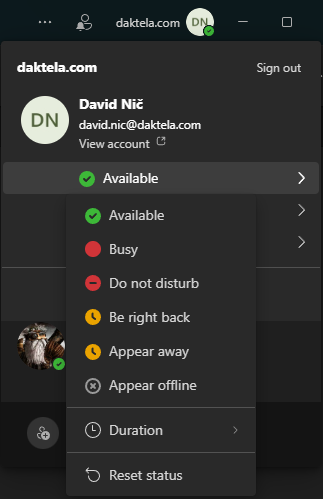
The MS Teams device synchronizes the user’s status from Teams -> Daktela. So if the user is unavailable in Teams, users device state will be marked as busy / offiline in Daktela as well. This integration does not set user pauses in Daktela (only device states).
Customers using an on-premises instance of Microsoft Teams must have a Hybrid setup (on-prem + cloud sync). If they are still using an older Skype for Business Server installation, presence synchronization will not work — there is no official API available to retrieve presence data from that environment.
How to Configure Presence Sync
MS Teams Presence Sync is an extension for the MS Teams Devices integration. It requires the full completion of all configuration steps described in the MS Teams Devices article.
Microsoft Entra Admin Center:
-
→ Application registration → New registration
-
Extract these parameters:
-
tenant_id
-
client_id (Application/client ID)
-
-
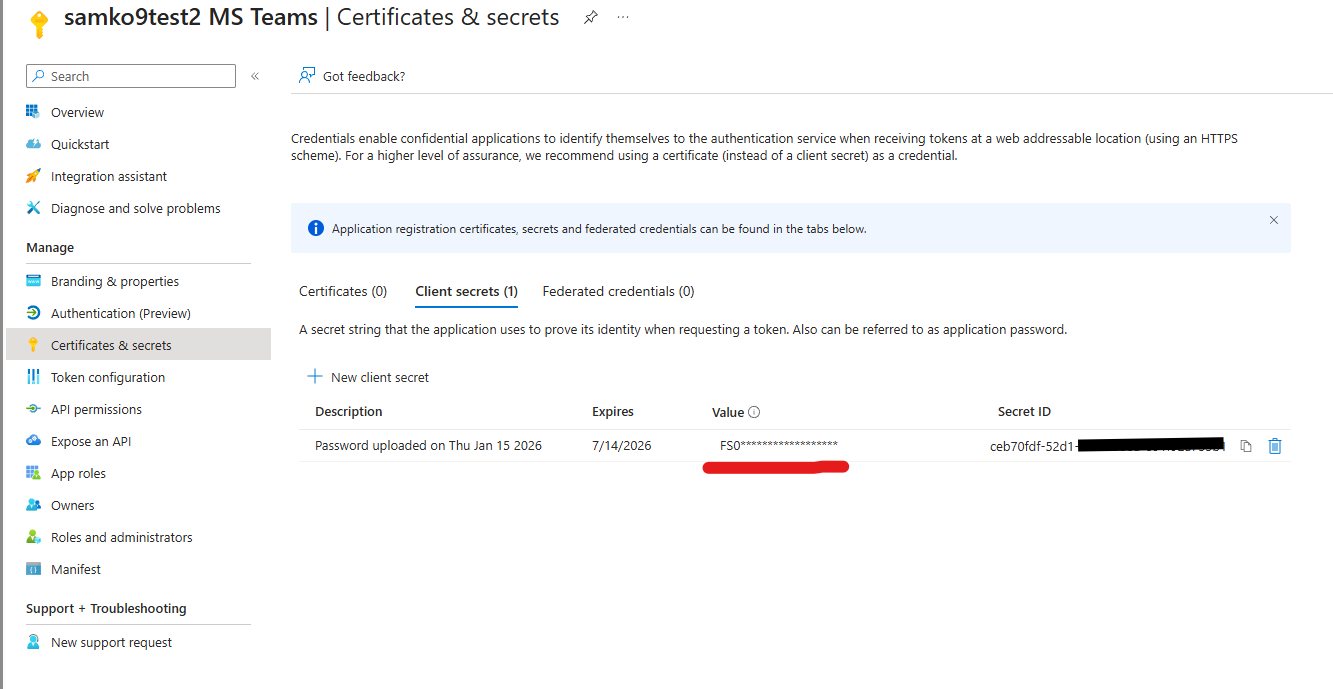
In Application registration, open the created application → Certificates & secrets → New client secret
-
Validity period: 24 months
-
Extract the secret value (copy the value before refreshing — it disappears afterwards)
-
-
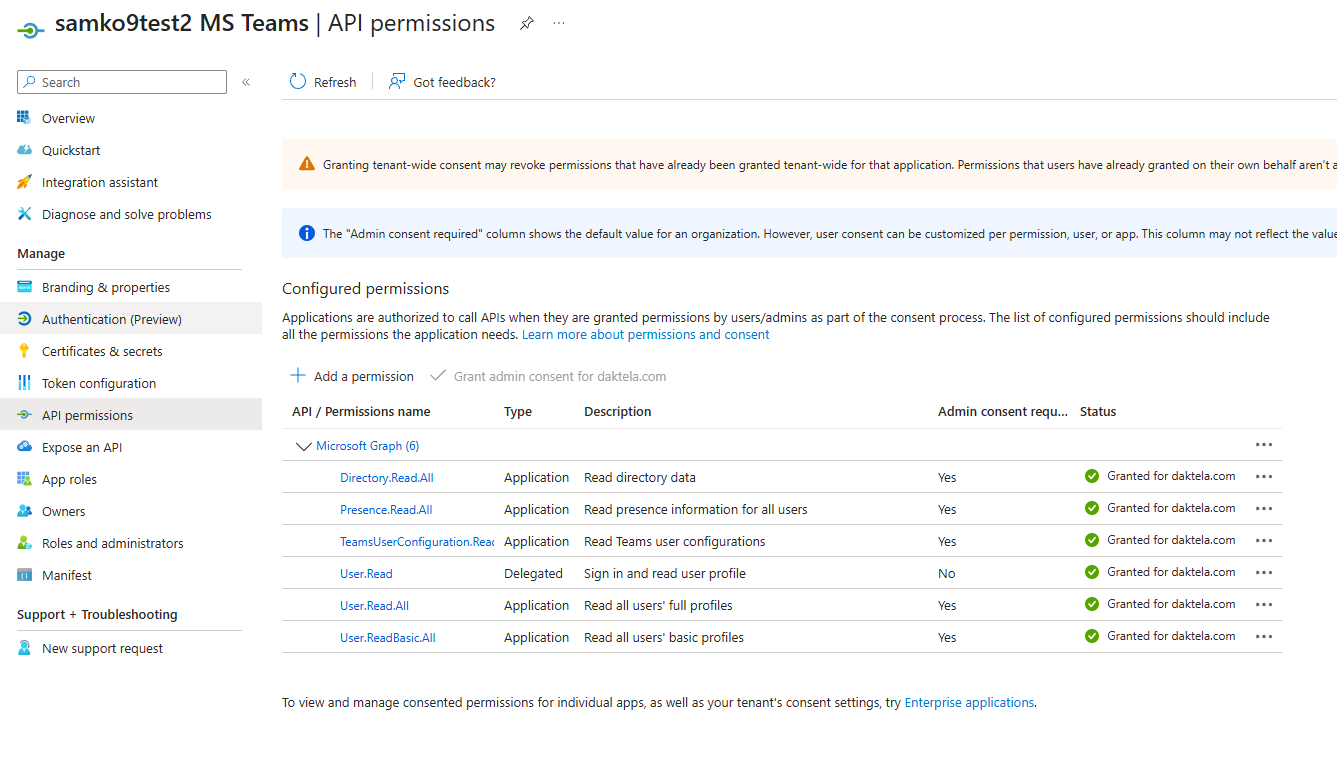
In Application registration, open the same app → API permissions → Add a permission → Microsoft Graph → add Application permissions:
-
Directory.Read.All -
Presence.Read.All -
User.Read.All -
User.ReadBasic.All -
TeamsUserConfiguration.Read.All
-
-
The tenant administrator must grant admin consent for all permissions.
Tenant ID and Client ID extraction:

Secret value extraction:
Setting up permissions:
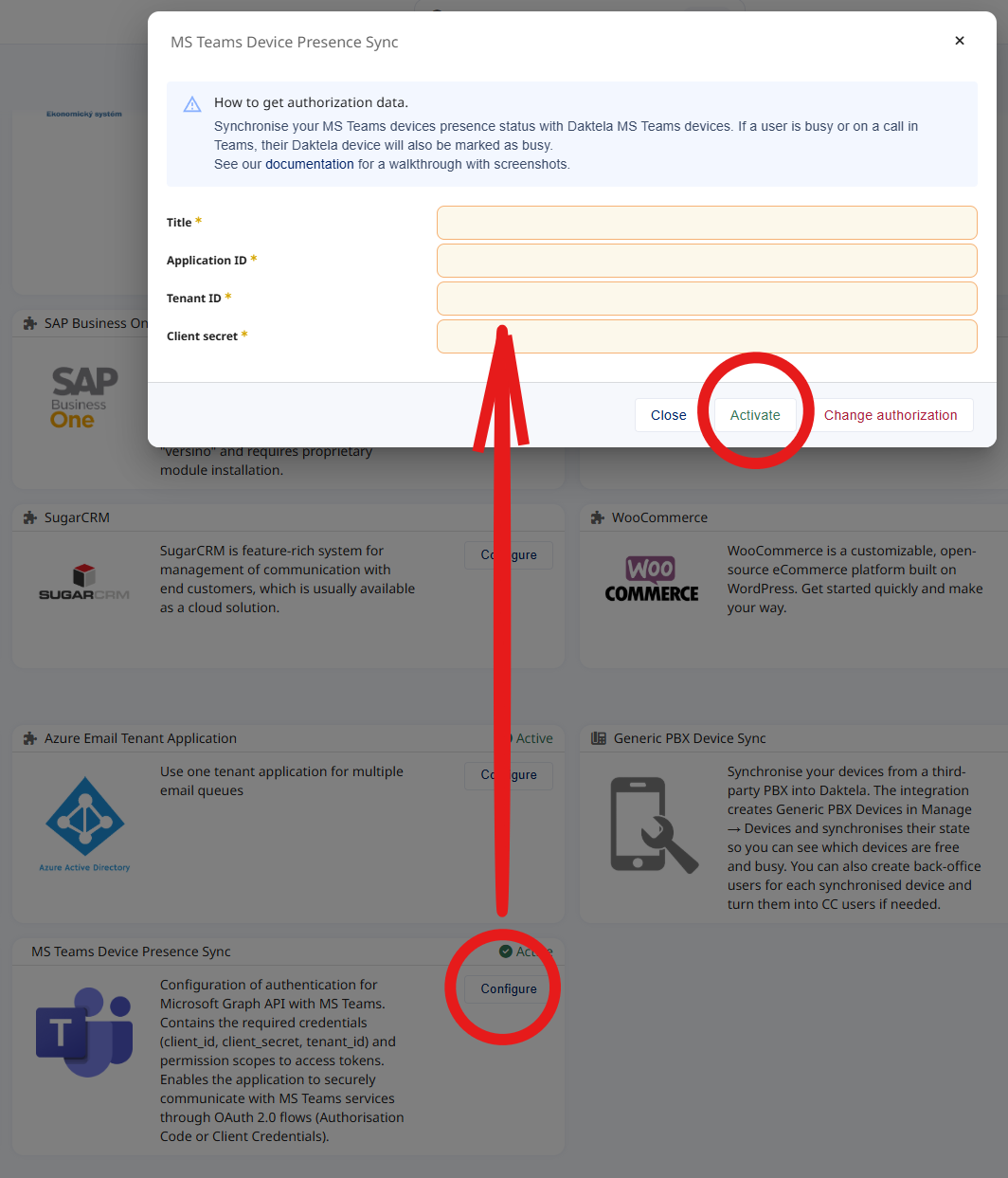
Integrations module in Daktela
-
In Daktela, navigate to Settings → System → Integrations and “configure” MS Teams Device Presence Sync under External libraries.
-
Name the integration and enter the Tenant ID, Client ID, and Client Secret that you retrieved earlier.
-
Activate the integration.
Presence states sync logic
|
MS Teams State |
Daktela Device State |
Note |
|---|---|---|
|
Online |
Online |
User is ready in MS Teams = Daktela device is online. |
|
Busy |
Offline |
User has selected, that they are busy = Daktela Device is NOT reachable. |
|
DND (Do-Not-Disturb) |
Offline |
User has selected “Do Not Disturb” = Daktela Device is NOT reachable. |
|
Be Right Back |
Offline |
User has selected, that they are away from keyboard at the moment = Daktela Device is NOT reachable. |
|
Away / Appear Away |
Online |
User is inactive for a while in MS Teams = Daktela device is still online to prevent calls being dropped. |
|
Call/Meeting in MS Teams |
Busy |
User has a call in Teams = Daktela device is busy. If a user has manually set a custom state in MS Teams, it may take precedence and override the call status. In such cases, the Daktela device state may remain "Offline" due to API limitations.) |
|
Appear offline |
Offline |
User has selected, that they are offline = Daktela Device is NOT reachable. |
If this integration extension is NOT enabled, the Daktela device will remain "Online" at all times, regardless of the user's current status in MS Teams.