Daktela Desktop App
Daktela Desktop App is our proprietary WebRTC-based application that allows you to conveniently handle calls and manage many other Daktela features. It is available for download from the Microsoft Store and the Apple Store.
Info
The Daktela Desktop App replaces our original, now deprecated, Daktela SW Phone application.
Admins can create and assign a daktela device in advance, or users can create the device themselves after login using the auto-create function.
Log in
When you open the Daktela Desktop App, log in just like you would in your browser. Enter you Daktela URL. The format of the URL is "yourcompany.daktela.com" or similar. If you don't know your URL, ask your Supervisor or Team Leader.
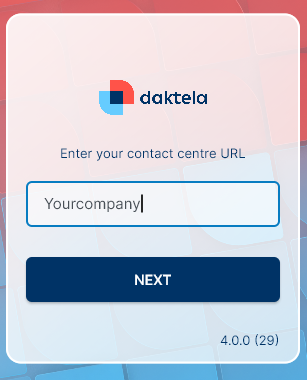 ClickNextto continue.
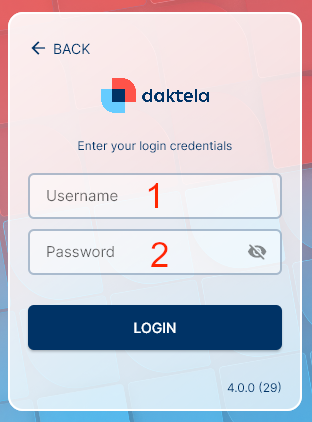
- Enter your user name.
- Enter your password Click Loginor press Enter to log in.
Warning
If you are not on the daktela.com domain, you may need to load your SSL certificate into your Java library.
Go Ready
Once you have logged in, click the Go Ready button to start processing activities.
Log in and Out of Queues
Click the queue tab to open queues. The tab will open. In the Queuestab, select which queues you want to log in to.
Filter queues by type.
Tap the Queue Type to Filter your queues by type.
Log in and Out of Devices
In the Devices tab, select your devices or set up call forwarding.
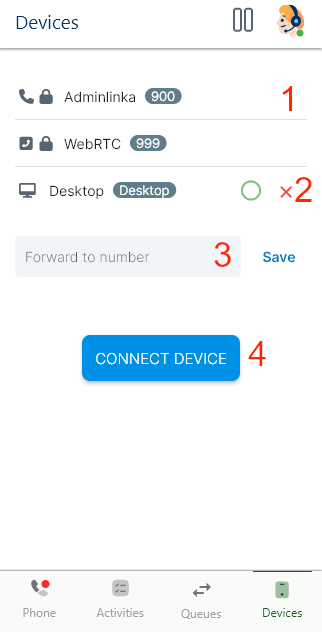
- Select a device from the dropdown list.
- Log out of device. You cannot log out of devices with a lock.
-
If you want to forward your calls, enter the forwarding number.
-
Activate call forwarding. The Savebutton will turn into a Deletebutton. Click it to deactivate call forwarding.
- Log in to the selected device.
Make a Call
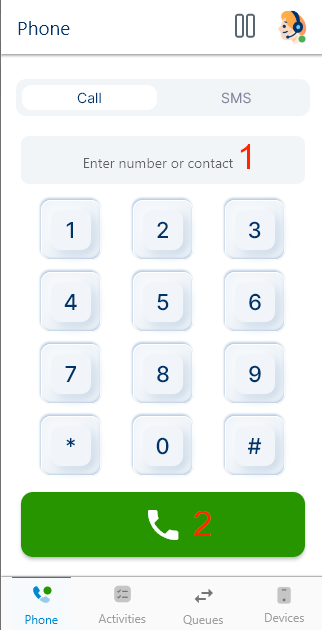
- Type a number or a CRM contact.
- Click the green call button. A new tab with your call will open:
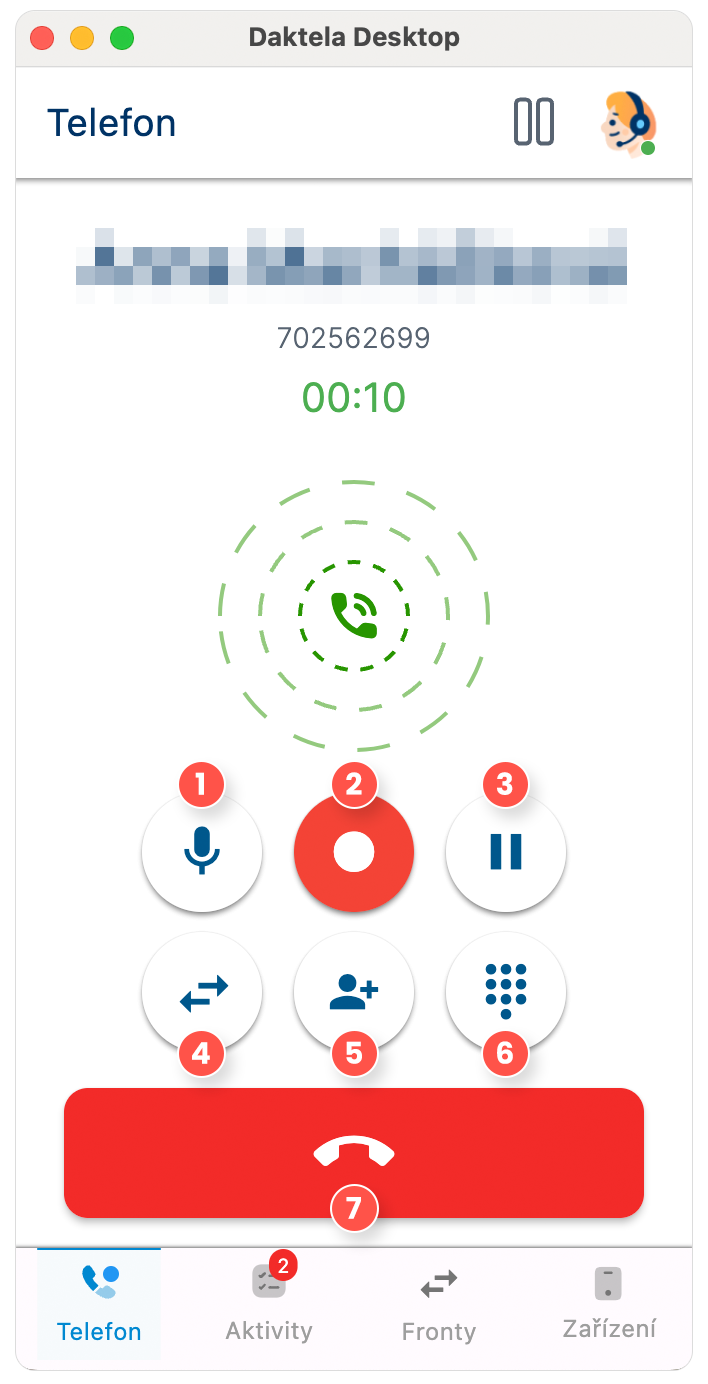
- Mute you microphone.
- The call is being recorded whenever the button appears red. To stop recording, simply click the button; it will then change to blue, indicating that recording has stopped.
- Put the customer on hold/unhold.
- Transfer the call.
- Invite another agent to the call.
- Open the numpad.
- Hang up. When your call is finished, close the tab. If your queue has a mandatory status, click Savebutton and select one from the list and click OK.
Initiate a Call from a Link (URL Schemes)
You can start a call in the Daktela Desktop App by clicking a phone link on a web page or in another application. The app supports the following URL schemes:
| Scheme | Example | Notes |
|---|---|---|
tel: |
tel:+420123456789 |
Standard telephony scheme. |
sip: |
sip:+420123456789 |
Supported from 4.4.9. |
callto: |
callto:+420123456789 |
Legacy compatibility scheme. |
When a supported link is clicked, the Daktela Desktop App opens (if not already running) and dials the number automatically.
Receive a Call
Your incoming call notification displays the customer's name or number, the queue name and activity type. Accept the call using the green button. If you have more than one device online, select which device you want to accept the call with from the drop down menu.
Warning
If there is a window in full screen mode, Daktela Desktop App can’t go in front of it, hence it won’t show you, that you’ve an incoming call.
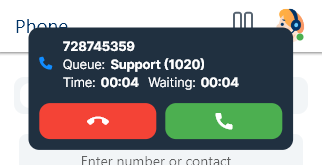 A new tab with your call will open:
- Mute you microphone.
- The call is being recorded whenever the button appears red. To stop recording, simply click the button; it will then change to blue, indicating that recording has stopped.
- Put the customer on hold/unhold.
- Transfer the call.
- Invite another agent to the call.
- Open the numpad.
- Hang up. When your call is finished, close the tab. If your queue has a mandatory status, click Savebutton and select one from the list and click OK.
Control Calls Using Your Headset
You can accept and end calls using buttons on your bluetooth headsets. Supported headsets: Windows:
- All major call centre headsets
-
Regular headphones – using the Play button MacOS:
-
All major call centre headsets Overview of tested headsets
| Headset | Windows | MacOS |
|---|---|---|
| Jabra Evolve2 65 | Yes | Yes |
| Poly Voyager V4320 | Yes* | Yes* |
| MAIRDI M890BT | Yes | Yes |
| Yealink WH 66 | Yes | Yes |
| Apple Airpods Pro 2 | Yes | No |
| Bose NC 700 HP | Yes | No |
| When running alongside an application fully supported by Poly. When running standalone, accepting calls sometimes requires two button presses; ending calls is not possible. |
Warning
If you run Daktela Desktop App and Microsoft Teams at the same time, ending a call in one app may unexpectedly drop the call in the other. In Microsoft Teams, the Sync device buttons setting is enabled by default. This can create interference between call controls in Teams and Daktela Desktop App. Solution
- Open Microsoft Teams.
- Go to Settings > Devices.
- Toggle Sync device buttons to Off.
Transfer a Call
- During an ongoing call, click the Transfer button.
-
The window with options will open. Click Transferor Blind transfer.
-
Blind transfer:your call will be endedas soon as you tap the option. The customer will be on hold while the phone is ringing and will be connected to the new agent as soon as they answer. The new agent will only know the customer's name or phone number and that you have transferred the call to them.
- Transfer: the customer will be put on hold. You will be connected to the agent you are transferring the call to so you can explain to them what the customer needs.
- Click the user or queue to tranfer the call.
- Your call will be transfered.
Send an SMS
Click the SMS tab to send a new SMS message. Set up your message:
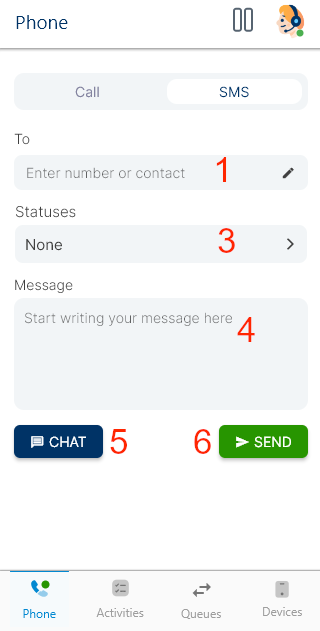
- Enter a phone number or a contact or account name. Click a suggested contact to enter their number into the Number field.
- Select a status.
- Enter the text of your message.
- Open message in chat.
- Send your message.
Receive and handle chats
All chat channels – web chat, WhatsApp, Facebook Messenger, Viber and Instagram – as well as SMS ring directly in the Daktela Desktop App. Your incoming activity notification displays the customer's name or number, the queue name and the activity type, just like an incoming call.
Click Accept to open the conversation screen directly in the app. This is the same conversation screen you know from the mobile app, so you handle the whole chat without leaving the Daktela Desktop App.
In the conversation screen you can:
- Send messages to the customer.
- Attach files using the file picker.
- Use message templates where the queue has them configured.
- Transfer the chat to another agent or queue, or invite another agent into the chat.
- Close the chat, or postpone it so you can finish it later.
To return to a chat you have already started, open it from your activity list:
- An open chat shows an Open button.
- A postponed chat shows a Reopen button, and can also be ended directly with Close activity.
The conversation app bar shows the channel and the customer identity, for example "Web chat: jana@example.com" or "Chat of WhatsApp: Jana Nováková".
When your chat is finished, close the tab. If your queue has a mandatory status, select one from the list and click OK.
Note
Missed (unanswered) chat notifications still open the Daktela web application. Only live, open and postponed chats are handled directly in the Daktela Desktop App.
Accept Other Activity Types and Open Them in Daktela
Your incoming activity notification displays the customer's name or number, the queue name and activity type. Accept the activity using the green button. A new tab with your activity will open. Once you accept an activity, click Open in Daktela. A new browser tab with the activity will open. You can manage the activity there. When your activity is finished, close the tab. If your queue has a mandatory status, select one from the list and click OK. You can close the activity the standard way in Daktela – the changes will be visible in Daktela Desktop too.
Select a Pause
- Click the Pausebuttonto open a dropdown list with available pauses.
- Select a pause. Some pauses are started automatically – you cannot select them.
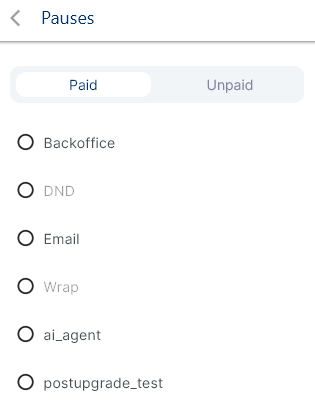 To end your pause, click on the pause name and select No pausefrom the dropdown list.
Switch to Unready, Log Out, Exit
Click the Pause button and select:
- Switch to unready to stop processing activities.
 Click the Profile icon and select:
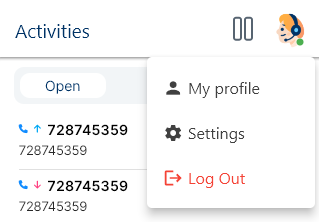
- Log out to log out of Daktela.
Warning
If you exit the app without first switching to unready or logging out, you will remain in the state you were in before exiting the app.
My profile
| Profile | |
|---|---|
| Name | Type your name. |
| Type your email. | |
| Alias | Choose a nickname for an agent |
| Change Password | Password should contain at least six characters and combination of capital letters, numeric and special characters. |
| Login sessions | Manage your list of active devices, where you can logout from any of them separately. |
Settings
In order to manage your Daktela Desktop, click Avatar in the top right corner and select Settings.
| General Settings | |
|---|---|
| Missed call notifications | Determine whether you want to see your missed call notofications. |
| Autoanswer for outgoing calls | Determine whether you’ll need autoanswer to reach your customers without agents (campaign distribution, surveys etc.) |
| Autoanswer for incoming calls | Select a specific time after which you prefer the autoanswer to play. |
| Sound Settings | |
|---|---|
| Ringtone | Select a ringtone from your device, respecting the valid format (aac, midi, mp3, ogg, wav). After adding you can play the selected ringtone by clicking the Play button on the right side of the screen. |
| Input | Select an input device (microphone, webcam etc.) |
| Output | Select an output device ( speakers, headphones etc.) Note: If you answer a call using headphones on macOS, your headphones must communicate with the standard Apple MediaPlayer. |
| Ringtone | select a device from which your ringtone will be played back. |
Warning
On Windows, there might bre a delay of approximately 6-10 seconds before the sound for an outgoing call begins. This delay occurs specifically during the initial ringing phase, where the operator is waiting for the customer to answer the call. Solution: This issue can be resolved by adjusting the Windows sound settings:
- Go to Sound Settings ➝ Sound Control Panel.
- Navigate to the Recording tab.
- Select the Properties of the integrated microphone.
- Open the Advanced tab.
- Uncheck the first checkbox under Exclusive Mode (allowing applications to take exclusive control of the device).
Troubleshooting
Firewalls
Some firewalls may prevent the app from working correctly (e.g. ESET). If the app crashes immediately after you accept a call, disable your firewall and try again. If the issue persists, please contact support.
Audio Breaking During Calls (Windows)
Windows Audio enhancements can interfere with VoIP applications and cause audio distortion or breaking during calls. If you experience poor audio quality, crackling, or intermittent sound during calls, disable Audio enhancements:
- Go to System → Sound → All sound devices.
- Select your input device (microphone).
- Turn off Audio enhancements.
Kuando Busylight Integration
The Daktela Desktop App integrates with Kuando Busylight USB presence indicators so that the light on your desk reflects your current agent state in real time. Colleagues can see at a glance whether you are free, busy on a call, or on a break, without having to check a screen.
Supported hardware: any Kuando Busylight model supported by the official Kuando SDK (for example Busylight UC and Busylight Kuando). If you have more than one Busylight connected, all of them are driven simultaneously.
Info
The Busylight integration is available on Windows only and requires v4.4.9 or later. The required helper is bundled with the app — no separate installation is needed. The Busylight settings section is hidden unless a supported device is detected when the app starts, so plug your Busylight in before opening the Daktela Desktop App.
Enabling the integration
To configure the integration, open Settings and switch to the General tab. Scroll down to the Busylight section.
Use the Enabled toggle at the top of the section as the master on/off switch for the integration. When the integration is disabled, the light stays off regardless of your agent state. When you log out of the app, the light also turns off.
Agent states and default colors
The integration tracks six agent states. Each state has a default color that you can change in the settings.
| State | Default color | Triggered when |
|---|---|---|
| Ready | Green | Agent is ready with no pending activities |
| Activity Open | Blue | Agent is ready and has at least one open activity |
| Ringing | Red | Incoming call |
| On Call | Red | Active call |
| Paused | Yellow | Agent on a pause/break |
| Not Ready | Yellow | Agent in not-ready state |
Per-state options
Each of the six states above can be configured independently with the following controls:
| Option | Description |
|---|---|
| Color | Color shown on the light for this state. Choose from Green, Red, Blue, Yellow, or White. |
| Blink | If enabled, the light pulses instead of staying steady. |
| Sound | If enabled, the Busylight device plays its built-in alert sound together with the light. |
Bulk Installation
If you wish to install the Daktela Desktop App across multiple instances simultaneously, you can do so by following one of the options described below:
-
Using the Microsoft Intune solution.
-
in the case of operating with the Microsoft Intune software licence, use it directly. This process is detailed at https://learn.microsoft.com/en-us/mem/intune/fundamentals/manage-apps#deploy-apps-your-organization-uses for applications from the Microsoft Store.
-
Using Active Directory.
-
prepare a PowerShell script that installs the application from the Microsoft Store (example: "winget install 9phbv0t5qdlp --source msstore"). Execute this script on your instances using GPO (Group Policy Objects). At Daktela, we do not support bulk installation using ".msi" files because this method would cause the loss of automatic updates that are exclusive to the app hosted in the Microsoft Store.