Overview
Use the Daktela Browser Extension to control calls without needing to have Daktela open. The extension is available for Chrome, Firefox, and Microsoft Edge.
The Daktela Browser Extension does not substitute a software phone. We recommend using the Daktela Desktop App.
Install and Set up the Extension
Add the Daktela extension to your browser from the Chrome Web Store, Firefox Add-ons or Microsoft Edge add-ons.
Chrome
-
Find the Daktela extension in to the Chrome Web Store. Click Add to Chrome.

-
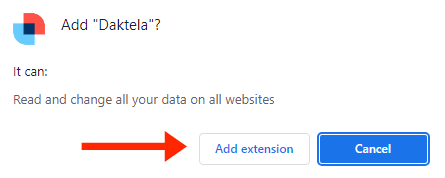
Confirm by clicking Add extension.
-
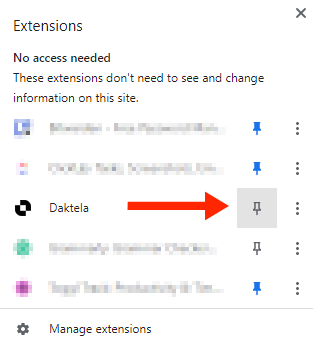
Open your extensions by clicking the puzzle icon. To access the Daktela extension more easily, pin the extension next to your address bar. Open the Daktela extension by clicking it.
-
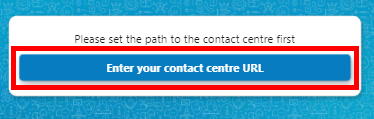
Click Set the path to the contact center.
-
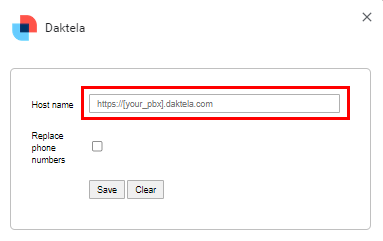
Enter your contact center URL. This is the same address as where you usually log in, e.g. https://yourcompany.daktela.com. Click Save.
Firefox
-
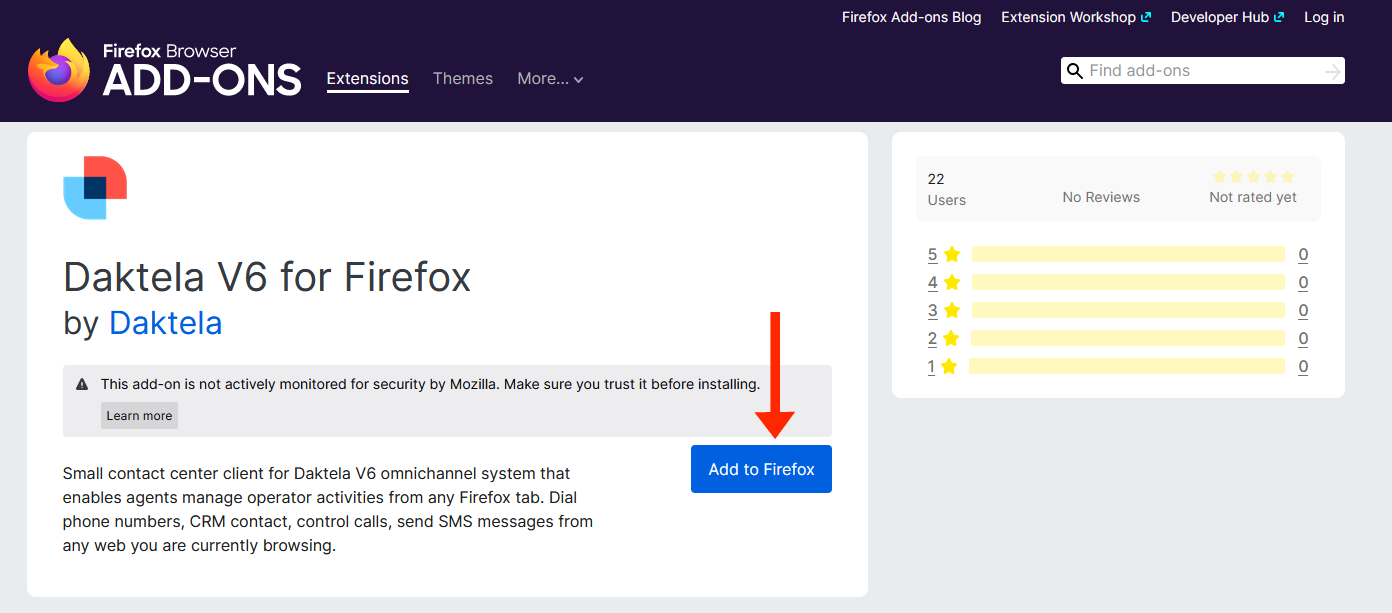
Find the Daktela add-on in Firefox Add-ons. Click Add to Firefox.
-
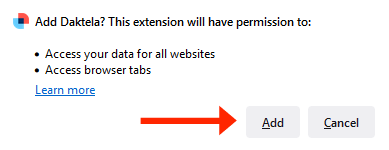
Confirm by clicking Add.
-
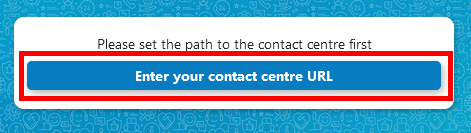
Open the Daktela add-on by clicking its icon next to the address bar, then click Set the path to the contact center.
-
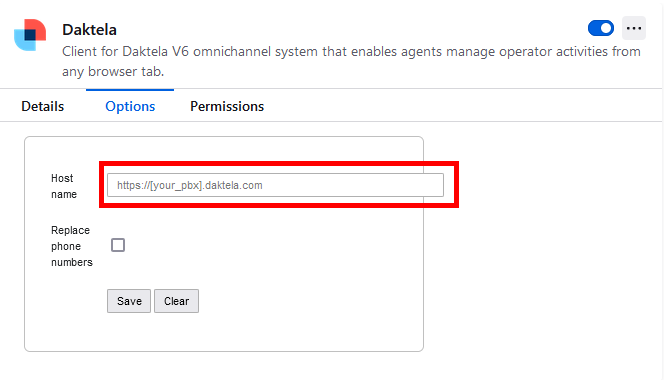
Enter your contact center URL. This is the same address as where you usually log in, e.g. https://www.yourcompany.daktela.com. Click Save.
Microsoft Edge
-
Visit Microsoft Edge addons marketplace and search for Daktela.
 Daktela addon after completed search
 -
Click on Get to install our extension.

Click on Get to install the extension
-
Pin it to show it as an icon by default.
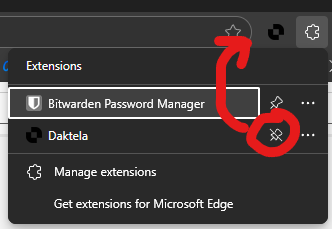
Pinthe extension
-
Click on the icon and enter your contact center URL. This is the same address as where you usually log in, e.g. https://yourcompany.daktela.com. Click Save.
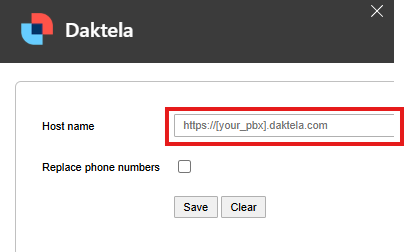
Enter your Daktela URL and hit Save
Log in
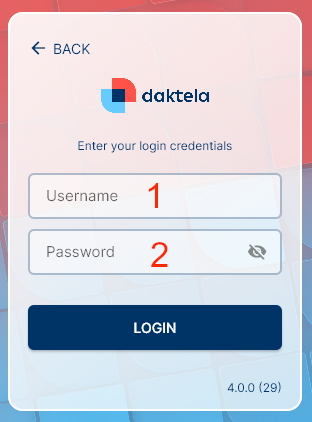
When you open the Daktela Browser Extension from next to the address bar, log in just like you would in your browser.
-
Enter your user name.
-
Enter your password
Click Log in or press Enter to log in.
Go Ready
Once you have logged in, click the Go ready button to start processing activities. If you don't have a specific device assigned, select your device from the drop down list.
Log in and Out of Queues
Click the queue tab to open queues.
The tab will open.
In the Queuestab, select which queues you want to log in to.
Filter queues by type.
Tap the Queue Type to Filter your queues by type.
Log in and Out of Devices
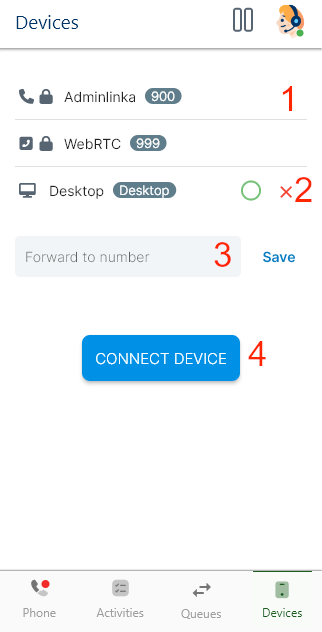
In the Devices tab, select your devices or set up call forwarding.
-
Select a device from the dropdown list.
-
Log out of device. You cannot log out of devices with a lock.
-
If you want to forward your calls, enter the forwarding number. Activate call forwarding. The Save button will turn into a Delete button. Click it to deactivate call forwarding.
-
Log in to the selected device.
Make a Call
Start typing phone number to make a new call or start a call from Last activities by clicking the Phone button of the corresponding line.
Type number or contact and click the green button to initiate a call.
The call will initiate in a new browser tab with the call activity will open. You can manage the call there.
Receive a Call
Your incoming call notifications will appear in a black rectangle in the top right corner. You may also hear a notification sound.
Click the Acceptbutton and The call will open in a new browser tab with the call activity will open. You can manage the call there.
Send an SMS
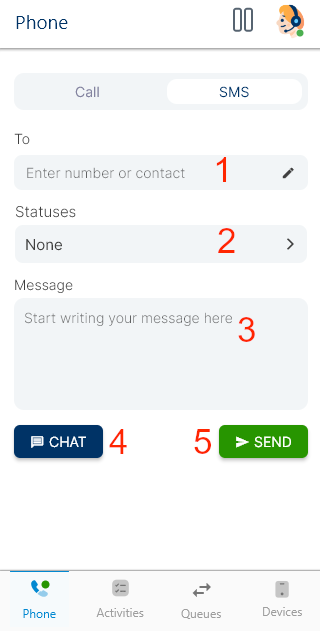
Click the SMS tab to send a new SMS message.
Set up your message:
-
Enter a phone number or a contact or account name. Click a suggested contact to enter their number into the Number field.
-
Select a status.
-
Enter the text of your message.
-
Open message in chat.
-
Send your message..
Start and End a Pause
Click the Pausebutton to open your available pauses:
Select a pause:
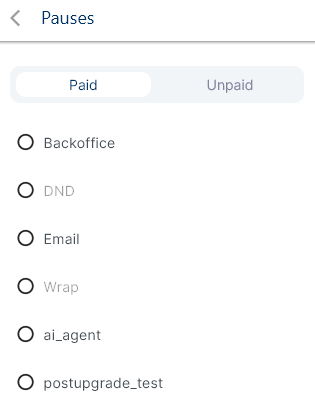
The Pausebutton will turn red and display the time you have been on the pause.
Click the Pause button again and select End the pauseto end your pause.
Switch to Unready, Log Out, Exit
Click the Pause button and select:
- Switch to unready to stop processing activities.
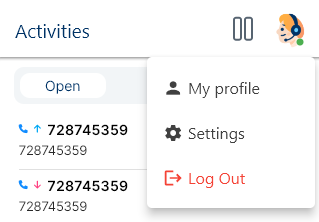
Click the Profile icon and select:
-
Log out to log out of Daktela.
Warning!
If you exit the app without first switching to unready or logging out, you will remain in the state you were in before exiting the app.