Remote Support
We can help you get set up or find a solution to a technical difficulty remotely using different desktop sharing and control software:
TeamViewer
- Download TeamViewer 11 from our web (we support version 11).
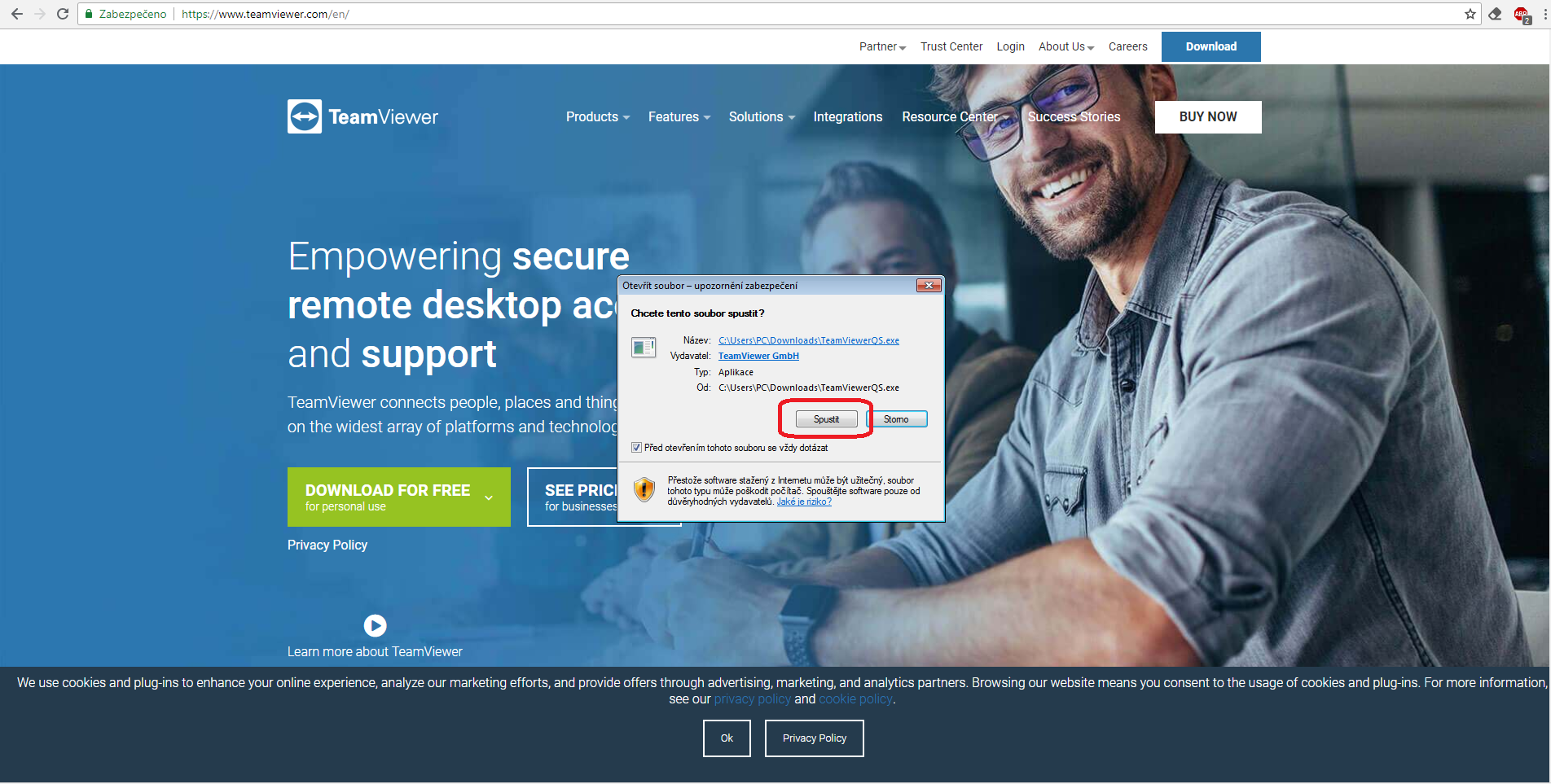
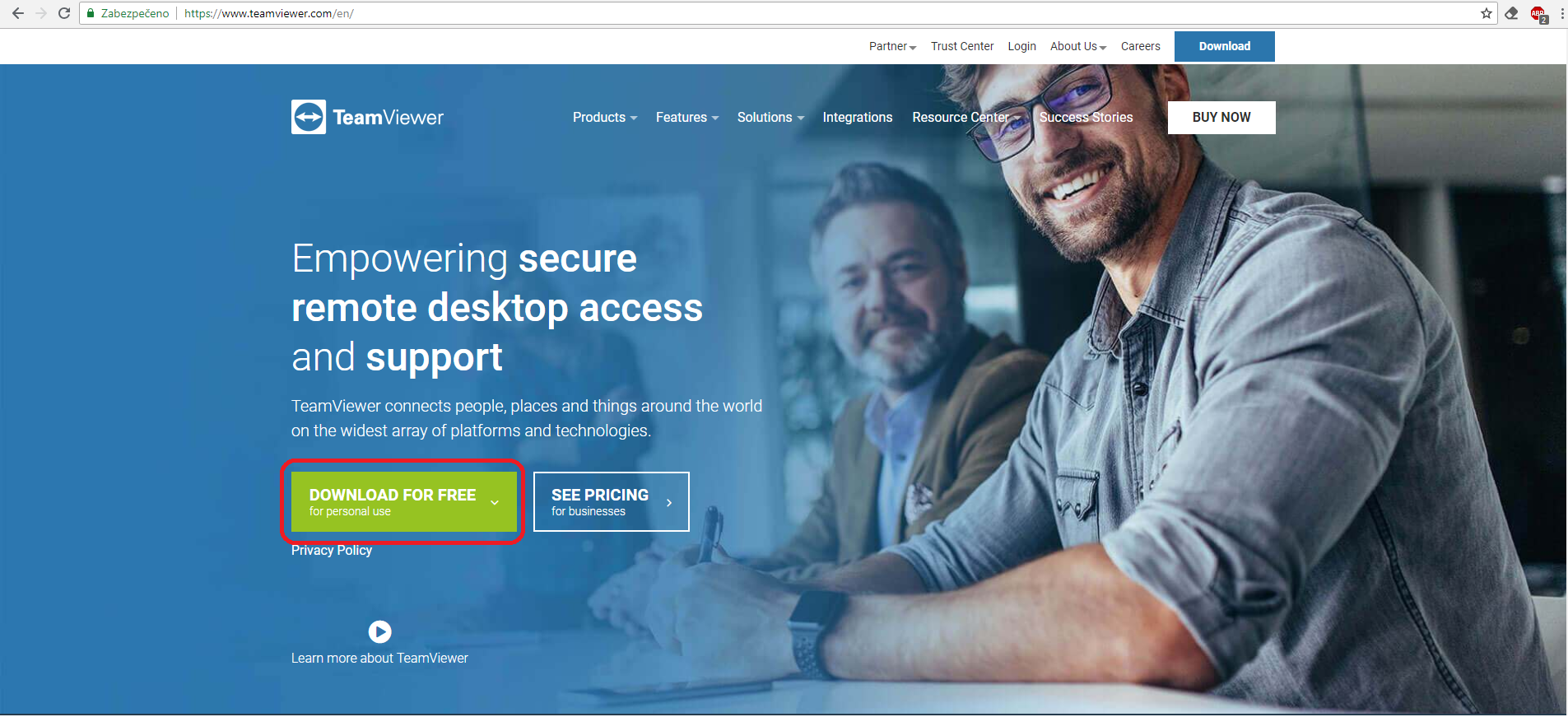 - Run the downloaded file.
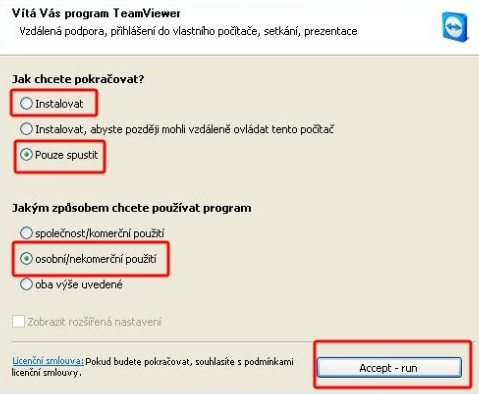
 - Select whether you want to install or just run and then select type of use (if you don't have a license, choose non-commercial use).
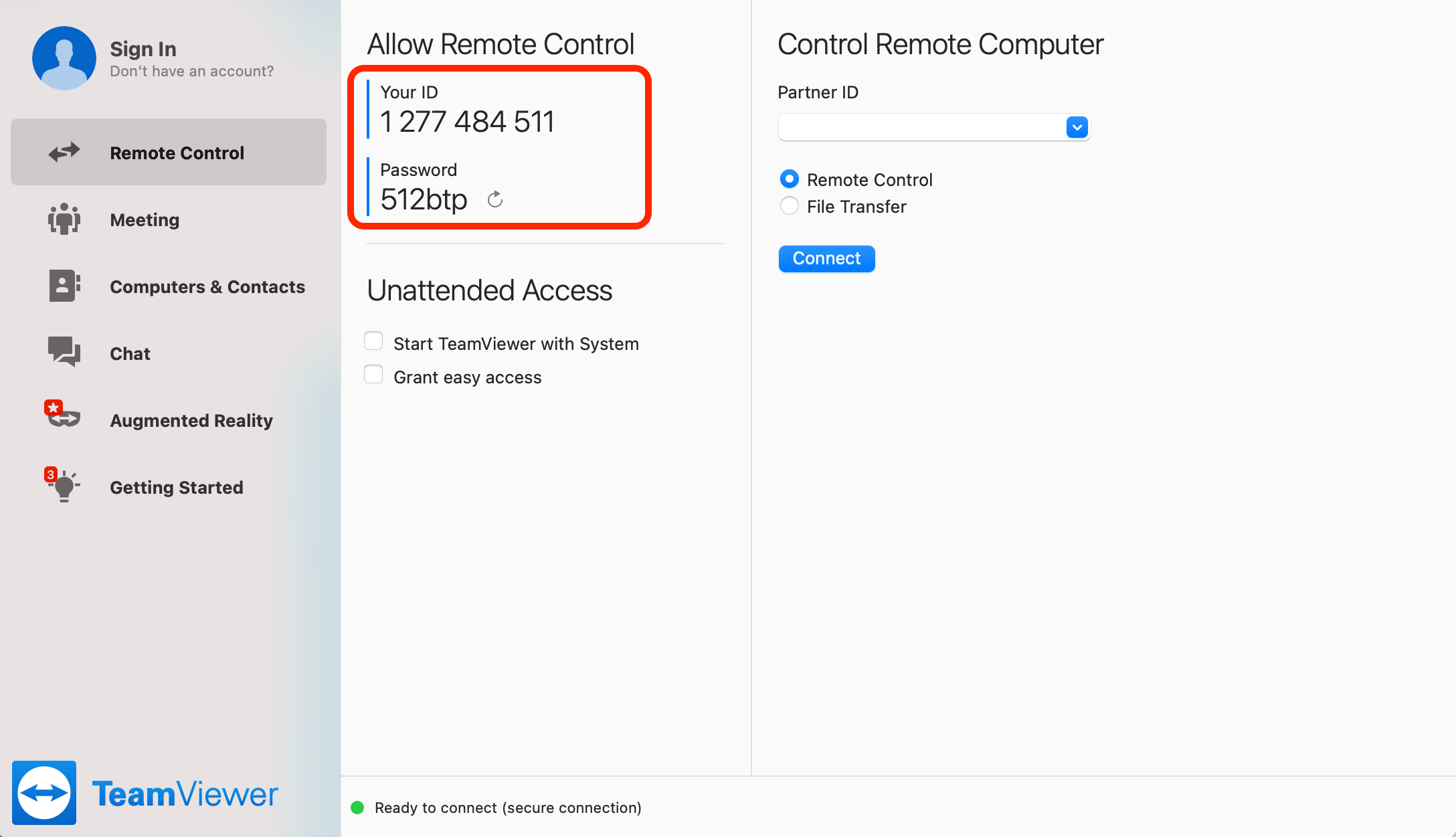
- Send us your ID and password.
AnyDesk
-
Download the software:
-
for Windows - https://anydesk.com/platforms/windows
- for Linux - https://anydesk.com/platforms/linux
- for macOS - https://anydesk.com/platforms/mac-os
- Run the software.
- Send us your AnyDesk address.
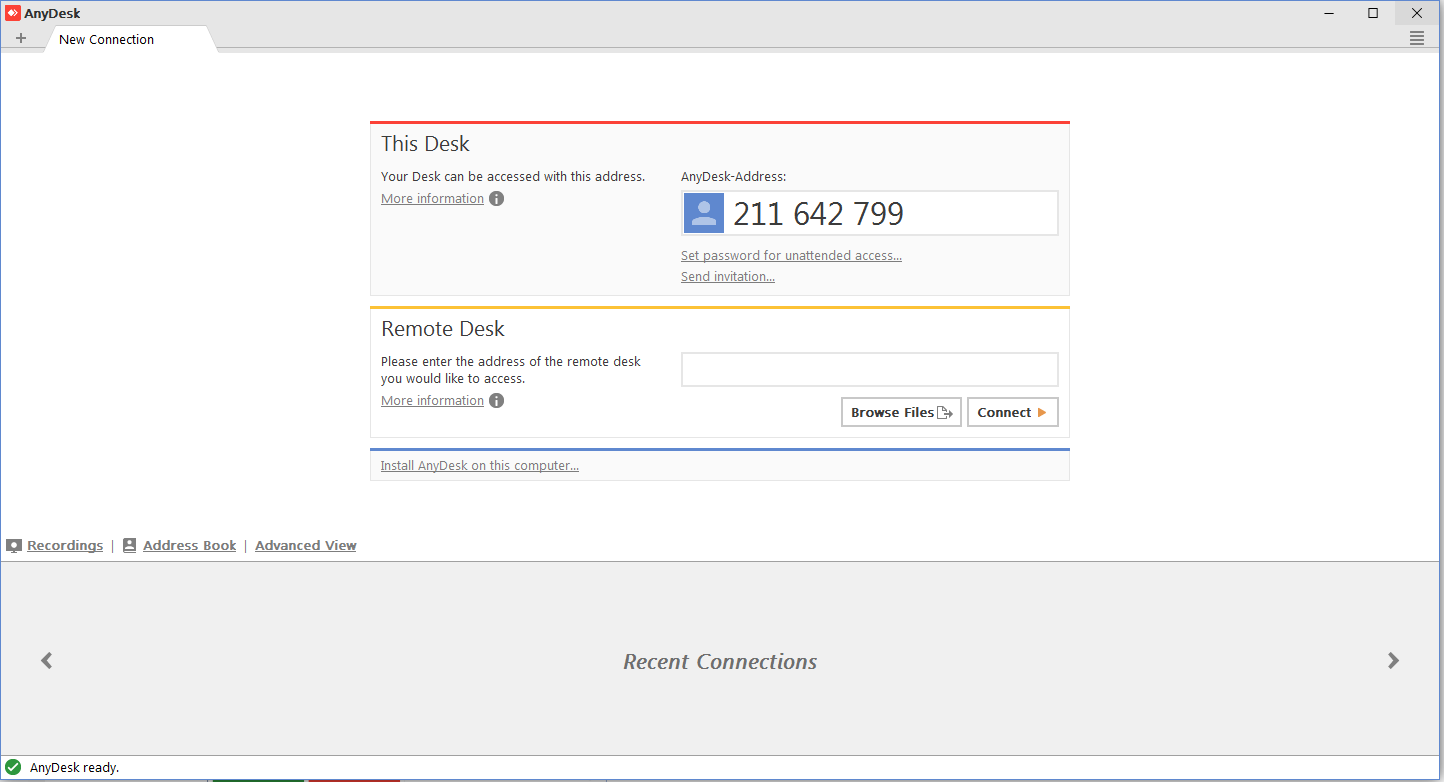
- The support technician's connection needs to be confirmed due to safety reasons.

Google Desktop Sharing
- You need to have Google Chrome browser installed.
- You need to have an active Google account (on-demand access will be provided by technical support).
- Add the Chrome Remote Desktop app from the Chrome web store to your browser.
 - Add new application
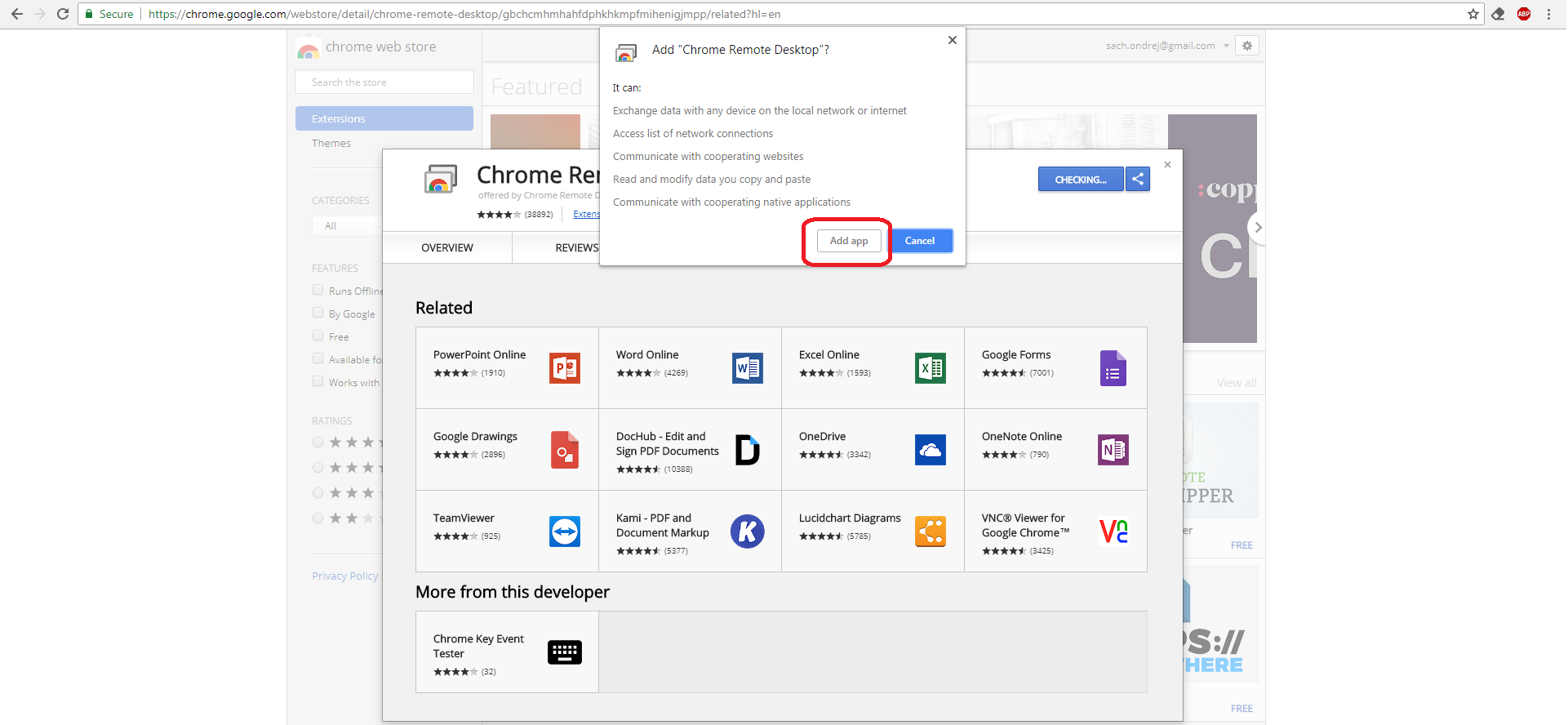 - After you add the app, a new tab with your available applications will open (if it doesn't, enter
 chrome://apps/ into the address bar).
 - Authorise access to your computer.

- Accept the required permissions.
- Click on the Share button.
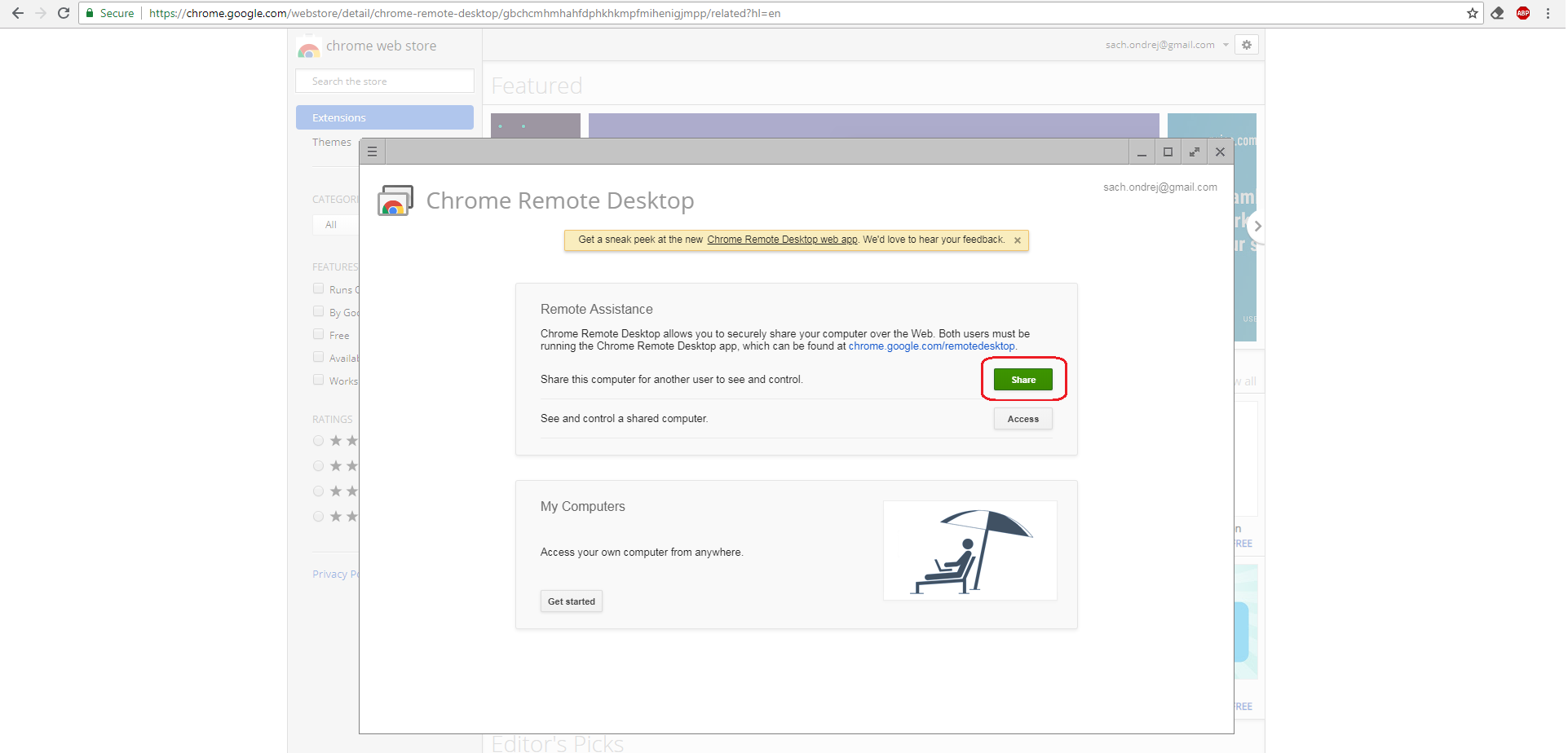
- Install the software as instructed.
- Send the access code to your support technician.
