Activity Widgets
When you answer a call or a message, the activity opens as one fixed channel panel — the panel you use to talk to the customer — with a group of tabs next to it. Everything that is not the channel panel itself is a tab: Contact & Account, Activities, Assign ticket and so on.
Your administrator decides which tabs a queue has, in which order they appear and which one opens first. This page describes the tabs you may see and what you can do in each of them.
How the Activity Screen Is Laid Out
The channel panel is always there and can't be moved or removed:
- On incoming, outgoing, click-to-call and campaign calls, it is the Phone panel.
- On Web Chat, SMS, Facebook Messenger, Instagram DM, WhatsApp and Viber activities, it is that channel's own conversation panel.
The Phone panel keeps its place on the right of the screen.
Everything else is a tab in the tab group next to the channel panel. Click a tab to open it; the channel panel stays visible the whole time, so you never lose the conversation while you work in another tab.
One tab opens first. Your administrator can mark one tab as the one that opens automatically when the activity appears. If they haven't marked any, the first tab in the tab bar opens.
Tip
You can resize the channel panel against the tab group, or make either of them full screen, with the Layout keyboard shortcuts.
Info
Email activities, custom activities and Facebook or Instagram comment activities are not laid out this way — they keep their previous arrangement of widgets.
Tabs You May See
| Tab | Available on | What it is for |
|---|---|---|
| Contact & Account | Calls and all message channels | The customer's CRM contact and, beneath it, their account. |
| Activities | Calls and all message channels | The contact's past activities. Appears automatically together with Contact & Account. |
| Assign ticket | Calls and all message channels | Assign the activity to an existing or new ticket and edit that ticket. |
| Record form | Calls only | The campaign record form. Always present and can't be removed on campaign queues. |
| Realtime users | Calls and all message channels | Who is available right now; transfer the activity or invite a colleague. |
| Knowledge base | Calls and all message channels | Articles that can help you while you work. |
| Page in iframe | Calls and all message channels | An external web page embedded in the activity. |
| Transcripts | Calls only | The transcript from the call steering application. |
| AI agent | Web chat | The Daktela AI agent chatbot transcript and metadata. |
Info
Realtime users and Knowledge base are now available on every message channel, not just on calls. Record form is the only tab that calls have and chats don't.
Contact & Account Tab
This tab shows the CRM contact linked to the activity and, beneath the contact, the account they belong to.
When no contact is linked yet, the tab is labelled Assign contact and shows a searchable grid of contacts:
- Search or filter the grid to find the right contact.
- Click the contact to link it to the activity.
- If the customer isn't in the CRM yet, click + Add new contact in the grid header. The new contact form opens in the tab instead of the grid, so you can create the contact without leaving the activity.
When a contact is linked, the tab is labelled Contact and shows the contact's details, with their account below them. You can:
- Edit the contact's fields directly in the tab.
- Create an account straight from the contact's account field if the contact doesn't have one yet.
- Click Unassign contact to unlink the contact from the activity. The activity itself is not changed. (You won't see this action if you don't have the right to read contacts.)
Info
Which contact and account fields you see is set by your administrator per queue — see Queue Basics – Widget Scheme.
Tip
If you have unsaved changes, the Close button becomes Save & Close, so your edits aren't discarded silently.
Activities Tab
The Activities tab lists the linked contact's past activities. Click an activity to open its detail — see Activities for more detail.
This tab is generated automatically together with Contact & Account and can't be added, reordered or removed on its own.
Assign Ticket Tab
Use this tab to assign the activity to an existing or new ticket. Once a ticket is assigned, the tab is labelled with the ticket's own title or number and shows the ticket so you can edit it inside the activity.

- Search for a ticket.
- Filter your favourite tickets.
- Filter your tickets.
- Filter the current contact's tickets.
- Filter the current account's tickets.
- Create a new ticket.
- Assign the activity to the ticket.
- Open the ticket in the Ticket module. Click the activity tab to return to the activity.
Info
You can apply multiple filters to view only tickets relevant to your activity.
Once you assign a ticket, you can start editing it inside the activity.

- Type the ticket title.
- Select a category. The ticket's category sets its SLA unless a Contact that is part of a CRM Account with a different SLA is selected in 1. above. (If you have a category description set, you can view it by hovering over the tooltip.)
- Select a deadline manually (set by your SLA and priority if left empty).
- Select a priority.
- Select a date to reopen the ticket if stage set to Waiting or Closed.
- Select a status. If the category you have chosen has a mandatory status, you must select a status when you close the ticket – you can leave it empty until then.
- Type a description.
- Select the ticket owner. You can take ownership yourself or pass the ticket on to someone else.
-
Select a stage:
-
Open – the ticket is being handled.
- Waiting – a reply has been sent to the customer, waiting for their reaction. You can set a reopen date (6).
- Closed – the ticket has been solved. You can set a reopen date (6). If the customer replies, the ticket will be set to Open again.
- Archived – the ticket has been solved. If the customer replies, a new ticket will be created automatically.
- Enter ticket followers. They will receive notifications when there are any changes to the ticket.
Record Form Tab
Tip
The Record form tab can be used in both incoming and outgoing calls. On campaign queues it is always the first tab and can't be removed.
Incoming Calls
Use this tab to assign a campaign record to the call.
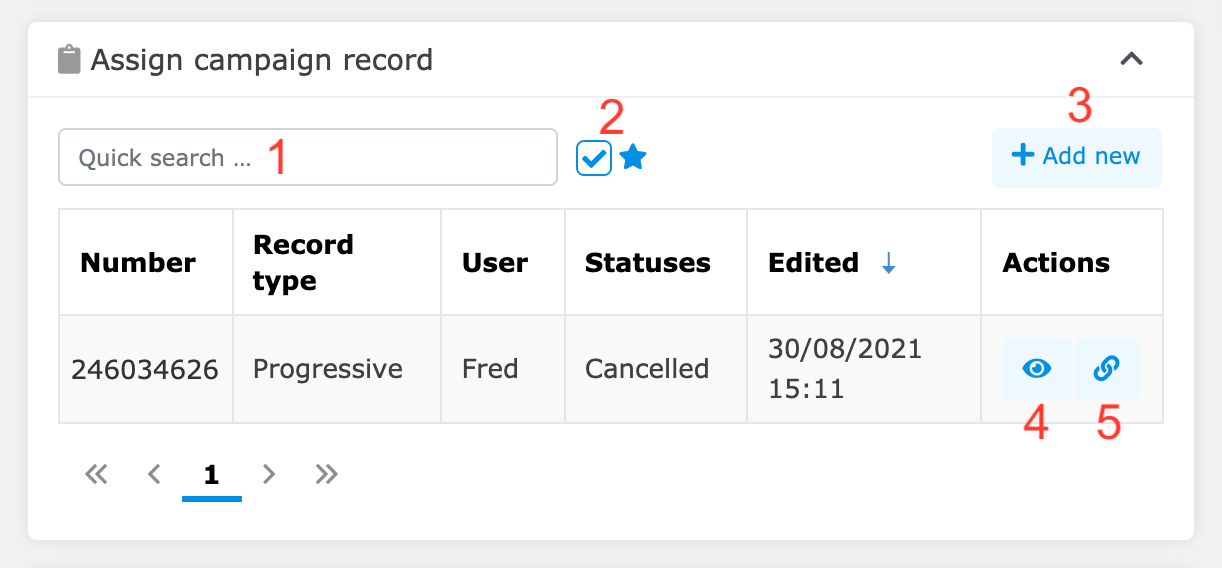
- Search for a campaign record.
- Filter your favourite records.
- Add a new campaign record.
- View campaign record.
- Assign the call to a campaign record (only available if the phone number is the same as the record).
Once you have assigned a campaign record, you will be able to select a status in this tab and not in the Phone panel.
Outgoing Calls
Use this tab to assign a status to the campaign record and schedule another call if necessary.
| Field | Description |
|---|---|
| Next call | Schedule another call. Select a date and time using the corresponding symbols or click the grey watch symbol and select one of the preset times from the dropdown menu. |
| Statuses | Select a status. |
| Phone | The phone number you called. Click the phone symbol to call the customer again after your call has ended. |
Your record form may contain additional fields such as first name, last name, email, address, etc. If you're not sure how to fill them in, contact your manager.
Realtime Users Tab
The Realtime users tab displays an overview of active users in your contact centre, and allows you to transfer an activity or invite a user to the activity.

- Type name or user login for fulltext search.
- Check to display Backoffice users.
- Displays the user's detail.
- Displays search filters.
- Transfer an activity to another user.
- Invite user to the activity.
Your administrator can pre-filter which users this tab shows.
Knowledge Base Tab
The Knowledge base tab displays a list of your available articles – these can contain info that can help you in your work.
- Click an article title to open the article in the Knowledge Base module.
- Click the Detail button to read the article in the tab. Click Back to return to the list of articles.
Your administrator chooses which article folders the tab shows.
Page in iFrame Tab
The Page in iframe tab displays an external web page. Interact with the page just like you would normally. You can scroll using your mouse wheel or the controls on the right hand side.
Your administrator sets the URL. An activity can have more than one Page in iframe tab.
Transcripts Tab
Tip
The Transcripts tab can be used in both incoming and outgoing calls.
The Transcripts tab displays the transcript from the call steering application.
| Field | Description |
|---|---|
| Transcript | The text of the transcript. |
| Confidence | How confident the call steering app is that the transcript matches what the caller said. |
| Application | The type of call steering app that was used. 1. Widget – a simple transcript of what the caller said. 2. Prefmember – the caller said the name of the person or department they want to talk to. 3. Queue – the caller said the name of the person or department they want to talk to. 4. Custom directions – depends on your particular setup. 5. Dialplan routing – the caller said the name of the person or department they want to talk to. |
Floating Call Widget
When you have a live call but move away from it — you open another activity, the Tickets module or the Dashboard, or you make the tab group full screen — a floating call widget follows you around the app so you can keep controlling the call.
The widget displays:
- the call timer,
- whether the call is incoming or outgoing, and the queue it came through,
- the name of the person you are talking to,
- the same call control actions as the full Phone panel, including Hang up.
Drag the widget anywhere on your screen — Daktela remembers where you put it for that call. Use the maximize button (Open activity) to jump back into the full call activity.
Chat Notifications
When a message arrives on a conversation you are not currently looking at, it is listed in the floating Chat Notifications panel. The panel covers every message channel — Web Chat, SMS, Facebook Messenger, Instagram DM, WhatsApp and Viber.
Each card in the panel shows:
- the contact or conversation name, with a badge if more than one message is unread,
- how long it has been since the last message,
- the queue the conversation came through,
- a preview of the last message the customer sent, if there is one,
- a Go to chat button that opens the conversation,
- a ✕ icon to dismiss that card.
The panel header shows the total number of waiting conversations and lets you minimise the panel or close it. Closing it doesn't mark anything as read — it just won't reopen for the same messages.
Info
Your administrator can turn the panel off for individual queues using the Show floating chat notifications widget queue option. It is on unless they turn it off.
Retired Widgets
Two widgets were retired in 2026.2:
- Calendar widget — retired. Your calendar is reachable from the activity screen itself and from the Dashboard.
- Ticket – Read only widget — retired. It did the same job as the Assign ticket tab, which replaces it everywhere.