FAQ
What if I can’t access my Daktela instance?
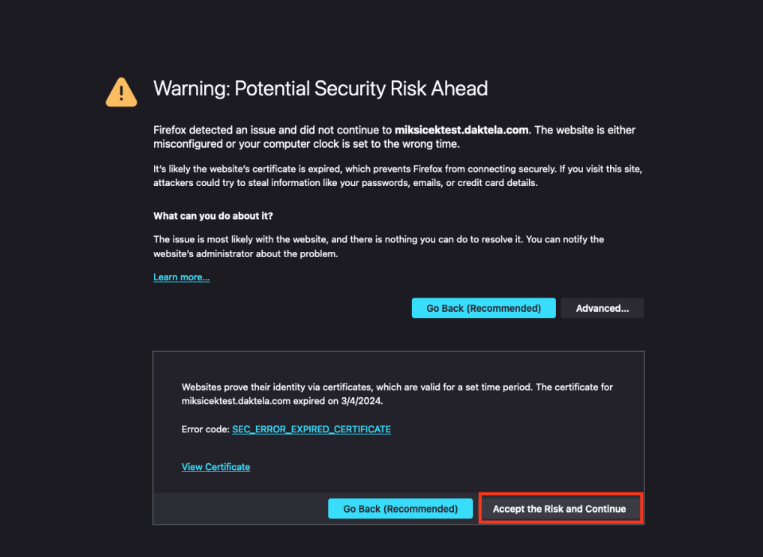
In case of the complication related to the security alert, click Accept the Risk and Continue button.
Info
If you use MacOS and Google search engine, this button won’t be visible for you. You’ll have just to type “thisisunsafe” on your keyboard.
How can I resolve issues with input fields not functioning correctly?
Adblockers can sometimes block scripts or elements necessary for the Daktela to function correctly. To resolve this issue, try disabling your adblocker or adding the site to your adblocker's whitelist. This should restore the full functionality of the input fields and allow you to use your instance.
What is the difference between an extension and a device?
An extension is a unique user identification in Daktela – a number that is mandatory for every user. It can only be changed when the user is logged out. A device is what takes care of the technical side of calls. It can be a:
- internal hardware SIP phone – Yealink, Gigaset.
- internal software SIP phone – Daktela SW phone, Zoiper, MicroSIP, WebRTC.
- external phone – mobile phone. You can create a device in Settings → Devices → SIP Devices and assign it to a user. A device is not reachable – only an extension is. The extension number can be the same as the device number. A user can have several devices assigned to them at once (e.g. a hardware SIP phone in the office and a mobile phone) and can specify how long a call will ring on each of them.

Info
Example
When agent Jane's user profile is created, she receives the extension 510. Jane has several devices – a hardware SIP phone in the office (device 330), a software SIP phone in her laptop (device 821) and a mobile phone (external device 01444 123456). Her unique ID – her extension – is always 510. When her colleagues want to call Jane, they dial 510 and all her devices will ring.
If a user doesn't have a device permanently assigned, they can choose a device dynamically after logging in to Daktela.

What is the difference between a Contact center and a Cloud Phone user?
A Contact center user works in the Daktela web app and handles calls through queues, so their activities appear in queue statistics. A Cloud Phone user's sole purpose is to make and receive calls on their extension without using queues – a typical example is an accountant's phone. Cloud Phone users' calls are still recorded and appear in the call listings and their call history, but because they don't use queues, they don't feature in queue statistics. A Contact center user can log in to the same device, in which case the statistics are recorded under the Contact center user.
There is also a separate Back-office user type – a user who works with tickets internally but can't use queues. See User types for a full comparison of all four user types and the licenses they consume.
Why can't I make a call?
You need to be logged in to Daktela, be ready and be logged in to an outgoing queue and a device. See Get Started to find out how.
Why can't I receive an incoming call?
You need to be logged in to Daktela, be ready and be logged in to an incoming queue and a device. See Get Started to find out how.
Why can't I answer an incoming call in Daktela?
You are probably logged in to more than one device. Answer the call on the device – a software phone, a mobile phone etc.
Why can't I reply to an email in a ticket or send a new email?
You are probably not logged in to an email queue. See Select queues to find out how.
Why can't I see an existing queue or user?
You probably don't have rights to the queue or user assigned in your rights. Ask your manager to assign you the corresponding rights.
Why can't I use auto answer to pick up calls?
There are 3 conditions that must all be met in order to use auto answer:
- Auto answer must be enabled in extended queue settings.
- You must only be logged in to one device.
- Your phone must support auto answer (some free versions of SW phones do not)
How can I redirect a call to a mobile phone?
Call centre users that work with the Daktela Web Interface can add a mobile device or redirect all calls to a mobile phone using the device button. Cloud Phone users need to create a Ring group and set it as their inbound routing's destination. You can make redirect from you SIP device by call on code 170 and then type phone number you want to redirect. You can deactivated redirect by call on code 171.
How can I create a recording and use it in Daktela?
You can record or upload a recording in Settings → Routings → Calls → System recordings. Use your recordings in IVR, Announcements, Greetings etc.
What is the difference between the Queues and Users statistics?
The Queues statistic displays a count of activities that arrive in the queue. If you receive messages from 30 different people in your web chat queue, the total number number of activities will be 30. The sum of answered and unanswered activities must be 30 too. The Users statistic displays attempts to connect with an agent as part of an activity. An attempt is when an agent accepts, doesn't accept or rejects an activity. For example, if agent John doesn't accept an incoming web chat activity, it will be routed to the next available agent and will be counted as an unanswered activity for John. If the activity is routed to John again, it will be counted again, even though it would only be counted once in the queue. However, if the customer cancels their attempt, it will not be counted in the statistic because the agent may not have been able to answer, e.g. if the attempt was cancelled after 1 second. An activity will be counted as unanswered only if it is routed to another agent after a given time or if the agent rejects it manually.
What is the .opus file format that is used to record calls in Daktela and how can I open it?
Opus is a lossy audio coding formatdesigned to efficiently code speech and general audio in a single format, while remaining low-latency enough for real-time interactive communication and low-complexity enough for low-end embedded processors. Opus is the standard format in today's call centres because it is natively supported by most browsers and VoIP software. It is also part of the norm for real-time communication using browser WebRTC. If your browser is unable to play the opus format files, you can use freely available software such as VLC Media Player to open it.