Remote Support
Daktela Support can help you get set up or solve a technical problem remotely, using one of the desktop sharing tools below. Use whichever tool your support technician asks for.
Warning
Only share your screen or give remote access to a Daktela Support technician you contacted yourself — for example in a support ticket or a call you started. Never send your access ID, password or code to someone who contacted you unexpectedly, and end the session as soon as the technician is done.
TeamViewer
- Download TeamViewer 11 from our web (we support version 11).
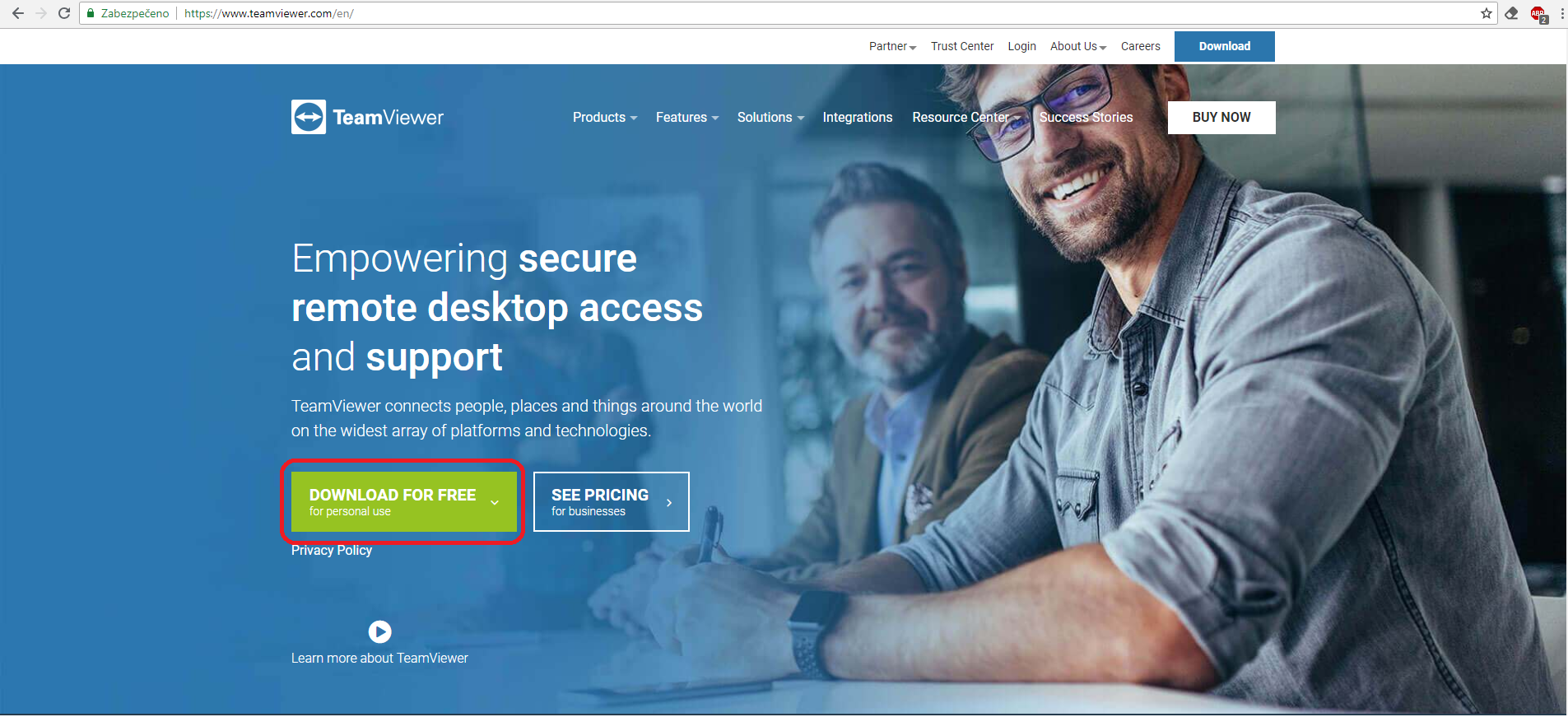 - Run the downloaded file.
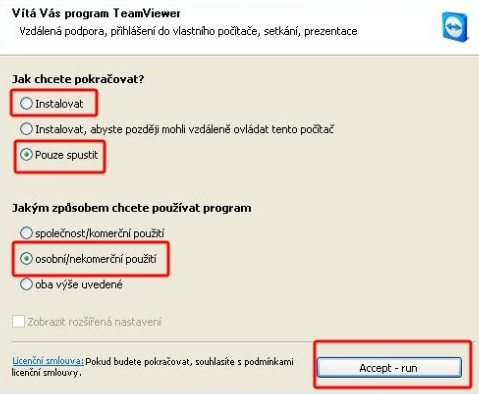
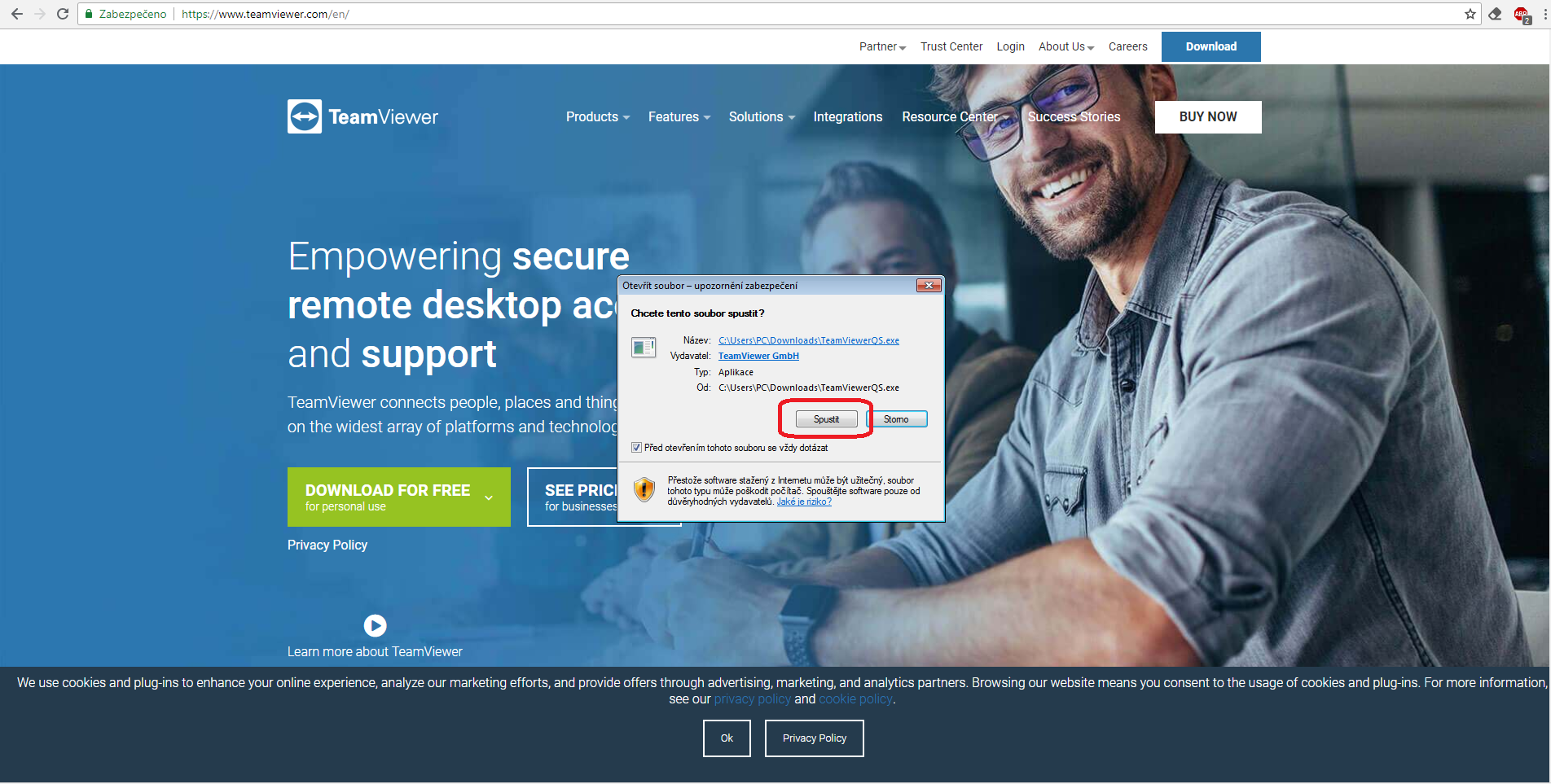 - Select whether you want to install or just run and then select type of use (if you don't have a license, choose non-commercial use).
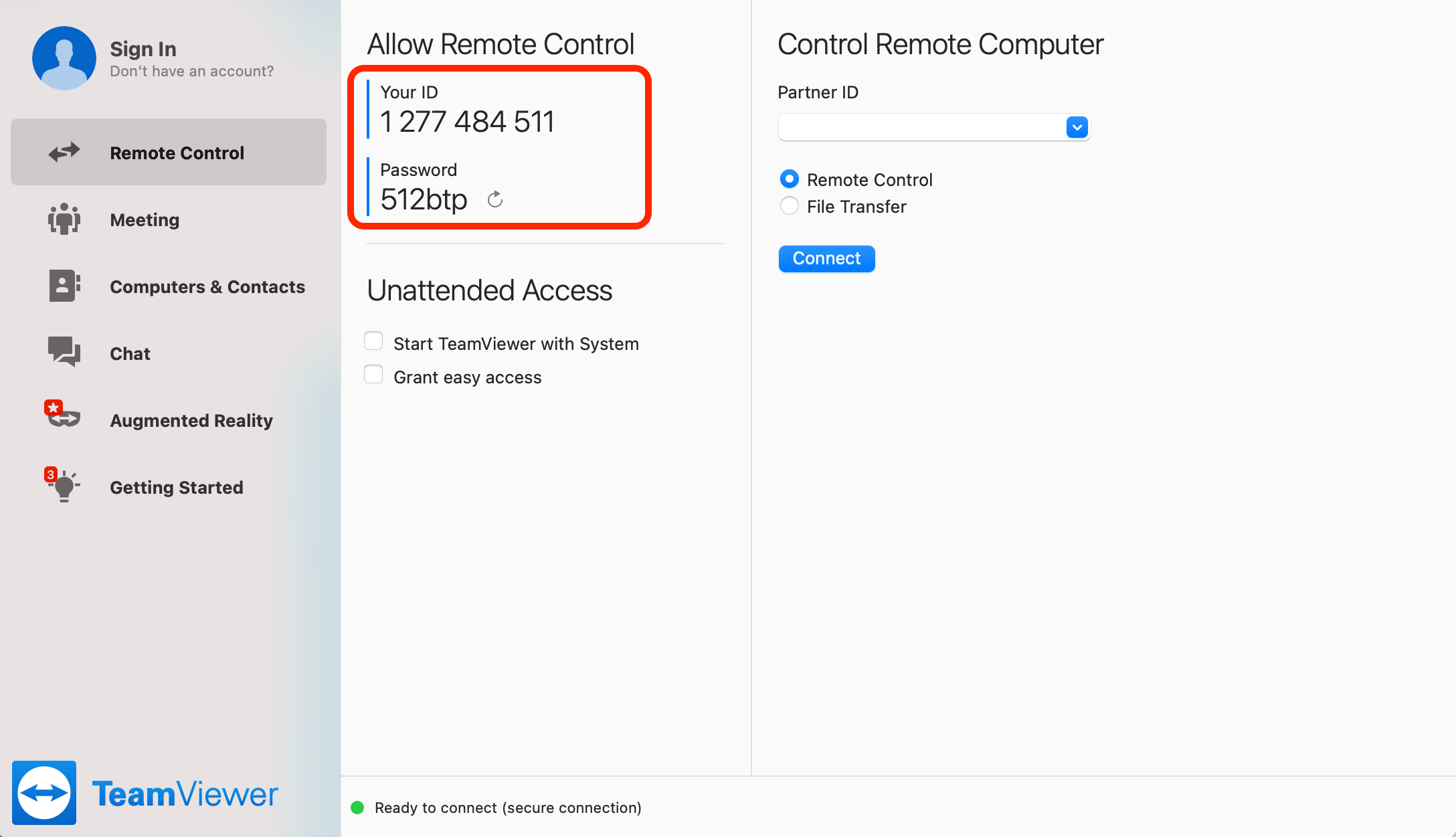
- Send us your ID and password.
AnyDesk
-
Download the software:
-
for Windows - https://anydesk.com/platforms/windows
- for Linux - https://anydesk.com/platforms/linux
- for macOS - https://anydesk.com/platforms/mac-os
- Run the software.
- Send us your AnyDesk address.
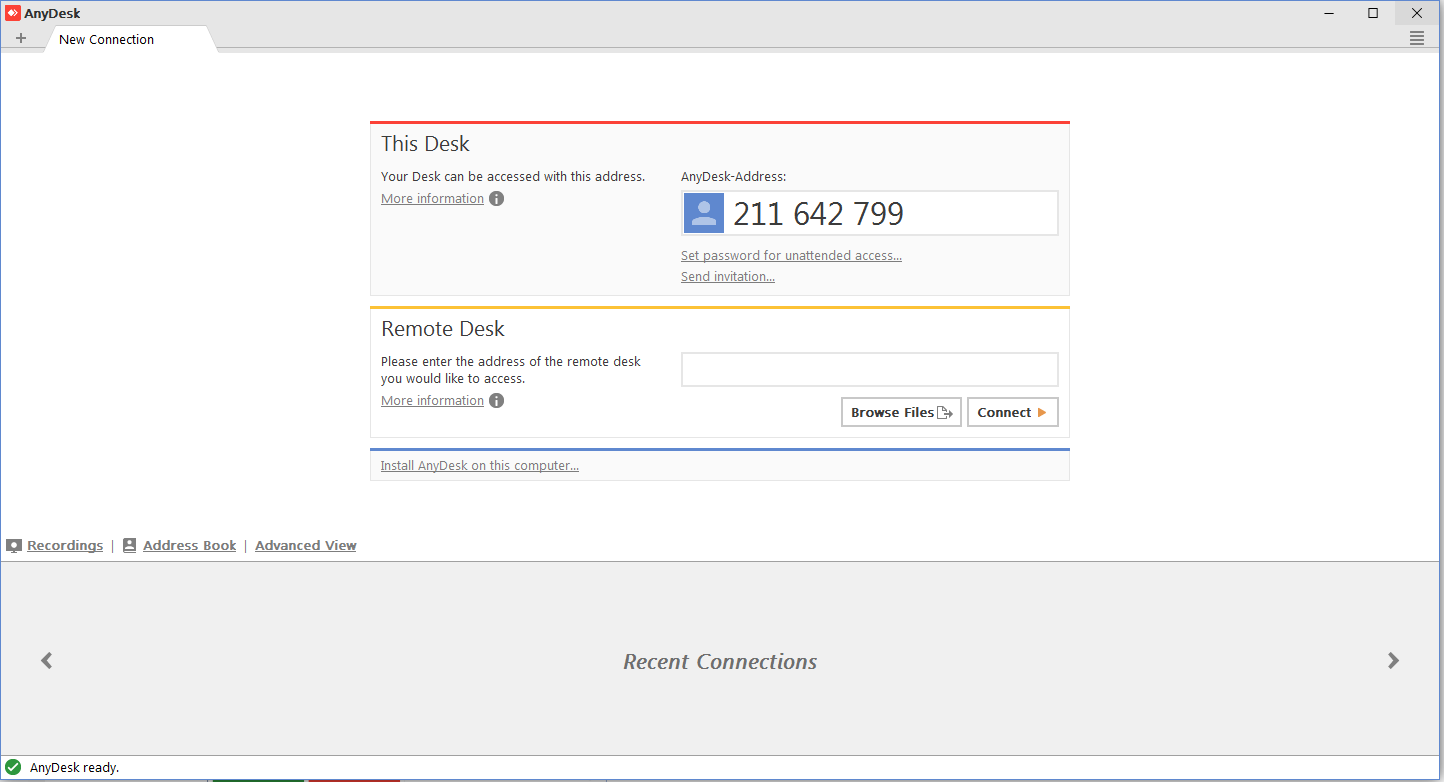
- Confirm the support technician's connection when AnyDesk asks you to — it is only allowed after you accept it.

Google Desktop Sharing
- You need to have Google Chrome browser installed.
- You need to have an active Google account (on-demand access will be provided by technical support).
- Add the Chrome Remote Desktop app from the Chrome web store to your browser.
 - Add new application
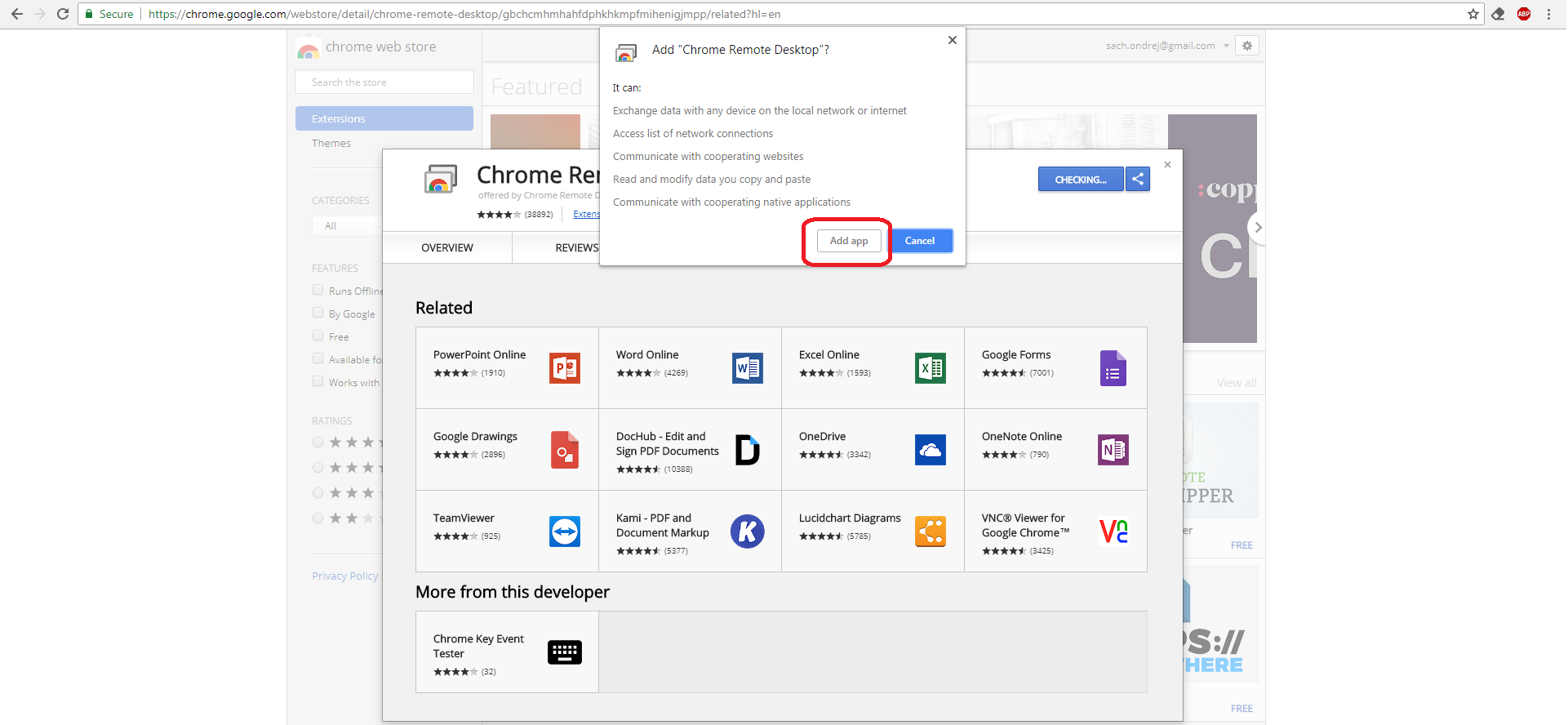 - After you add the app, a new tab with your available applications will open (if it doesn't, enter
 chrome://apps/ into the address bar).
 - Authorise access to your computer.

- Accept the required permissions.
- Click on the Share button.
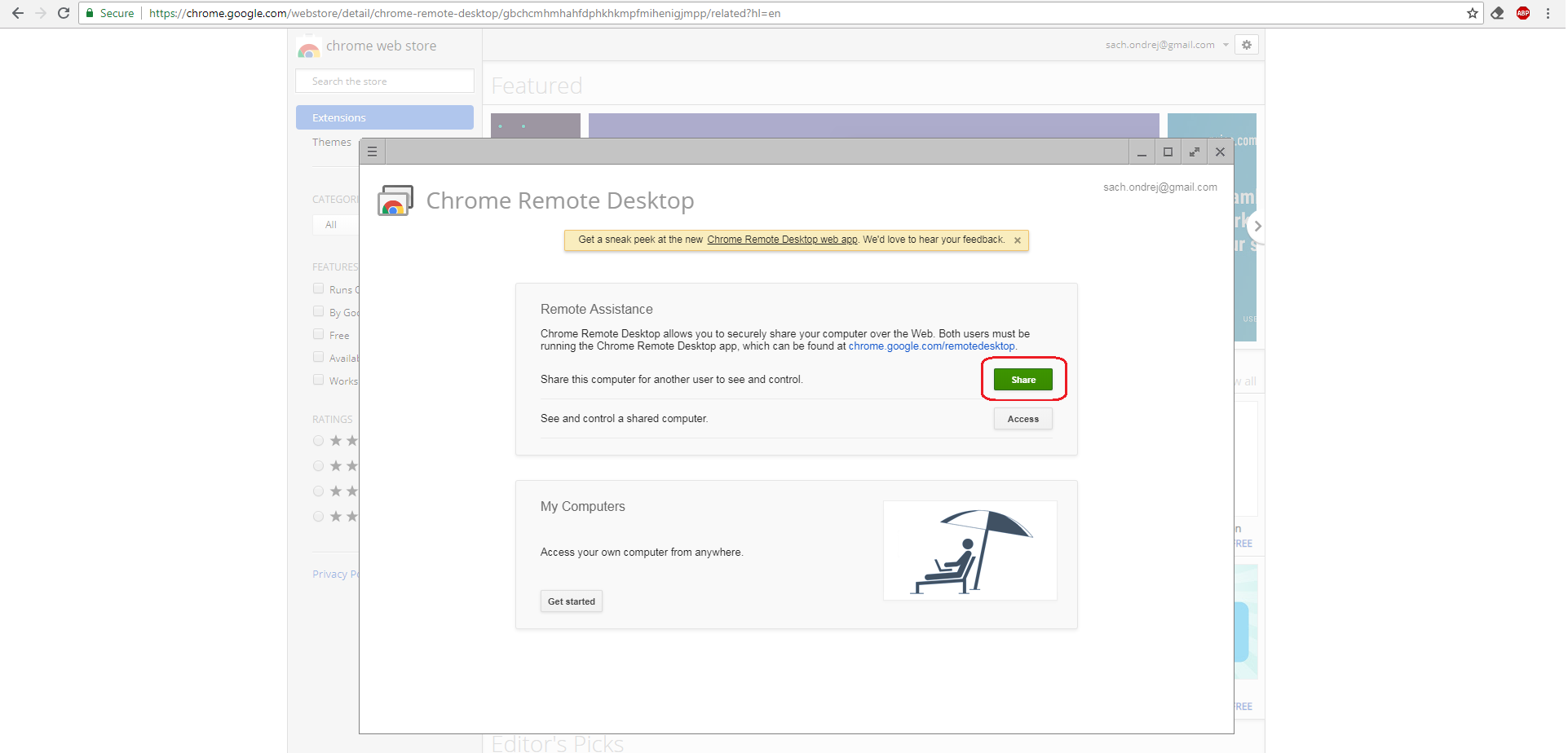
- Install the software as instructed.
- Send the access code to your support technician.
