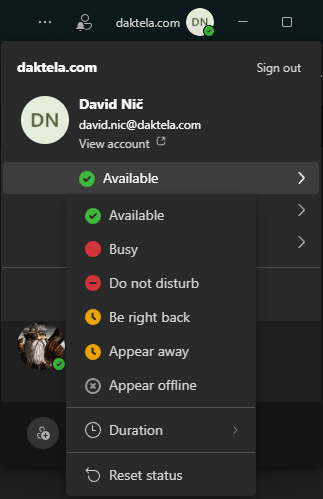
MS Teams devices allow agents to place and receive calls through Daktela directly within the MS Teams application.
Customer-Side Configuration Requirements
Setting up Microsoft Teams Direct Routing requires specific administrative privileges and technical expertise within the Microsoft 365 ecosystem. This section outlines the theoretical requirements and the scope of work needed on the customer's side.
Prerequisites
-
Operating System: Microsoft Windows with PowerShell (macOS/Linux are not supported).
-
Permissions: Administrative credentials for the Microsoft Teams domain (Global Admin or Teams Administrator).
-
Required Administrator Expertise: The administrator must possess advanced proficiency in Microsoft 365 and Teams administration (including license and voice policy management), expertise in PowerShell for Microsoft Teams, and a fundamental understanding of SIP signaling and network routing.
-
Licensing: Ensure users are assigned a Microsoft Phone System license (or an equivalent package like Microsoft 365 E5).
-
Environment: Ensure the Microsoft Teams PowerShell module is installed.
Note: Some commands may vary based on your module version. If you encounter errors (e.g., with the
Identityparameter), please verify your module version (compatibility has been confirmed with version 2.0.0).
Configuration Overview
The integration process consists of several key steps within the Microsoft Teams environment:
-
Domain and SBC Pairing: The customer must register a specific FQDN (domain) and pair it with the Daktela/AudioCodes SBC (Session Border Controller). This establishes a secure link for voice traffic between Microsoft Teams and Daktela.
-
PSTN Usage and Voice Routing: A Voice Routing Policy must be created to define how calls are handed over to the Daktela SIP trunk. This includes setting up "PSTN Usages" and "Voice Routes" that tell Microsoft Teams to use the Daktela gateway for outbound calls.
-
User Provisioning: Each operator must be individually enabled for Direct Routing. This involves:
-
Assigning the Microsoft Phone System license.
-
Enabling Enterprise Voice.
-
Assigning a Line URI (extension) that matches the configuration in Daktela.
-
Applying the appropriate Teams Calling Policy.
-
Due to the complexity of the Microsoft Teams environment and potential versioning changes in PowerShell modules, we recommend coordinating the setup with our support team. Detailed step-by-step configuration guides and specific PowerShell scripts are available upon request. If you are ready to begin the integration, please contact our Technical Support team.
Configuration on the Daktela Side
If you have the required licenses and are interested in enabling this integration, please contact our Technical Support at +420 226 211 244. On our side, we will perform the following steps:
-
Configure the AudioCodes gateway (certified VM hosted in our Microsoft Azure Cloud) to establish the connection.
-
Create a dedicated SIP trunk on your PBX specifically for this integration.
Note for Daktela Support Team - follow instructions in this internal article.
Create MS Teams Device in Daktela
In Daktela, navigate to Settings → MS Teams Devices and set up your MS Teams device:
|
Setting |
Description |
|---|---|
|
MS Teams device |
Enter the user's extension number from MS Teams. |
|
Title |
Enter a title, e.g. the user's name. |
|
Description (optional) |
Enter a description to help you identify the device in future. |
|
Available for dynamic selection |
Turn on to make this device available for agents to select dynamically from the navbar. Turn off to only make it possible to assign the device from Settings – Users – List of Users. |
When you have set up your device, you can:
-
assign it to a user in Settings → Users → List of users
-
or select it dynamically in the static panel for the current user to use it.
Installing the Daktela Add-on for MS Teams
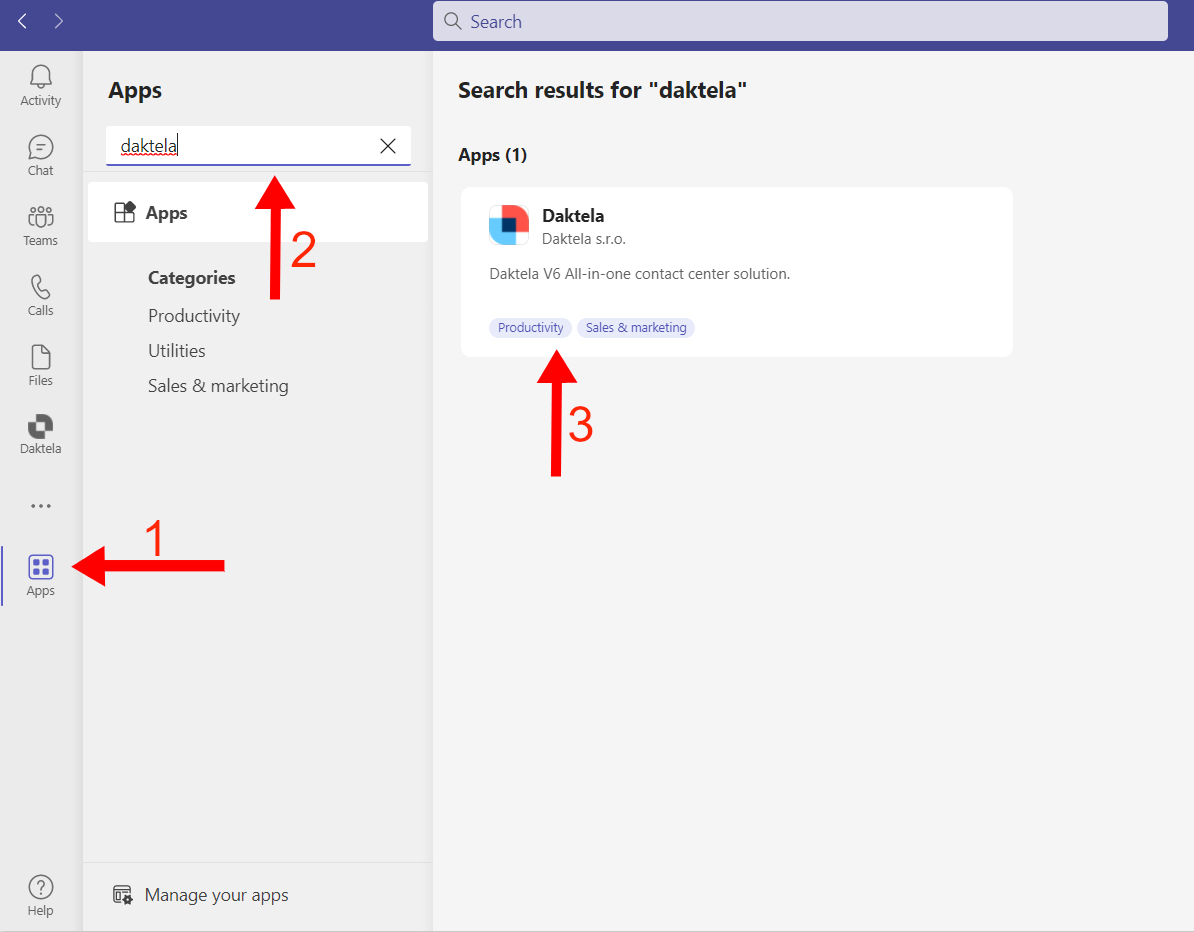
For each user who intends to use MS Teams devices: Navigate to the Apps tab, locate the Daktela app, and click Install.
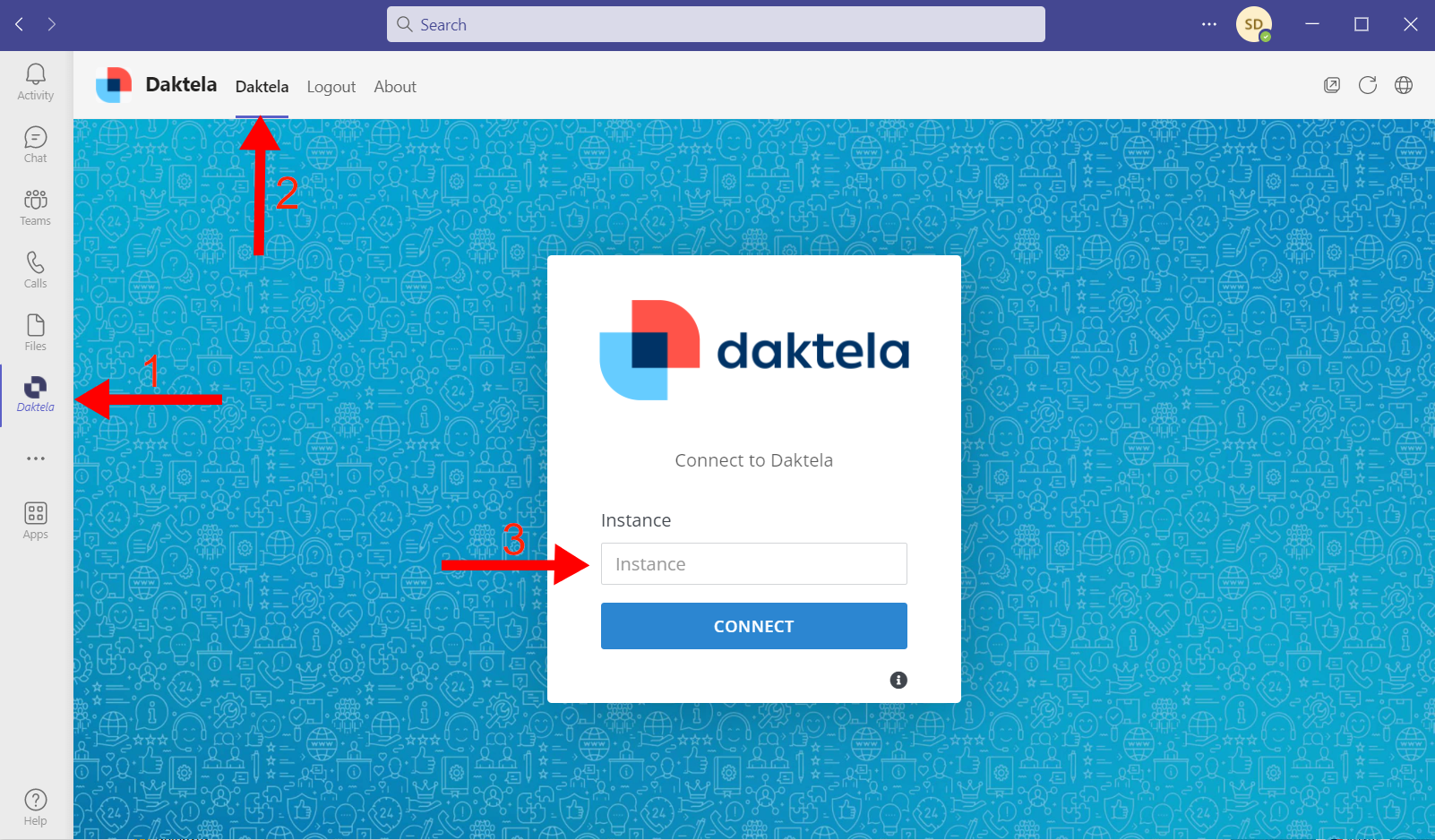
The Daktela App will appear in your sidebar. Click it to open it. In the Daktela tab of the App, enter your Daktela URL (e.g. yourcompany.daktela.com) and click Connect. The App will remember your URL until you disconnect it. You do NOT need to log in!
Make and Receive Calls
Make a Call to a New Number
-
In MS Teams, open the Calls tab from the sidebar.
-
Enter the phone number you want to call using the key pad in the bottom of the screen or your keyboard.
-
Click Call or press Enter on your keyboard to start the call.
-
Control the call like a standard MS Teams call.
Start a Call from History of Contacts
-
In MS Teams, open the Calls tab from the sidebar.
-
Go to Contacts or History.
-
In Contacts, click the Phone button at the end of the line with the contact you want to call.
-
In History, double click a past call to dial it again or click the Options dots at the end of the line and click Call back.
-
-
Control the call like a standard MS Teams call.
Receive a Call
When you have an in incoming call, you will receive a standard MS Teams notification. Accept it using the Blue Phone button, reject it using the Red Phone button. Control the call like a standard MS Teams call.
Presence sync from MS Teams
As a complement to this integration, you can enable presence synchronization from the MS Teams application to your Daktela MS Teams device. For detailed instructions and further information, please refer to the Microsoft Teams Device Presence Sync article in the Integrations module.