Manage Your Activities
You can manage your Opened, Waiting, Postponed and Missed activities in the app. Tap the Activities icon at the bottom of the screen. Opened, Waiting, Postponed and Missed activities each have their own tab.

Opened Activities
Tap the Opened tab at the top of the screen to view your open activities:
 Tap an activity to open it. You can then work with the activity – calls, chats, emails.
Waiting Activities
Tap the Waiting tab at the top of the screen to view your waiting activities:
 Tap an activity to Accept orReject it.
If you Accept an activity, it will open – calls, chats.
Tap an activity to Accept orReject it.
If you Accept an activity, it will open – calls, chats.
Postponed Activities
Tap the Postponed tab at the top of the screen to view your postponed activities:
 Tap an activity to open a list of actions Show detail, Reopen or Delete.
You can open the activity's detail, reopen it so you can keep working with it – emails, chats – or delete/close it.
Tap an activity to open a list of actions Show detail, Reopen or Delete.
You can open the activity's detail, reopen it so you can keep working with it – emails, chats – or delete/close it.
Missed Activities
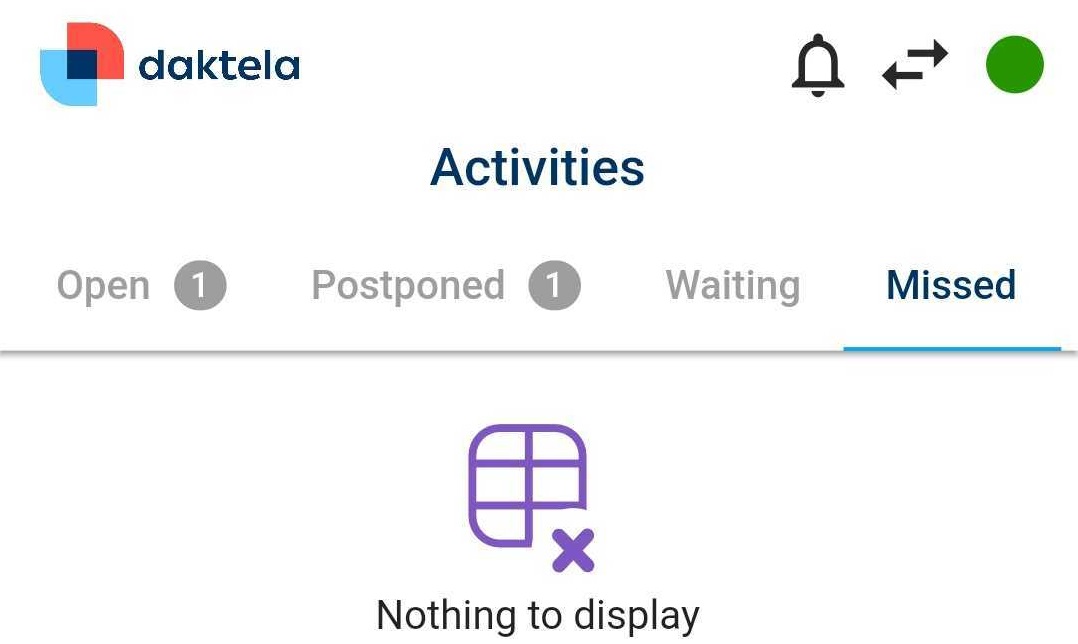
Tap the Missed tab at the top of the screen to view your missed activities:
 Tap an activity to open a list of actions Show detail,Call/replay or Delete.
You can open the activity's detail.
If your missed activity is a call, you can call the number back. If it is a missed chat, depending on your queue settings, you may be able to reply.
You can also delete missed activities (if you have the rights).
Tap an activity to open a list of actions Show detail,Call/replay or Delete.
You can open the activity's detail.
If your missed activity is a call, you can call the number back. If it is a missed chat, depending on your queue settings, you may be able to reply.
You can also delete missed activities (if you have the rights).
Activity Details
You can open the details of any activity you see in the Daktela Mobile App, e.g. from the Dashboard or a contact's history. The details contain info about the activity.
Tip
Long press a value to copy it.
If the activity has a contact assigned, tap it to open it. You can start a call from call activity details. Tap the Phone button in the top right corner to open the New outbound call dialog, then follow the instruction in Make a call. The Content section at the bottom of email activity details contains the email that was sent or received. Tap the Reply button in the top right corner to reply to the email. Chat activities contain a transcript of the chat at the bottom of the activity detail. Transcript tab enables the conversation to be read as text if TTS (text-to-speech) is activated on the specific queue.