Use the CRM Module
Tap the CRM icon at the bottom of your screen to open the CRM module. Your contacts and companies from Daktela, will open and as well as contacts from your phone if you have enabled it in your phone settings.
Info
You can also view contacts or companies in the phone section.
Contacts
When you open the CRM module, the Contacts tab will be open. Tap the Filterbutton to open filtering. Tap a contact's name to open its details or tap Add new to create a new contact. The contact details will open:
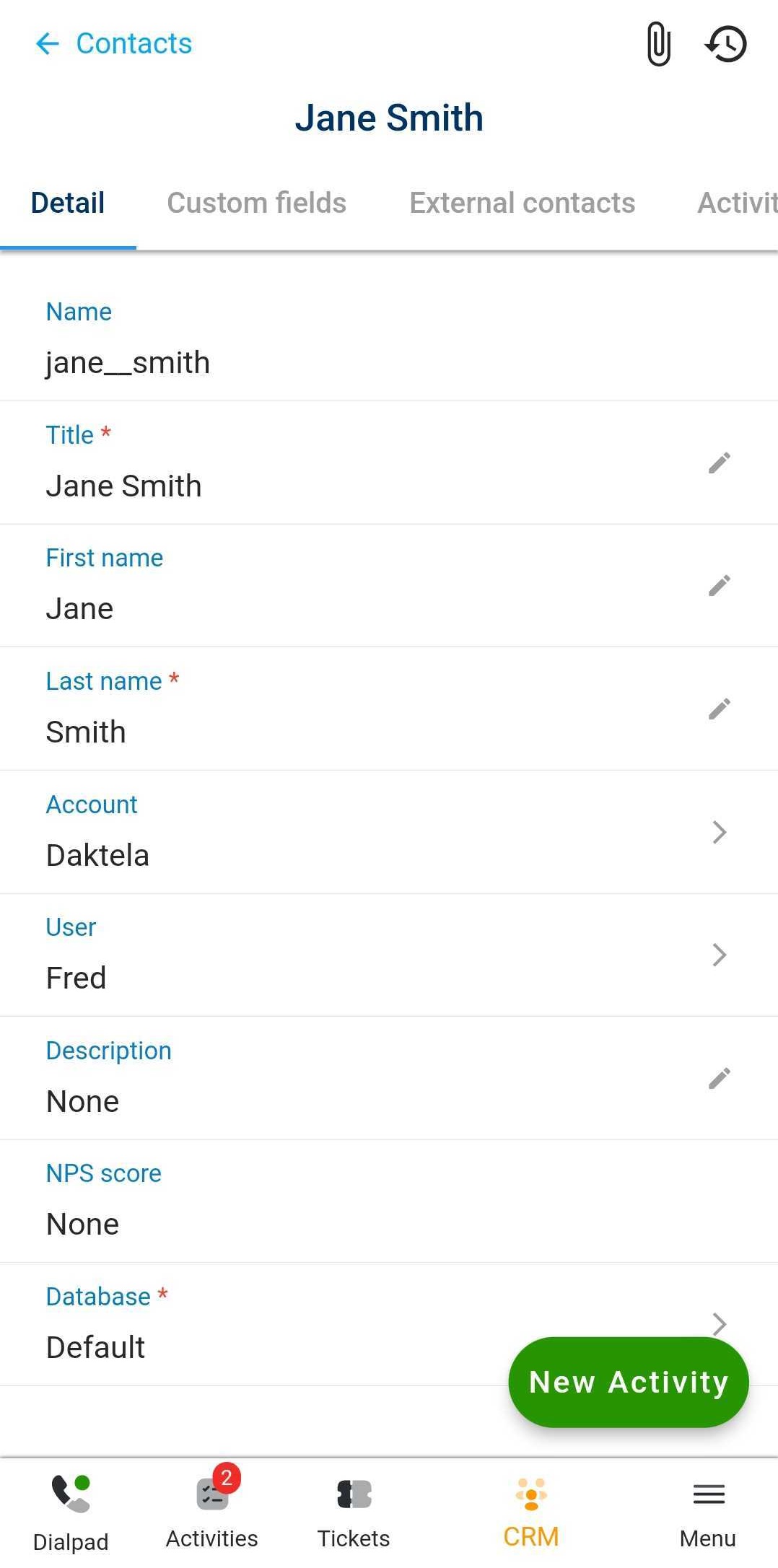 Tap each field to edit it. Unsaved changes are in red.
Tap Account to bring up a menu where you can choose to open the account details or to change the account associated with the contact.
Tap Phone or Email to bring up a menu where you can choose to start an activity or to edit the number or address.
Tap Save in the top right corner to save your changes.
Click the history Buttonto display the history of changes to the contact.
Tap each field to edit it. Unsaved changes are in red.
Tap Account to bring up a menu where you can choose to open the account details or to change the account associated with the contact.
Tap Phone or Email to bring up a menu where you can choose to start an activity or to edit the number or address.
Tap Save in the top right corner to save your changes.
Click the history Buttonto display the history of changes to the contact.
Warning
You may have more fields to fill out depending on your specific set up. Contact your manager if you are unsure how to fill them out.
The contact's past Activities, Tickets andAttachments are in the upbar. Toggle between them by tapping the tabs.
Tip
To adjust the order of the tabs according to your preferences, you can simply hold and drag them.
Tap an activity to open its details or tap a ticket to open it in Tickets. Tap an attachment to download into your mobile phone.
Accounts
Accounts
When you open the CRM module, the Contacts tab will be open. Tap the Accounts tab. Tap the Filterbutton to open filtering. Tap an account's name to open its details or tap the Add new button to create a new account. The account details will open:
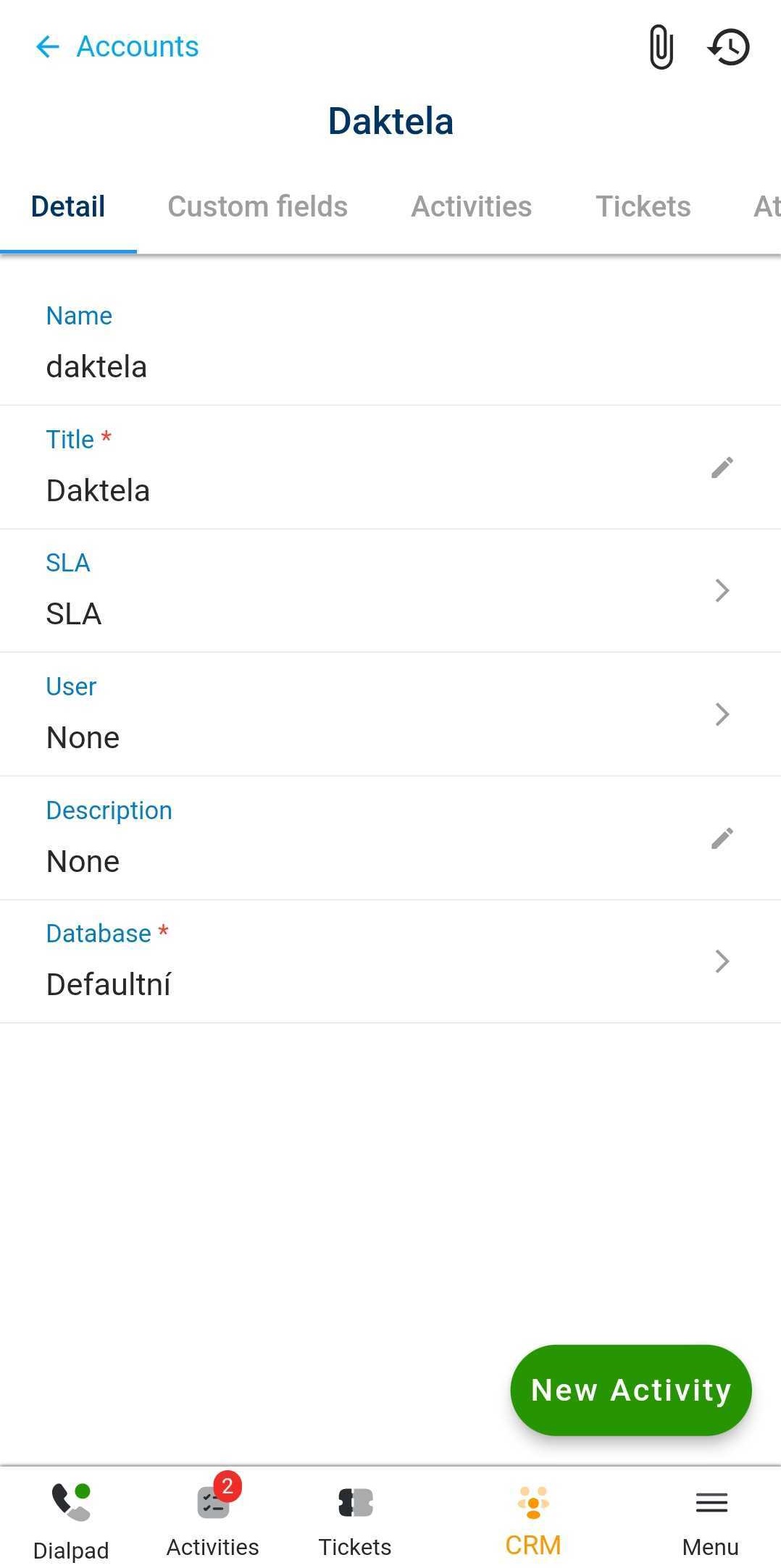
Tap each field to edit it. Unsaved changes are in red. Tap Phone or Email to bring up a menu where you can choose to start an activity or to edit the number or address. Tap Save in the top right corner to save your changes.
Warning
You may have more fields to fill out depending on your specific set up. Contact your manager if you are unsure how to fill them out.
The contact’s tabs are in the upbar. Toggle between them by tapping the tabs.
Tip
To adjust the order of the tabs according to your preferences, you can simply hold and drag them.
Tap an activity to open its details or tap a ticket to open it in Tickets.
Records
When you open the CRM module, the Contacts tab will be open. Tap the Recordstab. Tap the Filterbutton to open filtering. Tap an Record name to open its details or tap the Add new button to create a new Record. The Recorddetails will open:
