Work with Calls
- Make a Call
- When you finish your call:
- Receive a Call
- GSM Redirect
- When you finish your call:
- Manage a Call
- Transfer a Call
- Selecting audio equipment
- Connection quality
- Connection quality after a call
- Ending the call
Make a Call
Follow these instructions to start a new call. You can also start a new call from activity details, CRM module and Tickets. Once you get to the New outbound call screen, the method is the same. To start a new call, Start typing a phone number or tap the Contactstab to select a contact. Select a contact in the list or finish typing your phone number, then tap Confirm at the bottom of the dialogue to start your call.
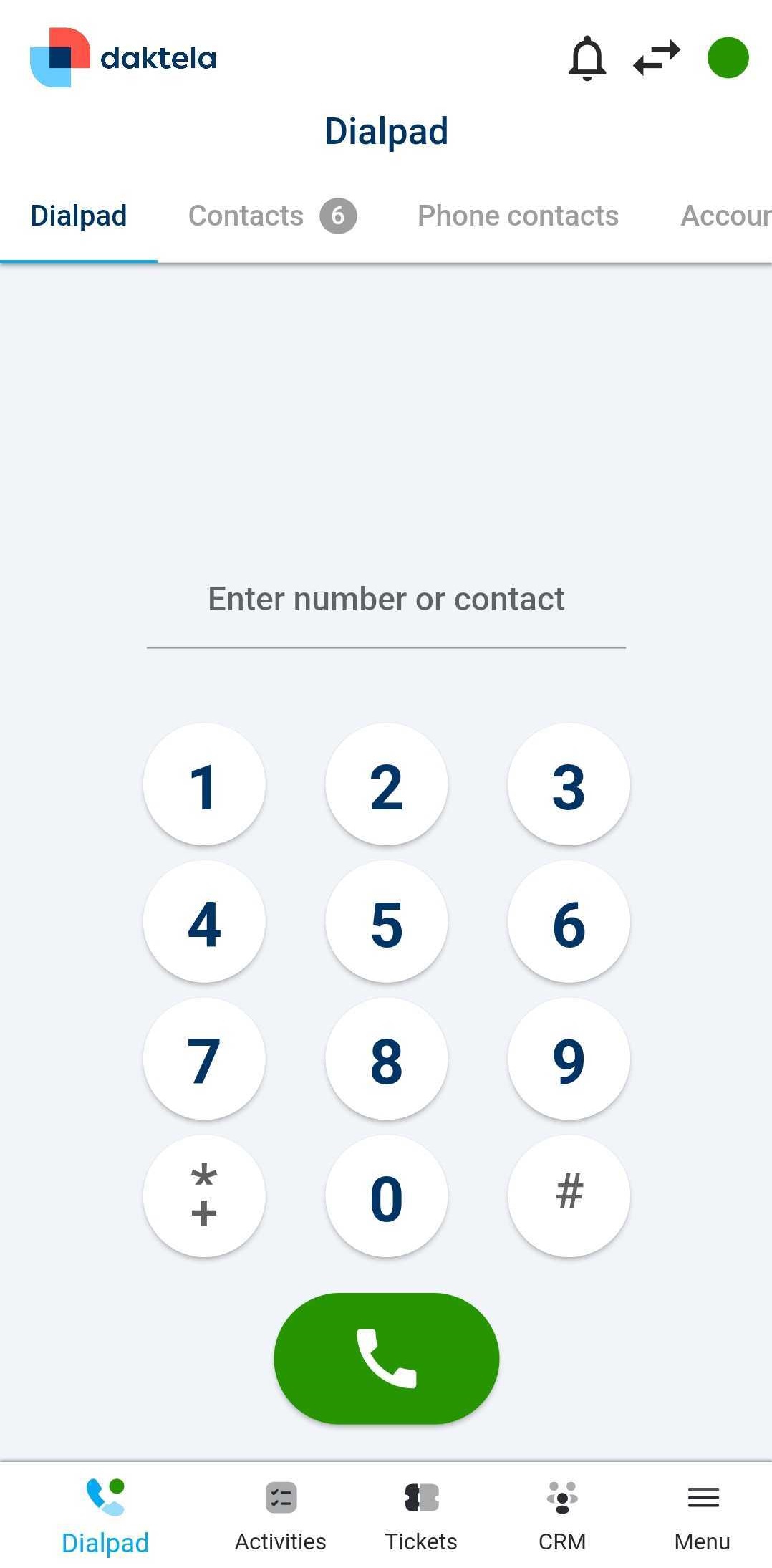
- If you have selected your mobile phone as your device, you will a receive a call from Daktela. Accept it to start the call to the number you have selected in the app.
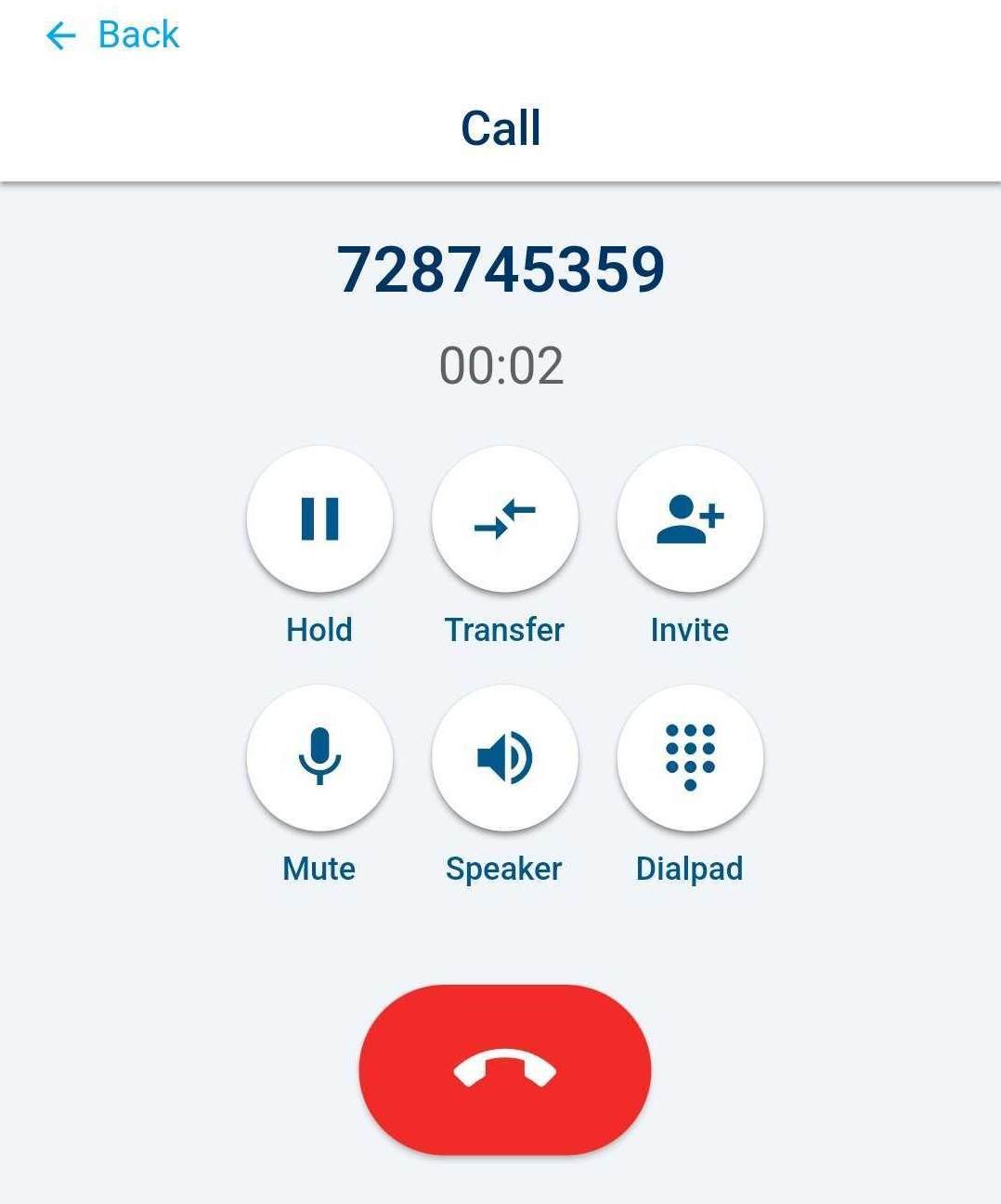
- If you have selected a WebRTC device the call will open in the app. You can mute your microphone and end the call using the buttons.
Info
When using a call on an Android device, you need to have the battery setting turned on to unlimited.
When you finish your call:
- go to Activities → Opened to manage your call activity.
Receive a Call
- To receive a call using the mobile phone where you are running your app, make sure you have selected it as your device or as a forwarding number in Devices. Receive an incoming call like a regular call on your phone. You can also accept an incoming call in Waiting activities – you may still need to answer it on the device you are logged in to.
- An incoming call can be shown as a push notification, even if you have the application minimized or your phone is locked. You can configure push notifications in Menu → Preferences
Warning
Are notifications not functioning properly for you in the mobile application?
- Check that you have enabled notifications for the Daktela mobile app on your device.
- Check that you don't have a focus mode or standby mode that is blocking notifications. If you intend to use such a mode, remember to add the Daktela application to exceptions, allowing it to still receive notifications.
- Check that you are logged into the mobile app, in the "ready" state, connected to the incoming queue (for calls), and that you have a mobile Daktela device linked to the app. You can confirm the app's readiness for calls by observing the presence of the number pad on the phone screen without any warnings.
Info
When using a call on an Android device, you need to have the battery setting turned on to unlimited.
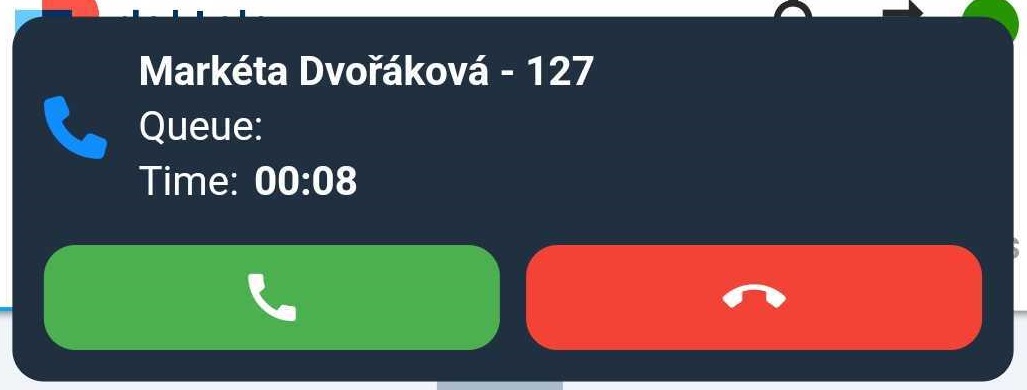
- If you have selected a Daktela device and receive calls using the Daktela Mobile App, tap the green Accept button in the notification that will appear at the top of the app:
Note
Behavior of the mobile app for incoming calls when the app is turned off:
From Version 6.26.3
- iOS: As soon as a call starts ringing, the mobile app starts running in the background (i.e. after 1 to 2 seconds).
- Android: App starts running only when a user accept a call from an incoming call alert. On older devices, the app may take a few seconds to launch, i.e., the call rings but the app is not yet running.
- Once the application starts (regardless of the platform), the Daktela device is automatically logged in and registered.
Tip
What should I do if I receive the standard notification for incoming calls, like for incoming chats, instead of the expected blue screen notification?
- Open the Daktela app in your phone settings
- Open Other permissions.
- Allow the Show on Lock screen.
On Android, you can stop Daktela calls from ringing while you are on a regular phone call — see Preferences.
GSM Redirect
If you have GSM Redirect turned on and you have poor mobile data connectivity, you will automatically receive calls like a regular GSM call.
When you finish your call:
- Go to Activities → Opened to manage your call activity.
Manage a Call
When you make a new call or accept an incoming call using the Mobile App, its details will open:
Transfer a Call
Tap the Transferbutton to transfer a call to another user.
- The window with options will open. Tap Transferor Blind transfer.
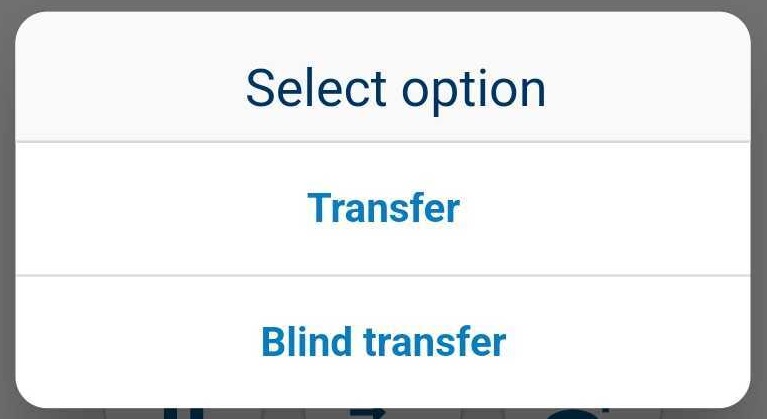
Blind transfer:your call will be endedas soon as you tap the option. The customer will be on hold while the phone is ringing and will be connected to the new agent as soon as they answer. The new agent will only know the customer's name or phone number and that you have transferred the call to them. Transfer: the customer will be put on hold. You will be connected to the agent you are transferring the call to so you can explain to them what the customer needs. When the agent answers the phone, the Transferbutton will turn red. 2. Tap the user or queue to tranfer the call. 3. Your call will be transfered.
Selecting audio equipment
If the user has a headset connected during a call, a device selection button appears instead of the speaker button. Tap the button and select the audio device you want to use.
Connection quality
While a call is connected, the app shows the quality of the connection under the call timer:
- Good quality — the audio is getting through cleanly in both directions.
- Poor quality — the audio is getting through, but it may break up or arrive late.
- Connection issue — the audio is badly affected, and the other side may be hard to understand or not audible at all.
- Weak connection — reconnecting… — the app has lost the audio and is restoring the call.
- No internet connection — your device has no network at all.
Tip
Weak connection — reconnecting… is worth waiting out. The app restores the call by itself, usually within a few seconds, so hanging up straight away often ends a call that would have come back on its own. No internet connection is the one to act on: your phone is off the network, so check Wi-Fi, mobile data and airplane mode.
Tap the status to open the Connection quality panel. It says what is wrong and in which direction, suggests one thing to try, and lists the technical measurements behind it. You do not need to interpret those — Copy diagnostics copies them, together with the call ID and the app version, ready to paste into a support request.
What the panel measures
- Ping — how long the audio takes to reach the server and come back.
- Jitter — how much that time varies. High jitter is what makes speech sound chopped up.
- Incoming loss — the share of the audio coming to you that never arrived.
- Outgoing loss — the share of your audio that never reached the other side. It can read —, which means unknown rather than zero: the other side has not reported back yet.
- Network — Wi-Fi, Mobile data, VPN, Ethernet or Unknown. Under a VPN the app cannot tell Wi-Fi from mobile data, so it reports VPN.
- Recovery attempts — how many times the app has tried to restore the call, not calls that dropped. A single interruption of a few seconds can produce several.
- Call ID — the identifier of this call, for support requests.
Connection quality after a call
When a call had connection problems, the app tells you once it is over. A call without them produces nothing.
- If you are looking at the app, a message appears at the bottom of the screen saying the connection was unstable and what to try.
- If you are not — the phone was locked, or the app was in the background — a silent notification titled Call connection problems arrives instead. It shows in the notification shade and on the lock screen, but it does not ring.
Tap either one to open the call's record with the same Connection quality panel, including Copy diagnostics for a support request.
What the report lists
- Call length
- No incoming audio — how many seconds of the call had no incoming audio at all.
- Poor quality — how many seconds were audible but degraded.
- Incoming loss and Outgoing loss
- Network — this can name two networks joined by an arrow, for example Wi-Fi → Mobile data, meaning the call moved between them. That is itself a common cause of the problem being reported.
- Recovery attempts
- Call ID
Rows that would say nothing are left out, so two reports need not list the same things. A report can also show 0.0 % Incoming loss next to several seconds of No incoming audio — loss counts gaps in audio that did arrive, and while the network is out nothing arrives at all, so there is nothing left to count as lost.
Notifications are limited to two a day per device and one every ten minutes, and reports are kept for the ten most recent calls. Tapping a notification for an older call opens the call record and tells you the report is no longer available.
To turn these off, use Connection quality summary after a call in Preferences → Notifications.
Ending the call
Once the call ends, you will see the activity details:
- Redial the phone number.
- Save and end the activity. Depending on your queue settings, you may need to select a status. Select a status and tap Save.