FAQ
- How much data do calls consume?
- Is the Daktela Mobile App Not Working?
- Are Notifications Not Working in the Daktela Mobile App?
- What should I do if I receive the standard notification instead of the expected blue screen notification?
- What should I do when the app says an update is ready?
How much data do calls consume?
Calls will typically use around:
- 500KB per minute
- 30MB per hour
Is the Daktela Mobile App Not Working?
Is the Daktela Mobile App Not Working?
- Make sure you have the latest version of the Daktela mobile app.
- Try reinstalling the app (https://play.google.com/store/search?q=daktela&c=apps or https://www.apple.com/cz/search/daktela?src=globalnav ).
-
If the application launches but you are unable to log in, please make sure you are entering the correct instance, login and password. There are 2 ways to enter an instance:
-
Full name mycompany.daktela.com (please use the name of your Daktely instance instead of mycompany)
- Shorter - i.e. only in the form mycompany (without the .daktela.com extension - please use the name of your Daktely instance instead of mycompany)
-
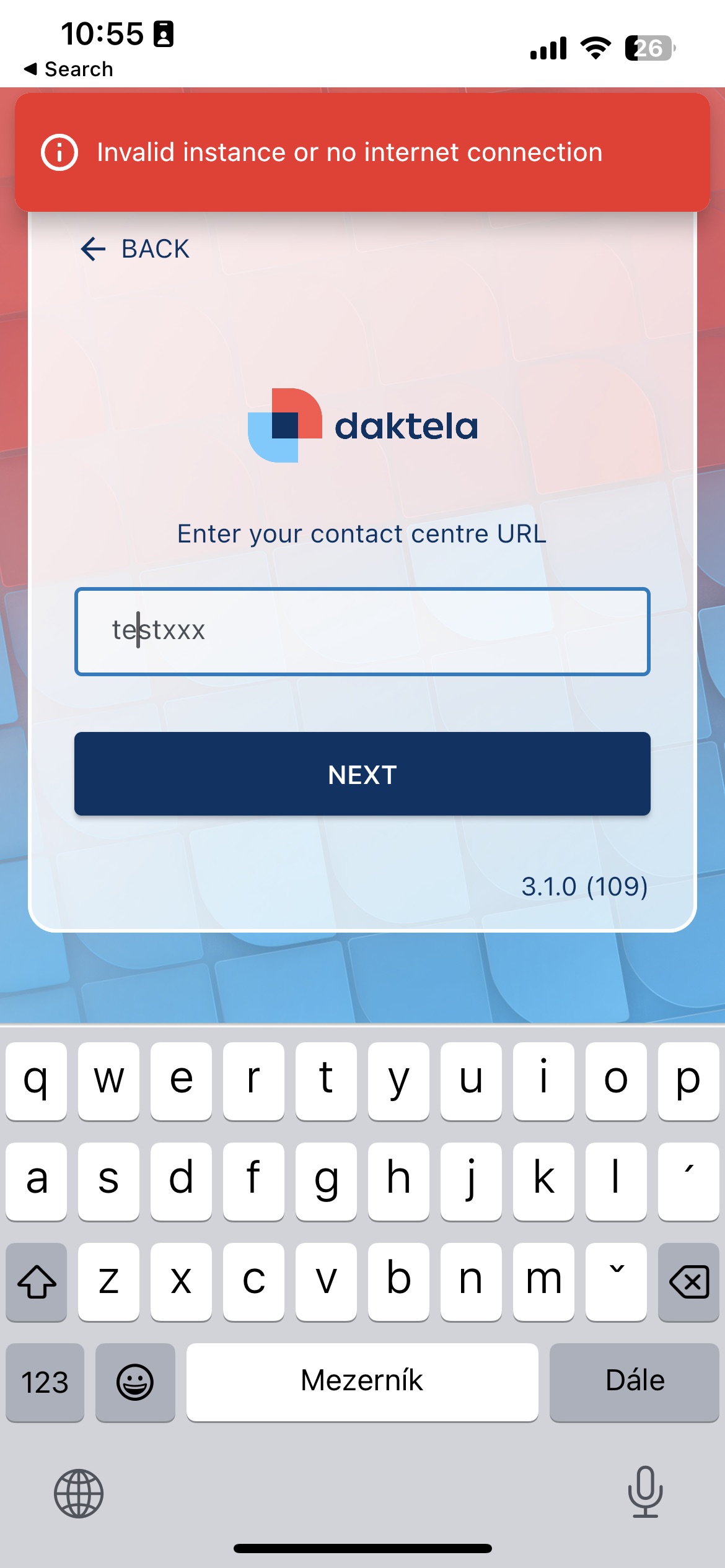
You will only get to enter your name and password if you fill in the instance correctly, otherwise you will get an error message:
Info
If you're sure you're entering your instance correctly and still can't log in, check your internet connection, or you can try opening your Daktela instance in a mobile browser.
Are Notifications Not Working in the Daktela Mobile App?
Are Notifications Not Working in the Daktela Mobile App?
- Checks that you have enabled the Daktela mobile app to receive notifications on your device.
- Make sure you don't have a focus mode or standby mode that blocks notifications. If you want to use such a mode, be sure to add the Daktela app to exceptions so it can continue to receive notifications.
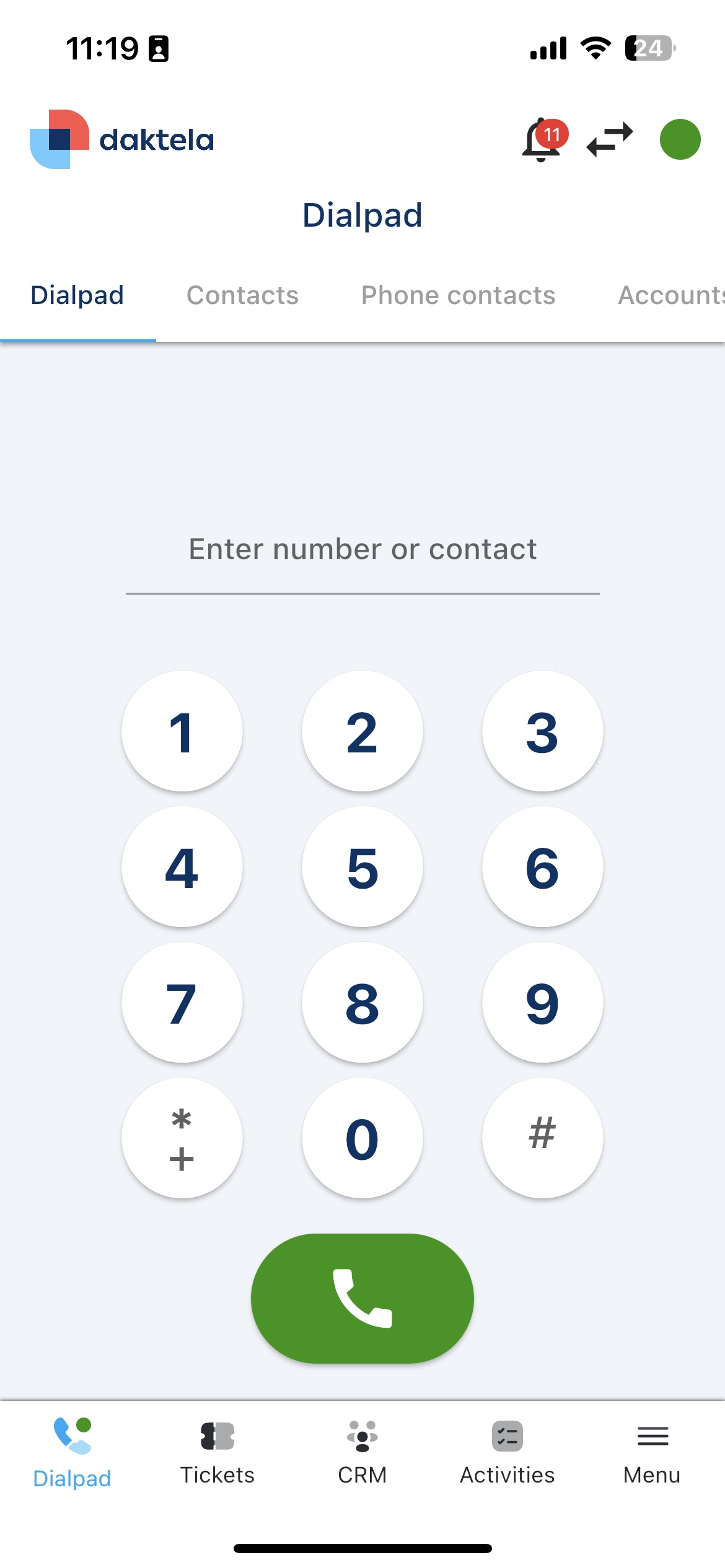
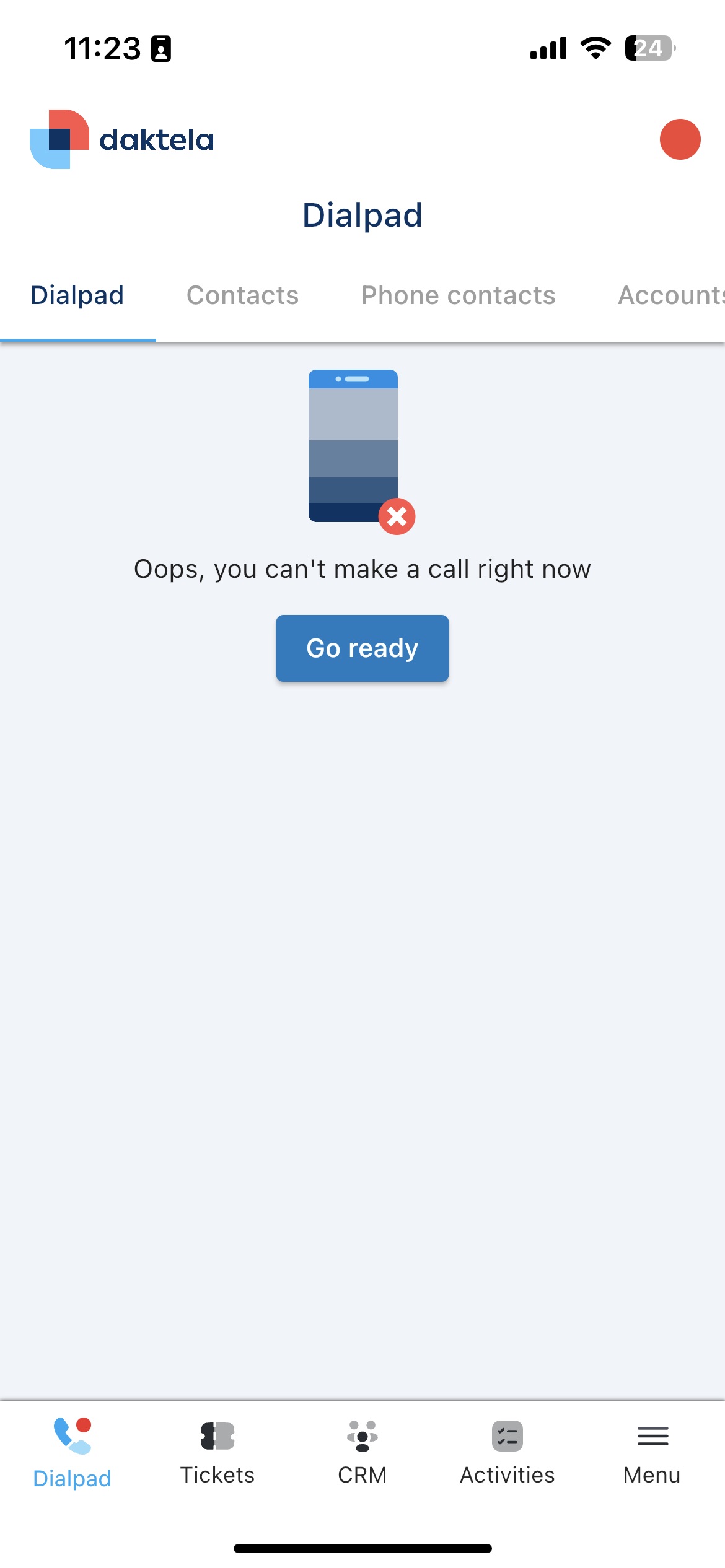
- Make sure you are logged in to the mobile app, you are in the Readystate, you are logged into the incoming queue, and (for calls) you have a mobile WebRTC device connected to the app. You can tell that the app is ready to handle calls simply by seeing the numeric keypad on the phone screen (and not any warning). Correct state - app is "online"
 Wrong state - app is “offline“:
Info
If the app is behaving abnormally or incorrectly, please make sure you are using the latest version and try reinstalling the app if necessary.
What should I do if I receive the standard notification instead of the expected blue screen notification?
What should I do if I receive the standard notification instead of the expected blue screen notification?
Open the Daktela app in your phone settings and allow the notification permission." On Xiaomi Phones:
- Open the Daktela app in your phone settings and allow the notification permision.
- Open Other permissions.
- Allow the Show on Lock screenand Open new windows while running in the background.
What should I do when the app says an update is ready?
The app downloads smaller updates in the background automatically. Once an update has been downloaded and is waiting to be applied, the app shows a message telling you that an update is ready. You can dismiss the message.
The update is applied only after a full restart of the app.
Warning
Switching away from the app, or reopening it from the background, does not restart it. The app keeps running in the background, so the downloaded update is never applied. You have to close the app completely by swiping it away.
To restart the app fully:
- Open the App Switcher on iPhone / recent apps on Android.
- Swipe the Daktela app away to close it completely.
- Open the Daktela app again.
Closing the app from the App Switcher on an iPhone — the steps on Android are very similar:
Info
Dismissing the message does not cancel the update. The downloaded update stays ready and is applied at the next full restart of the app, so the message may appear again later.