Get Started
Find out how to use the basic controls in Daktela mobile app.
Go Ready
Once you have logged in, click your status button to start processing activities. The button is at the top of the screen:
 The button will change colour to green. If you have dynamic devices, you will also need to select a device.
Log In and Out of Devices
Tap the Queues and devices button in the top right corner:
Info
Create your own Daktela device for your mobile app: If you don't have a device for your mobile app, you can simply create one from your Phonetab Tap the Create and register device button to create your device. When your Daktela device if registered, unless you GO Unready or Log out, you will always appear online for calls. Use the toggle next to your device in My devices to unregister your Daktela Device.
 The Queues tab will open. Go to the Devices tab:

- List of devices you are logged in to. Tap the cross to remove the device from My Devices.
-
Tap Connect device... to open a list of your available devices. Tap the device you want to add. It will appear under My devices.
-
If you want to use the Daktela app to make and receive calls via your phone's internet connection, select a WebRTC device.
- If you want to make and receive calls using the mobile phone you are running the app on via your mobile voice services, select your mobile phone as a device or enter your phone number in 3. below.
- Enter a call forwarding number and tap Save. This will apply to all of your incoming and outgoing calls.
If you have dynamic devices, you will also need to select a device. Tap the device you want to use:
Log In and Out of Queues
Tap the Queues and devices button in the top right corner:
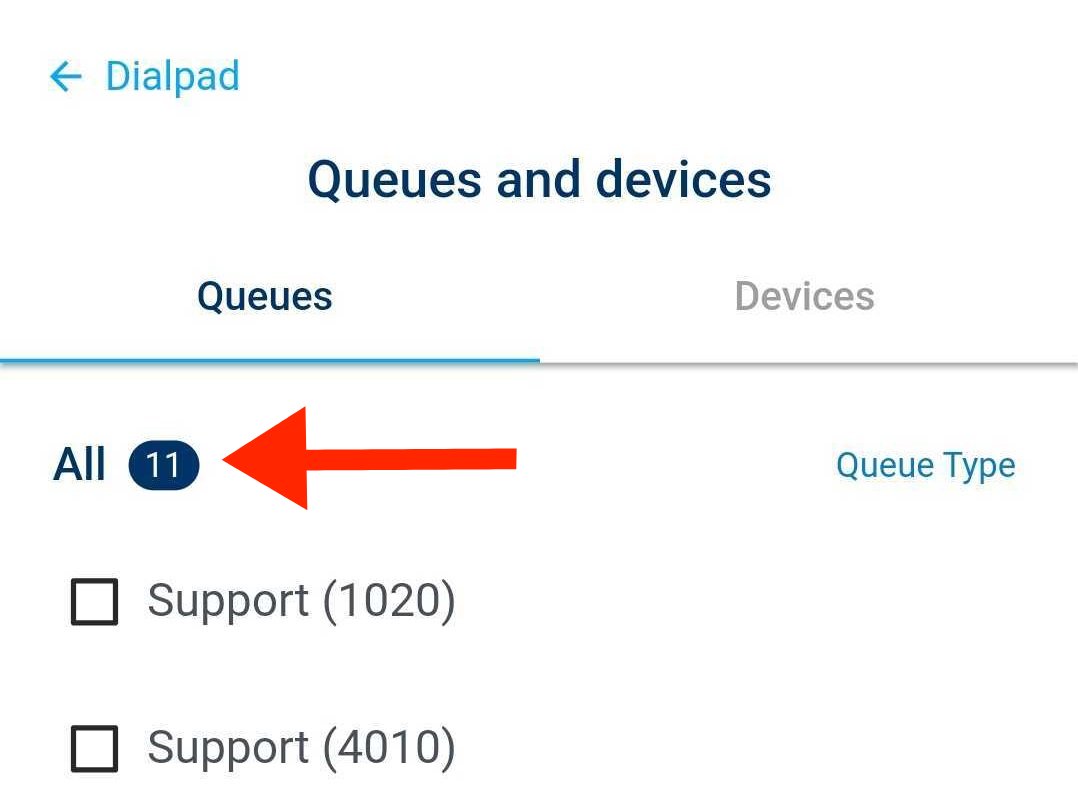
The Queues tab will open. Tap a queue to log in or out. You can filter your queues by type at the top of the list:
Start and End a Pause
Tap your status button at the top of your screen:
 The Pauses dialog will open:
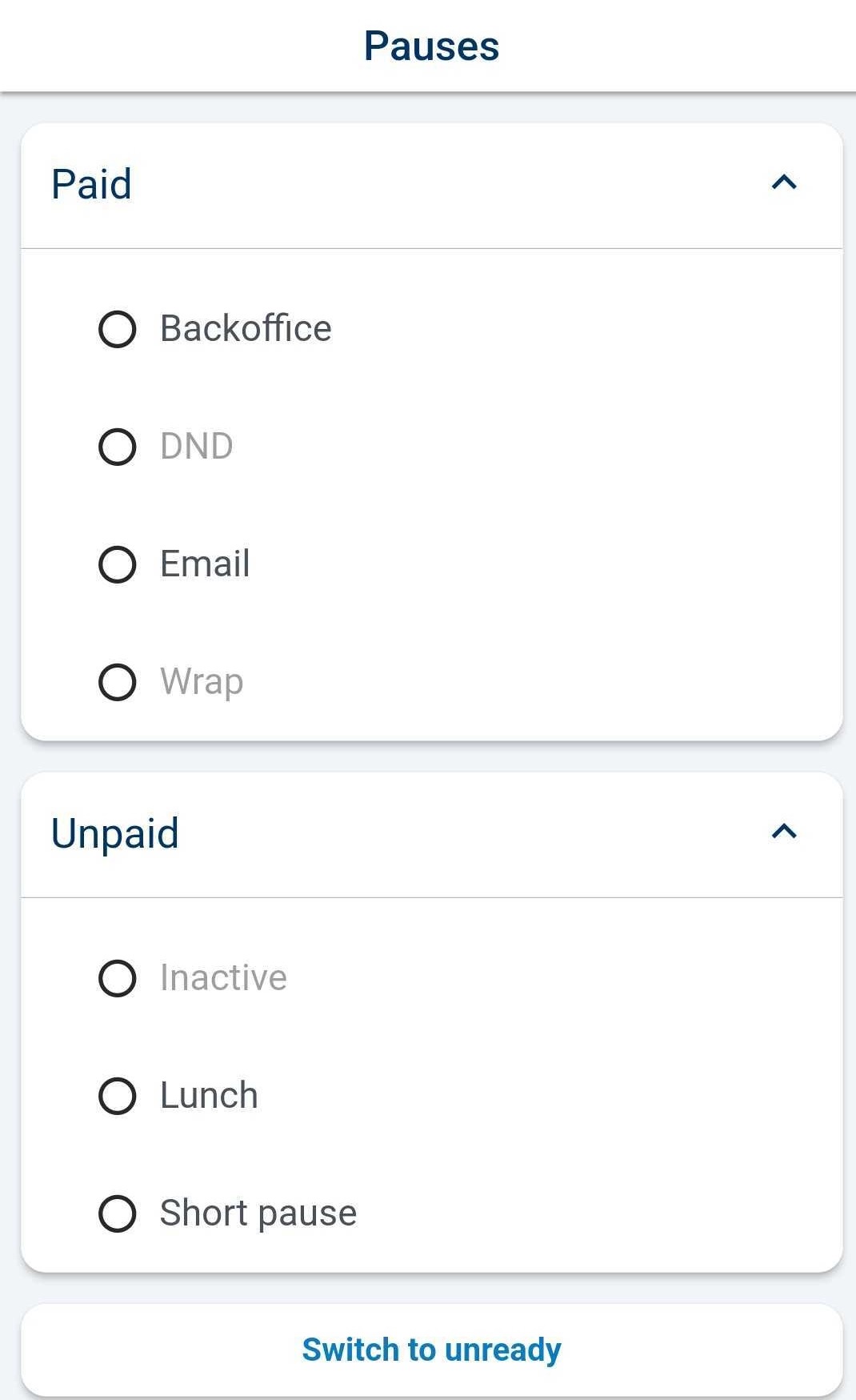 Tap a pause to start it. Some pauses are turned on and off automatically – you can't choose them yourself.
Your status button will indicate that you are on a pause:
Tap a pause to start it. Some pauses are turned on and off automatically – you can't choose them yourself.
Your status button will indicate that you are on a pause:
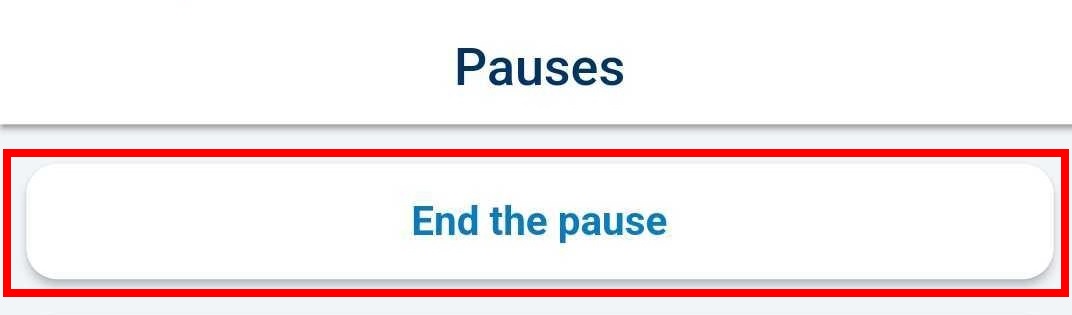
 To end the pause, tap the status button again, then tap Unset pause:
Switch to Unready
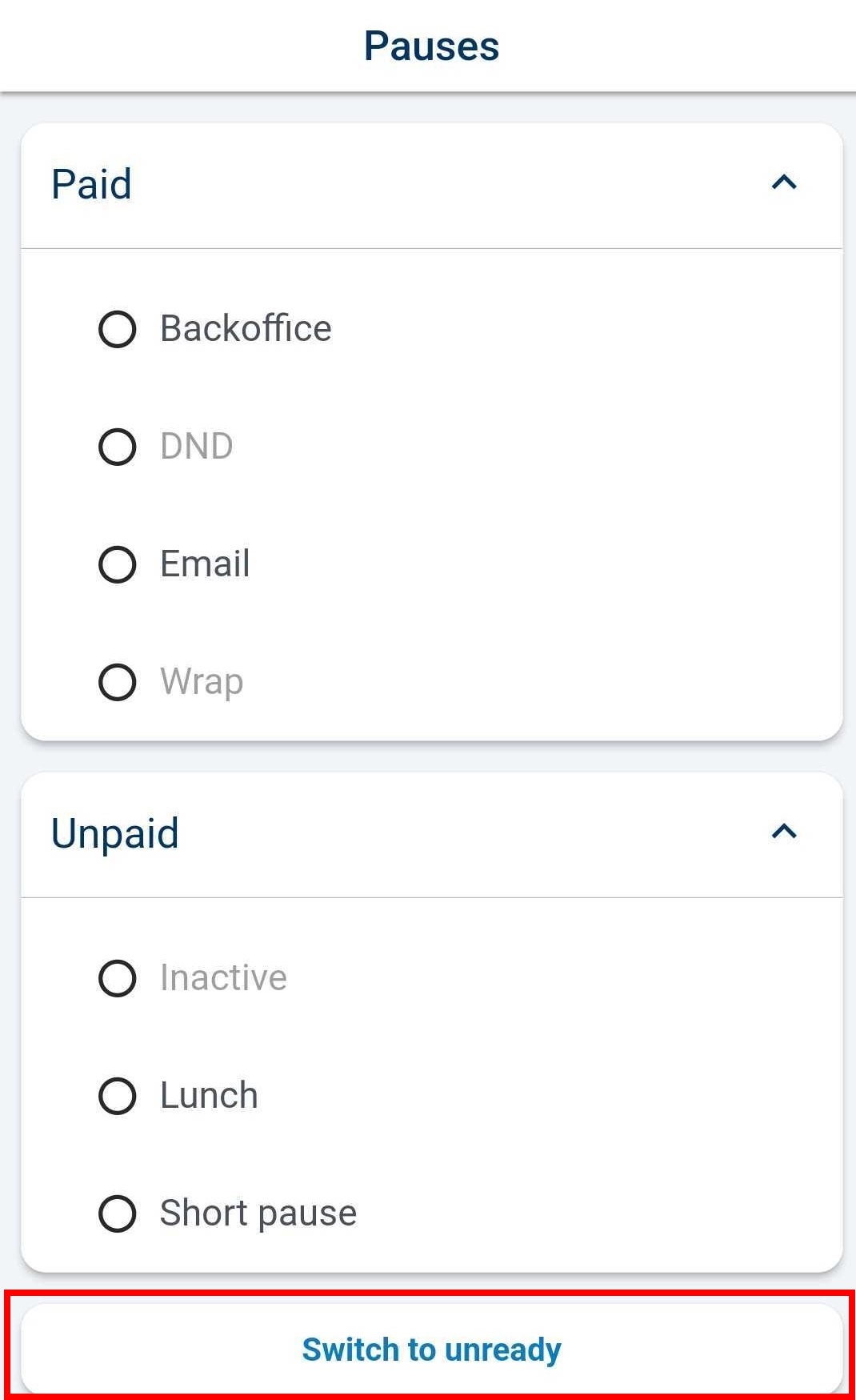
Tap your status button at the top of your screen:
In the Pauses dialog, tap Switch to unready: