Addons
Addons extend what your AI agent can do. An addon is a small web service that registers itself with your instance and contributes ready-made building blocks to it:
- Modules — nodes you drag into a dialog flow in the builder, exactly like the built-in ones.
- Integrations — tools the Agent module can decide to call on its own during a conversation.
- Dynamic lists — options loaded live from the addon, so a module's dropdown always shows current data.
- A configuration page — the addon's own settings screen, opened from inside the instance admin.
Because an addon brings its own modules, you get new capabilities without writing a single API integration by hand.
You manage addons under Addons in the instance menu.

Available addons
These addons are published by Daktela and are available on every instance.
| Addon | What it adds | Documentation |
|---|---|---|
| Daktela Modules | Create, read and update tickets in your connected Daktela instance; check the real-time availability of queues, ring groups and users and transfer the conversation to them; branch the flow on a time condition. | Daktela Tickets, Daktela Routing |
| LLM Modules | Modules built on large language models — extract data (names, addresses, dates, numbers, agreements), classify and mine documents, recognise entities and intents, steer a call, and run your own custom prompts. | Agent Module |
| Product Recommender | An AI shopping guide for e-commerce: understands what the customer is looking for, asks clarifying questions and recommends products from your feed. | Product Recommender |
Info
Not every addon is available on every plan. If one you need is missing from the list, contact us at daktela@daktela.com.
Working with addons
Each addon is shown as a card with its name, version, description and status (Active or Inactive). The buttons on the card are:
| Button | What it does |
|---|---|
| Activate | Turns the addon on for this instance. Its modules appear in the builder immediately afterwards. |
| Configure | Opens the addon's own settings page. Shown only for addons that have one — some addons need credentials or a connection before they can be activated. |
| Modules | Lists the modules the addon provides, and lets you hide the ones you don't want cluttering the builder. |
| Deactivate | Turns the addon off. Its modules disappear from the module selection. |
| Remove | Removes the addon from the instance. Deactivate it first. |
Sync Addons at the top of the page re-reads every addon's description of itself, which is how new modules and new versions arrive.
Warning
Deactivating or removing an addon that a live dialog flow depends on will break that flow. Check where its modules are used before you switch it off.
Using an addon's modules
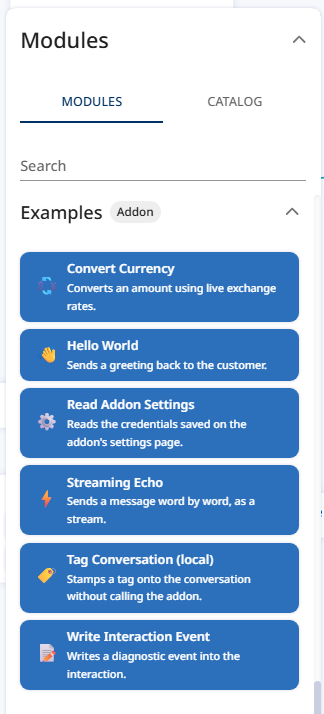
Once an addon is active, open Dialogs, edit a dialog flow, and look in the module selection on the left. The addon's modules are grouped under its own heading and behave like any other module — you connect the output ports and read the values it writes into the context.
Read next
Build Your Own Addon — connect your own service to the platform using the public open-source template.