Azure AD (Entra ID)
- Register an Application
- Add a Redirect URI
- Add a Client Secret to Your Application
- Set up the Daktela Integration
- Assign the Authentication Method to Your Users
Warning
If you also use the Dynamics 365 CRM synchronisation integration, we recommend registering 2 separate applications.
Register an Application
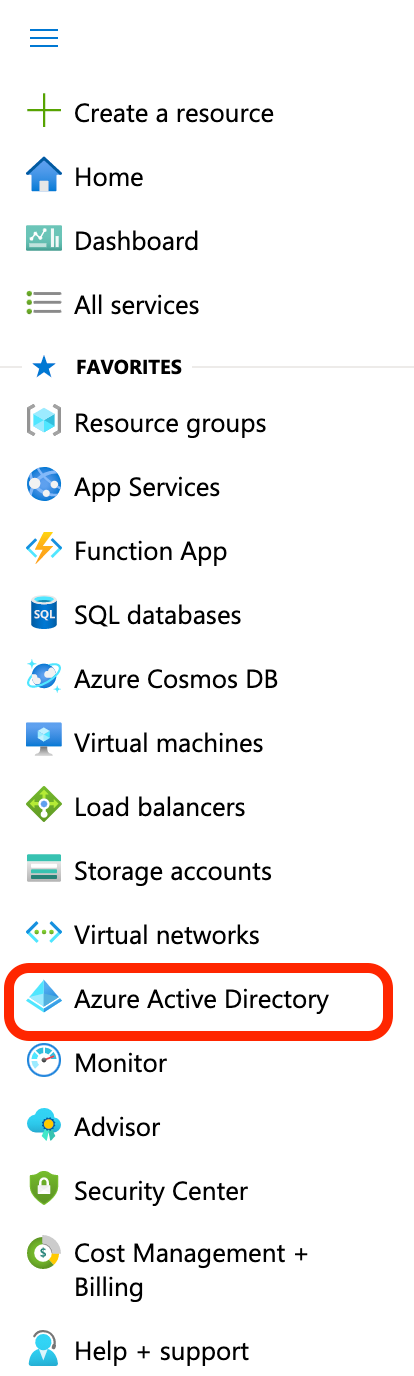
Log in athttps://portal.azure.com/as an admin user. Open the menu on the left and go to Azure Active Directory:
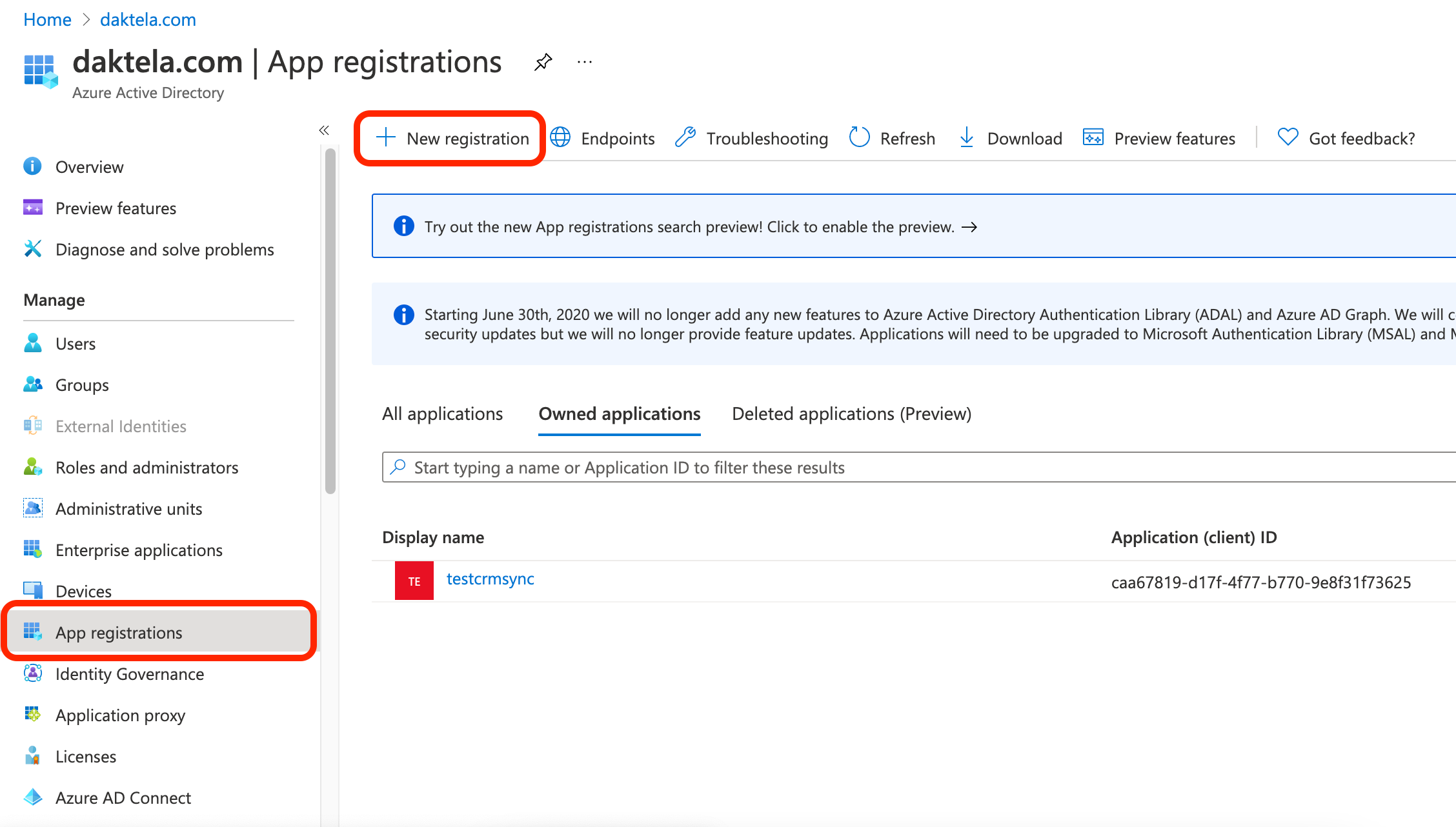
 Open App registrations from the menu, then click New registration:
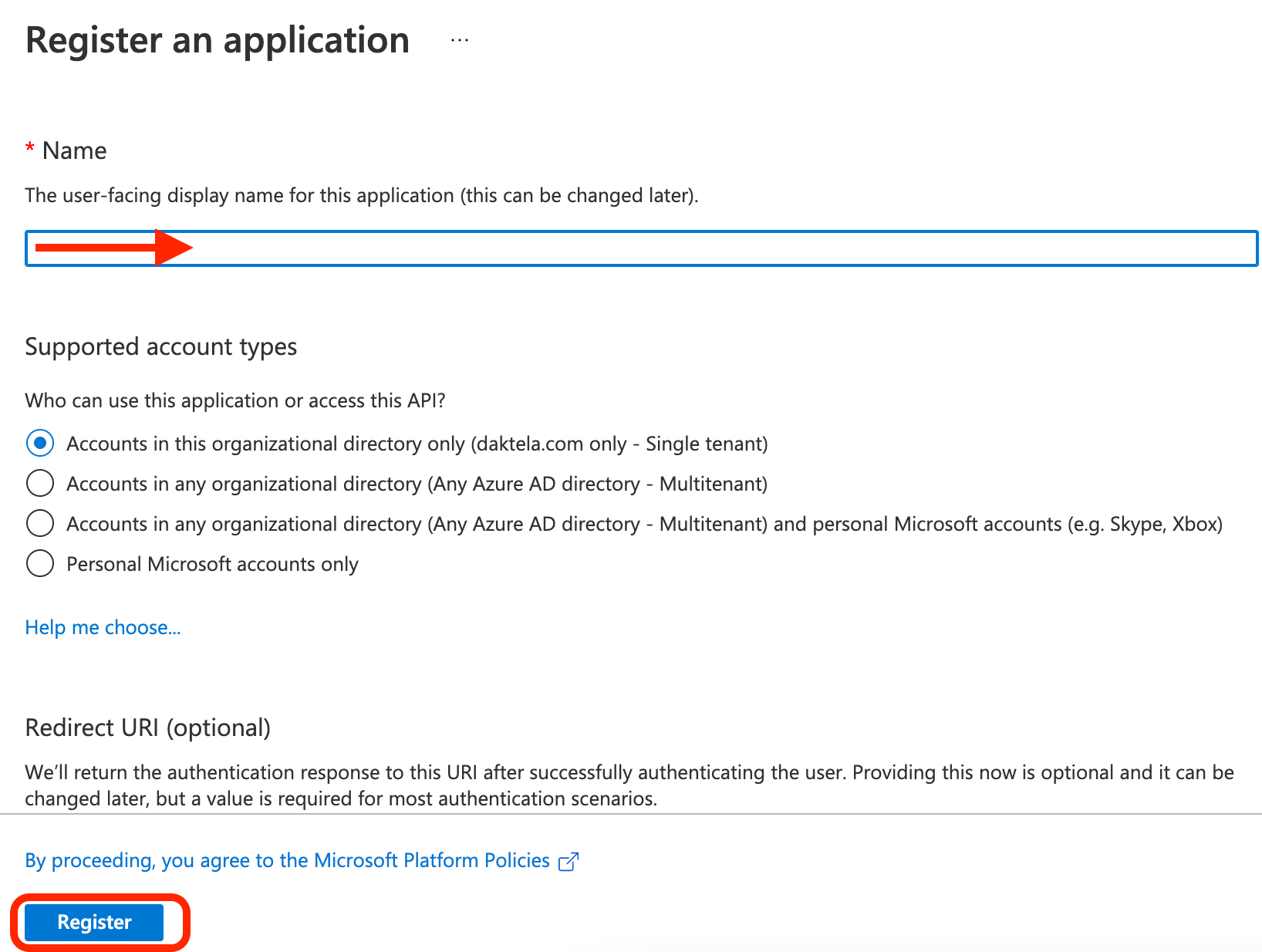
 Enter a name for your application, e.g. Daktela integration, and click Register:
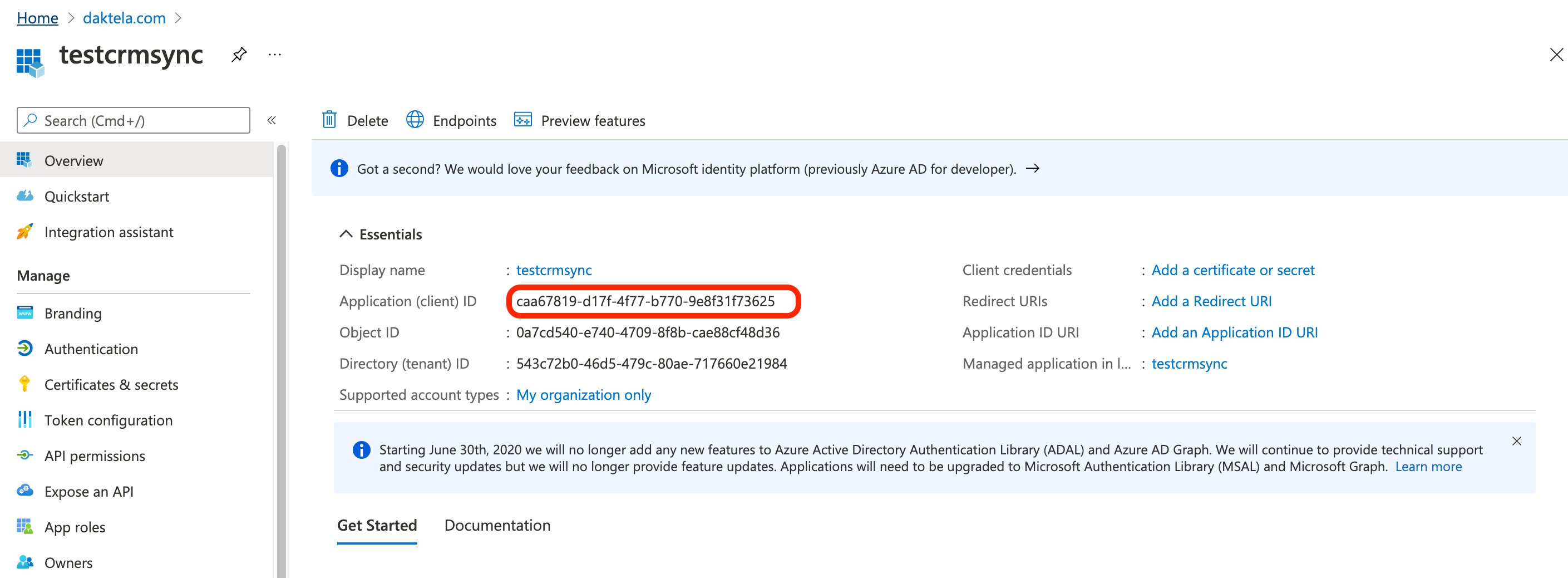
 Copy the Application (client) IDand paste it into the Application ID field in the Daktela integration – see last step.
Add a Redirect URI
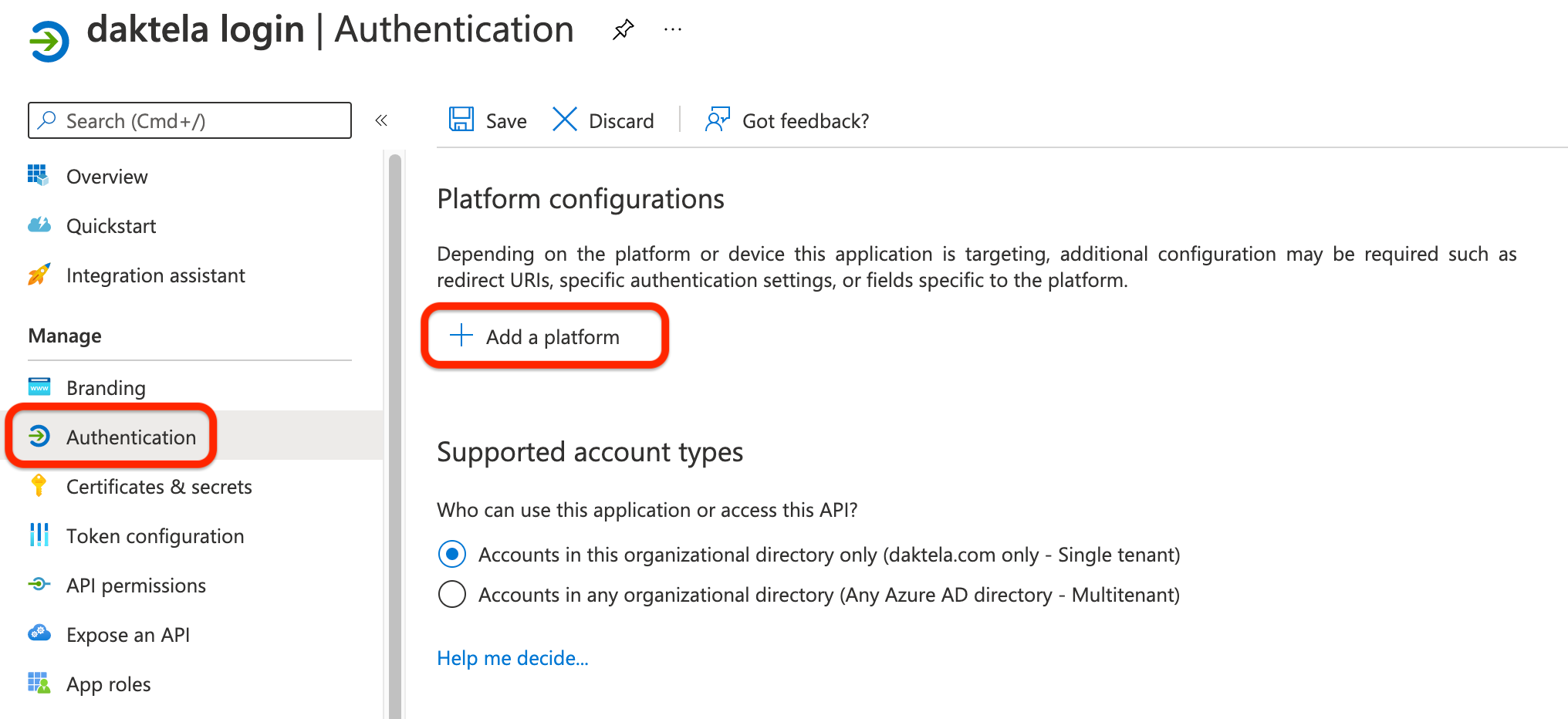
In the detail of the app you created in the previous step, go to Authentication in the menu on the left, then click Add a platform under Platform configurations:
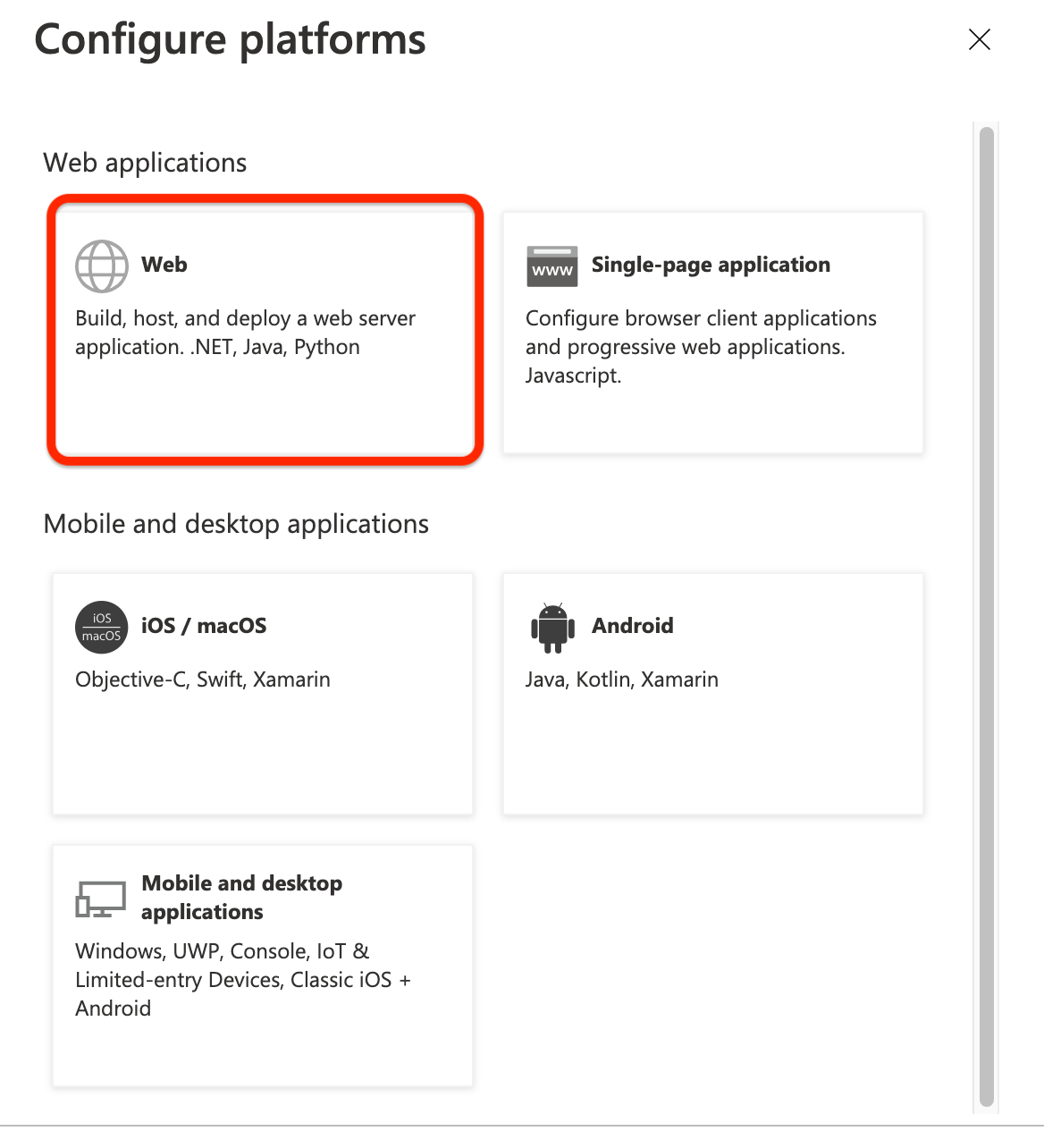
 In the Configure platforms dialog, click Web:
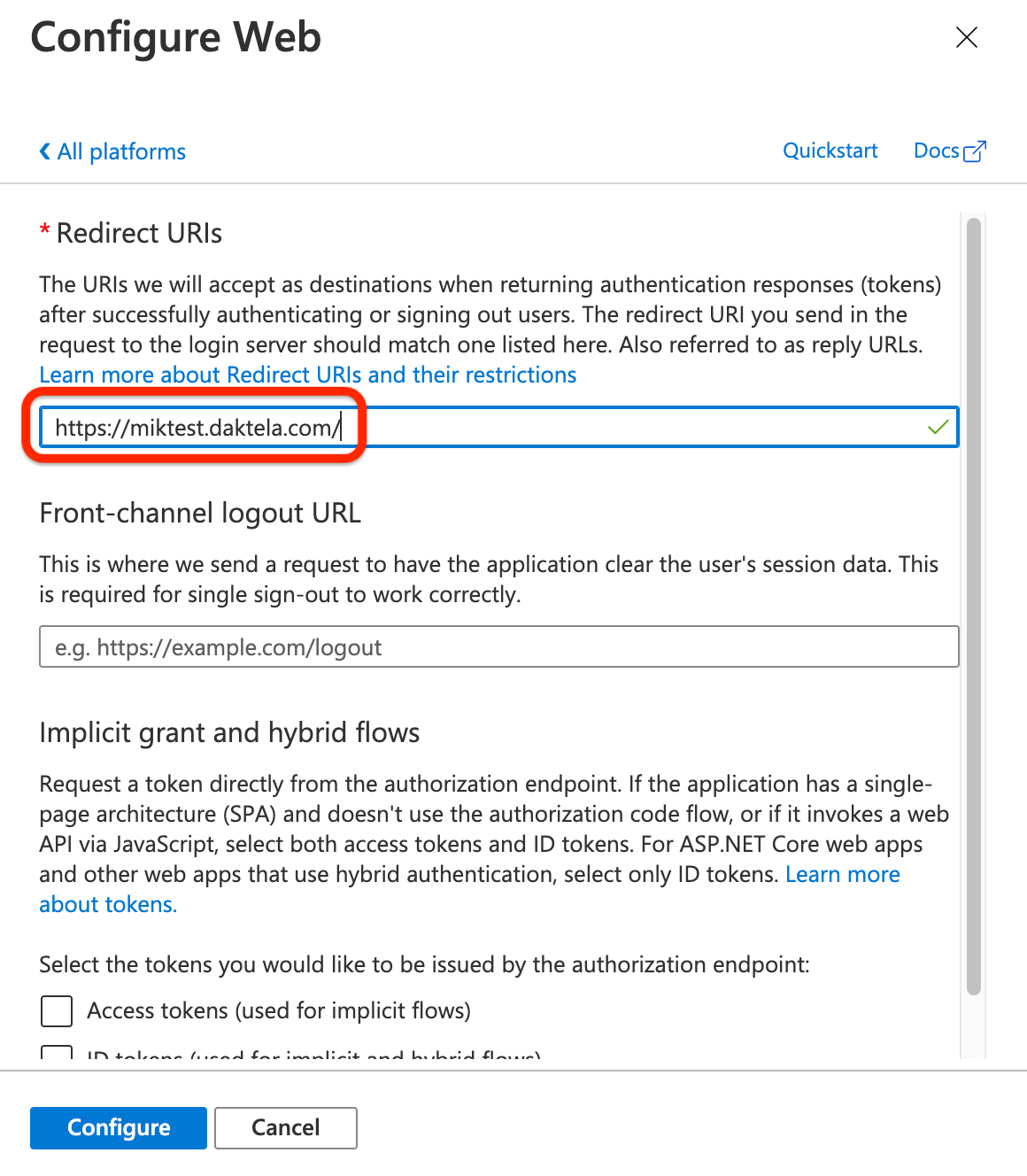
 In the Configure Web dialog, enter the URL of your Daktela instance into the Redirect URIs field, then click Configure at the bottom:
Add a Client Secret to Your Application
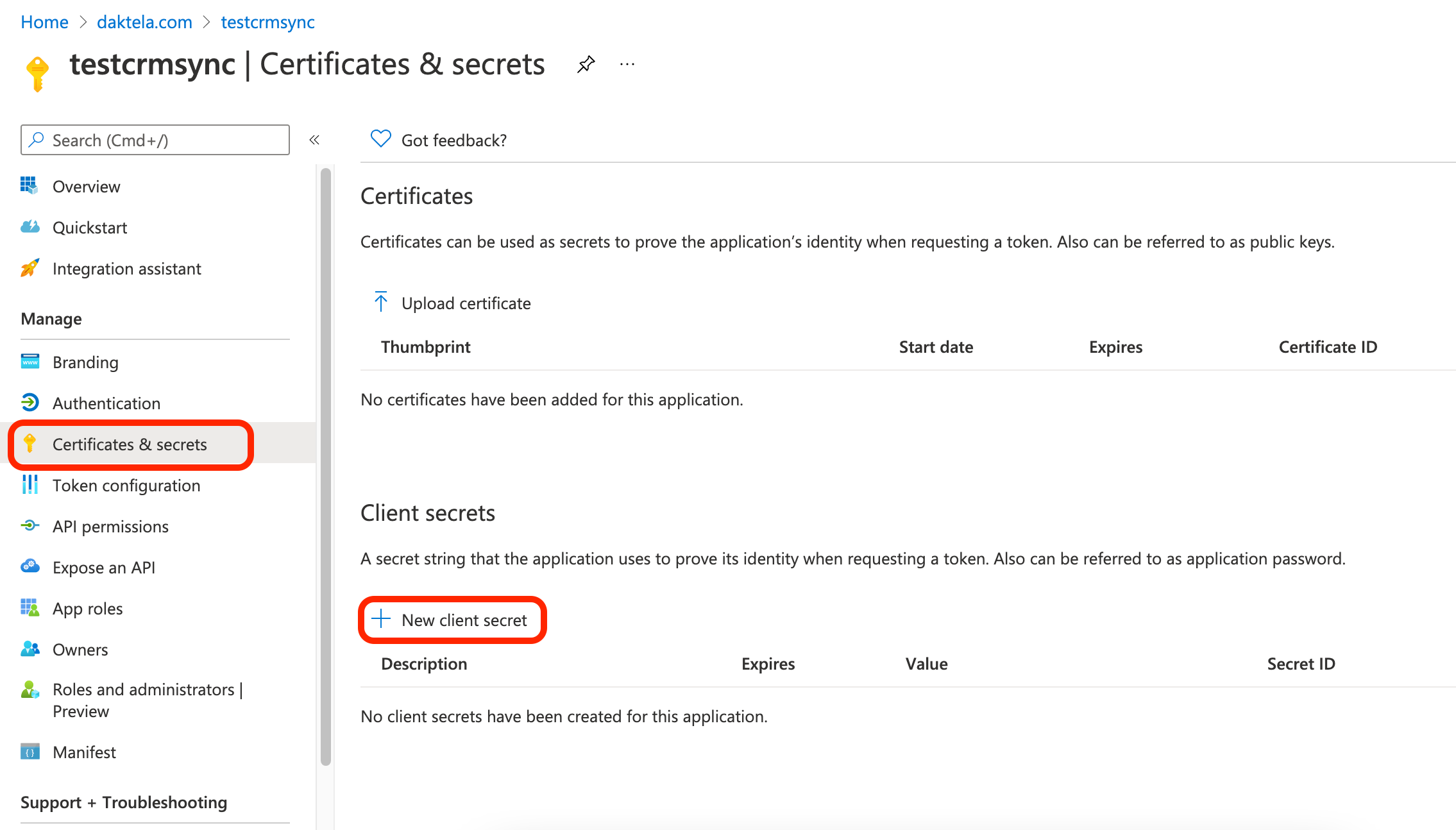
In the detail of the app you created in the first step, go to Certificates & secrets in the menu on the left, then click New client secret under Client secrets:
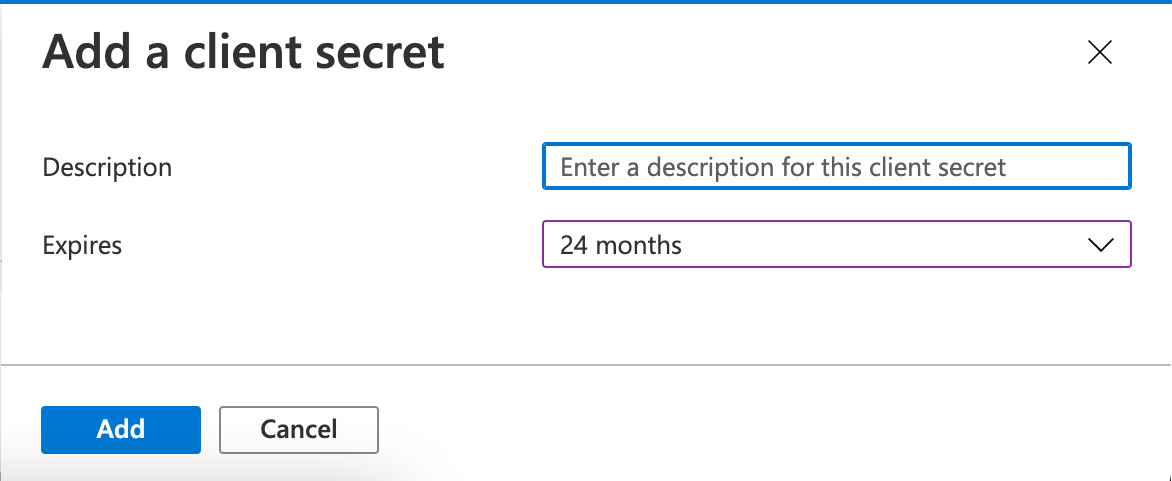
 Enter a short description and select the longest expiration option, then click Add:
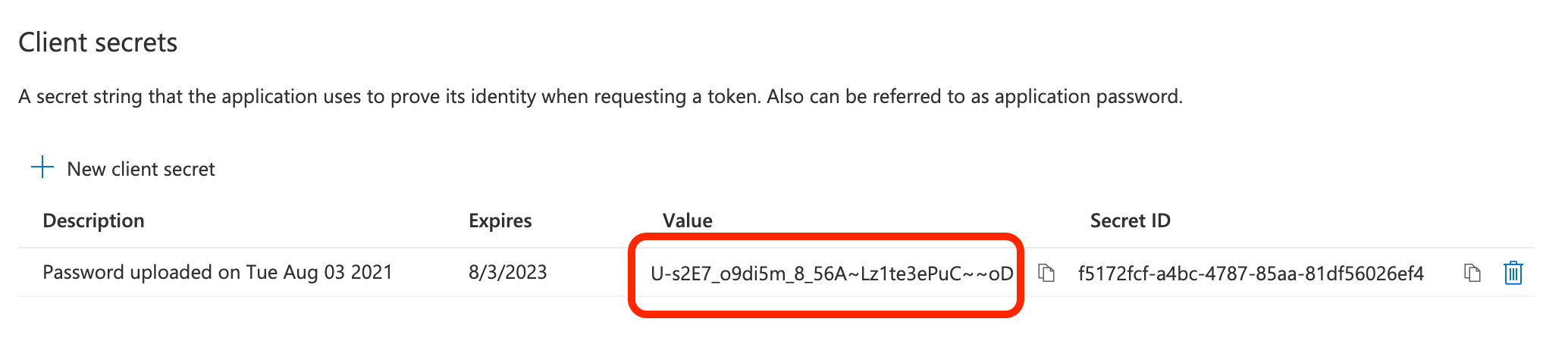
 Copy your secret Value and paste it into the Application secret field in the Daktela integration – see last step.
Set up the Daktela Integration
In Daktela, go to Manage → Integrations and click Configure under Azure AD. Enter any title into the Title field. You will use this to assign the authentication type to your users (see below). Enter yourApplication IDfrom the first step into the Application IDfield. Enter the Client secret Value from the second step into the Client secret field. Click Activate.
Assign the Authentication Method to Your Users
Go to Manage → Users → List of Users. Open the details of the user you want to assign the authentication method to. Under Verify type, select the Title that you entered when setting up the authentication in Manage → Integrations (see Set up the Daktela integration above). If you want users to be able to log in using a user name and password as well as Azure AD:
- Enable Allow OAuth PasswordsinManage → Global settings.
- Enter a Password in the user's details in Manage → Users → List of Users.