Pipedrive
Log in to your Pipedrive account as an admin user and follow the instructions below:
- Find Your API Token
- Set up the Daktela Integration
- Enter Your Pipedrive Details Into Daktela
- Map Your CRM Fields
Find Your API Token
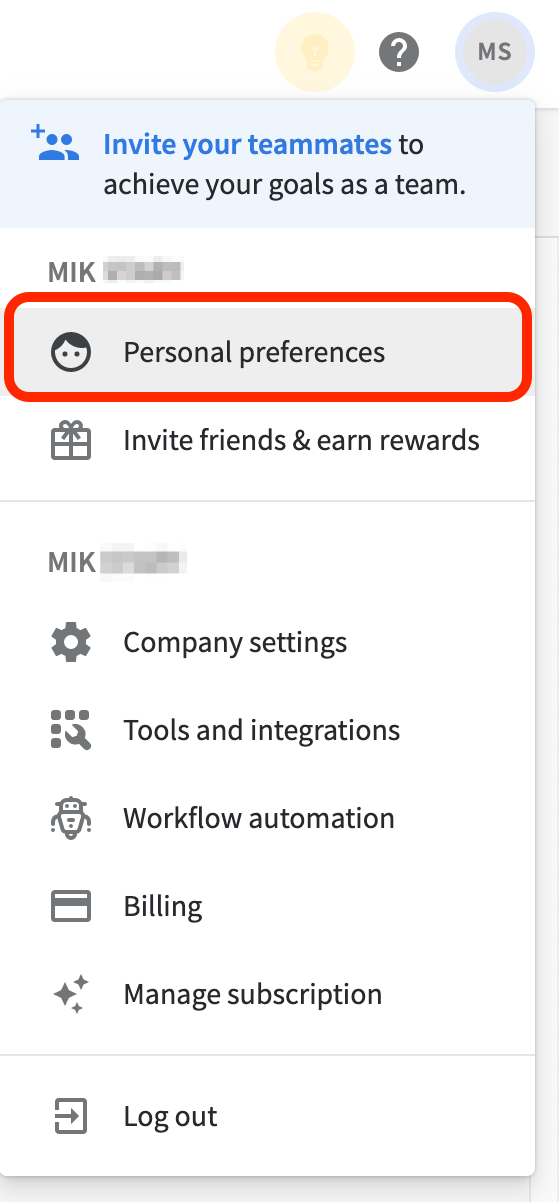
Click your profile picture in the top right corner and then click Personal preferences.
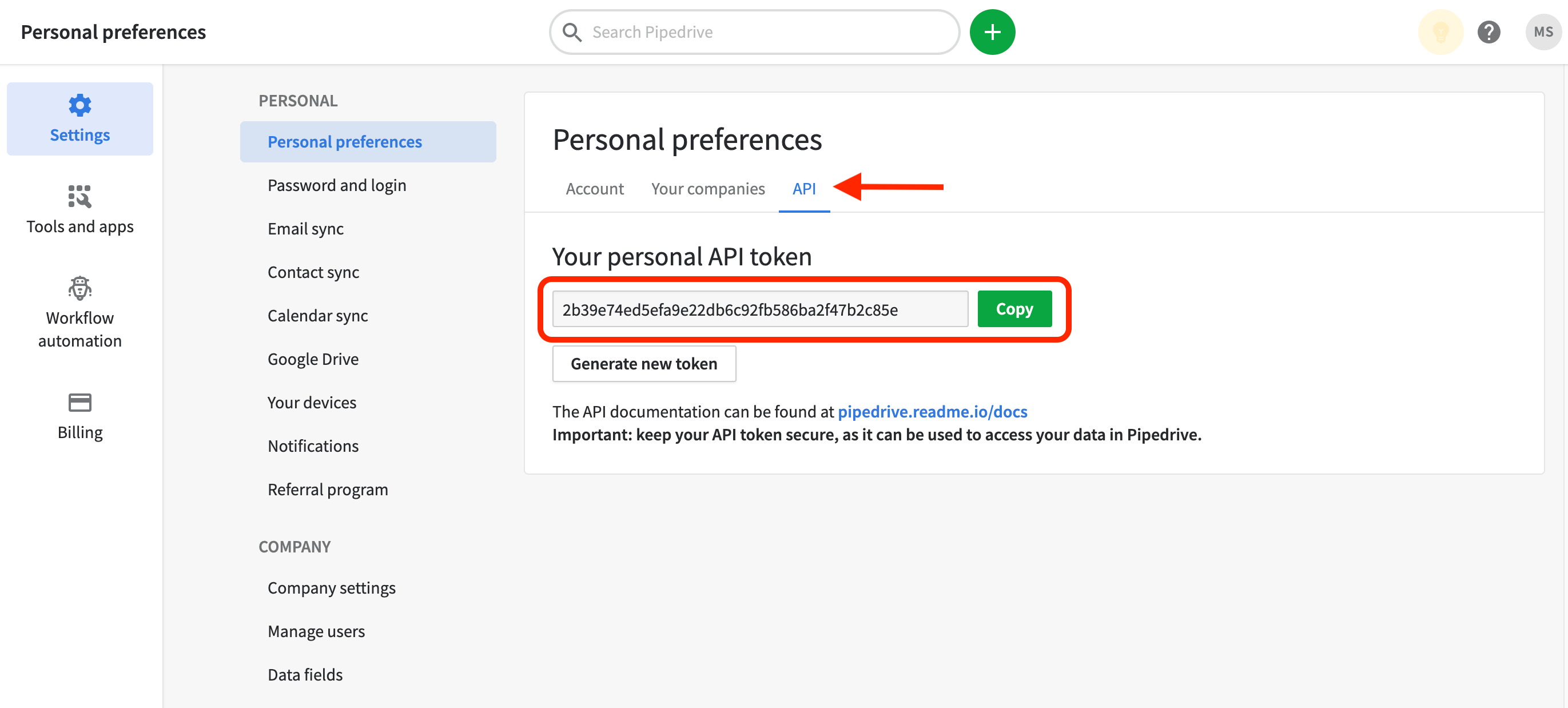
 Open the API tab and copy Your personal API token:
Set up the Daktela Integration
Enter Your Pipedrive Details Into Daktela
In Daktela, go to Manage → Integrations and click Configure under Pipedrive. Select into whichCRM Database you want to synchronise your data. Enter your Pipedrive URL into the Instance URLfield, e.g. https://yourname.pipedrive.com/ Paste your API token from the previous step into the Key field. Click Authorise.
Map Your CRM Fields
A list of your Daktela CRM fields will open. Select the Pipedrive field you want to synchronise with each field in Daktela. Click Activate.