Raynet CRM
Log in to your Raynet CRM account as an admin user and follow the instructions below:
- Create API Key
- Set up the Daktela Integration
- Enter Your Raynet CRM and User Details Into Daktela
- Map Your CRM Fields
Create API Key
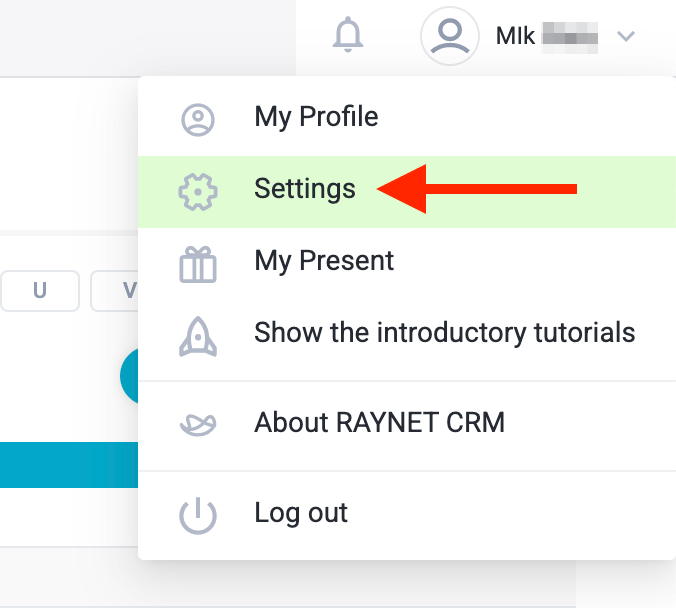
Log in at https://app.raynet.cz/YourAddress/ Open the drop down menu in the top right corner and click Settings:
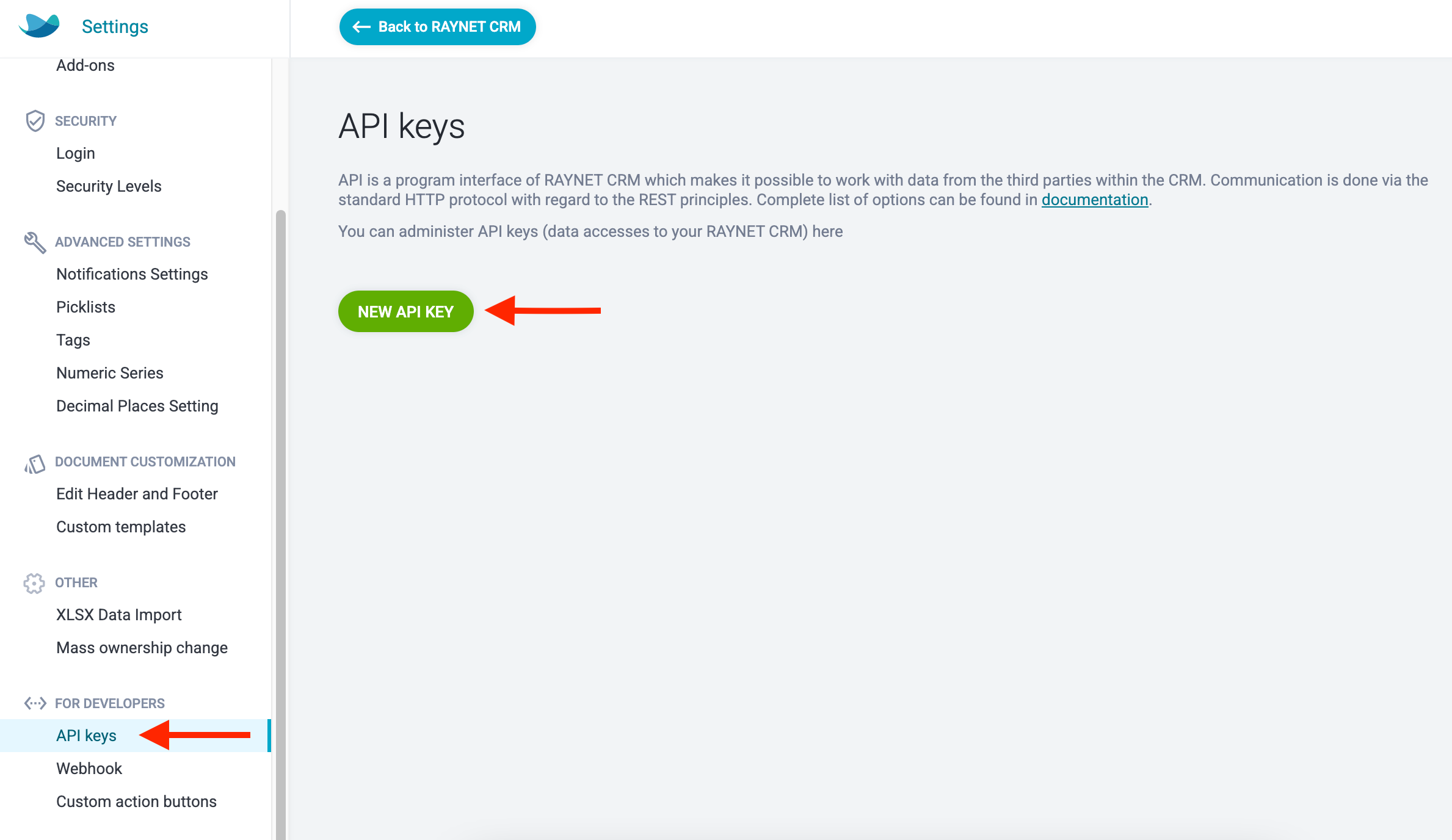
 Scroll down to the bottom of the menu on the left, click API keys and then NEW API KEY.
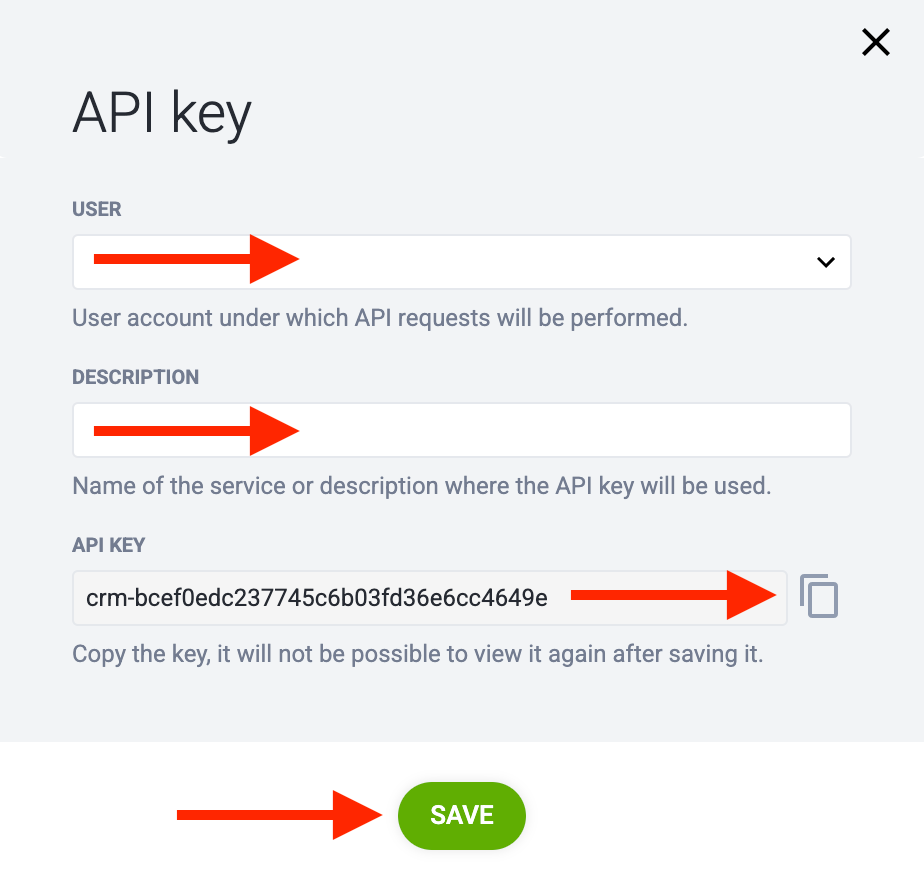
 Select a User – the synchronisation with Daktela will be run as the user you select.
Tip
Make sure the user has access to Contacts and Accounts.
Enter a Description. Copy the API Key. Click Save.
Set up the Daktela Integration
Enter Your Raynet CRM and User Details Into Daktela
In Daktela, go to Manage → Integrations and click Configure under Raynet CRM. Select into whichCRM Database you want to synchronise your data. Enter the part after the backslash of your Raynet CRM URL into the Instance namefield, e.g. https://app.raynet.cz/YourInstanceName Enter the User name (the email address they use to log in) of the user you selected when creating the API key in the previous section into the Usernamefield. Enter your API key from the previous section into the API Key field. Click Authorise.
Map Your CRM Fields
A list of your Daktela CRM fields will open. Select the Raynet CRM field you want to synchronise with each field in Daktela. Click Activate.