Azure Email Tenant Application
How to get authorisation data
- Enter any title into the "Title" field below.
- Log in at portal.azure.com as an admin user.
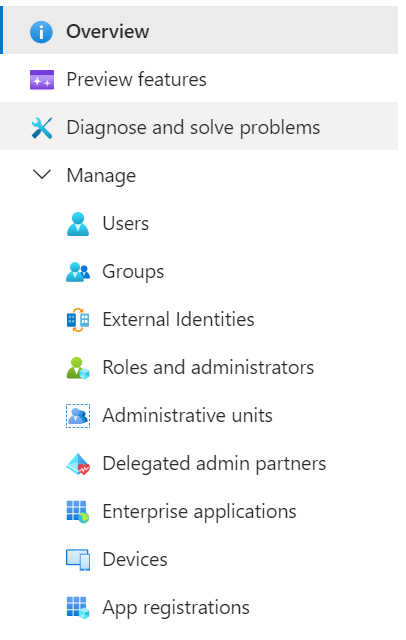
 - Open the menu on the left and go to "Entre ID".
 - Copy "Tenant ID" from overview page and paste it into the "Tenant ID" field in the Daktela integration.
 - Open "Manage -> App registrations" from the menu, then click "New registration".
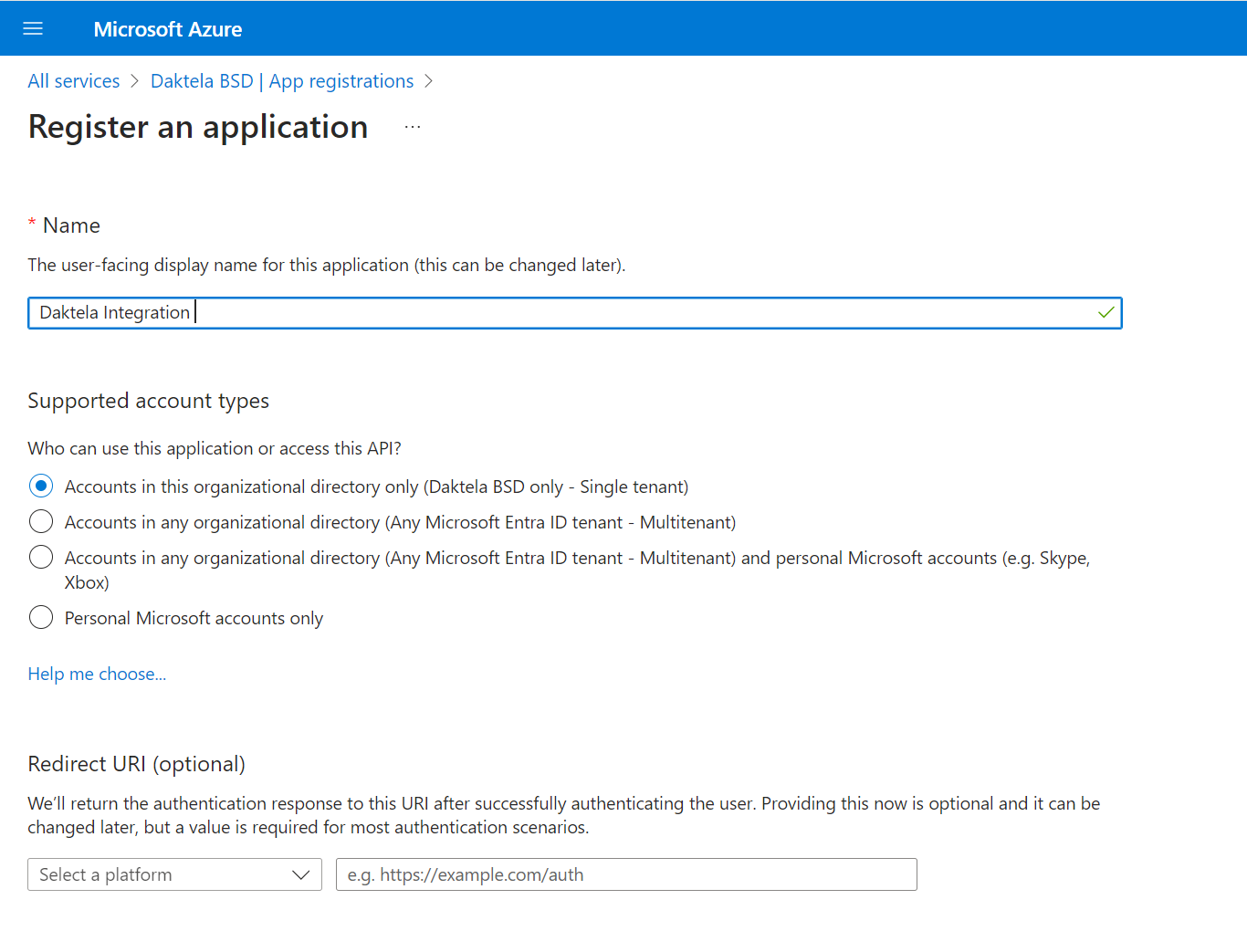
 - Enter a name for your application, e.g. "Daktela integration", and click "Register".
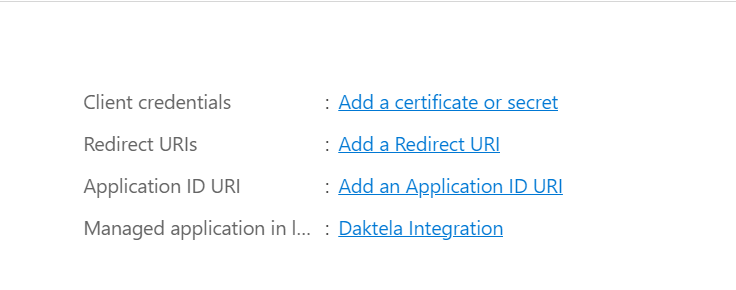
 - Copy the "Application (client) ID" and paste it into the "Application ID" field in the Daktela integration.
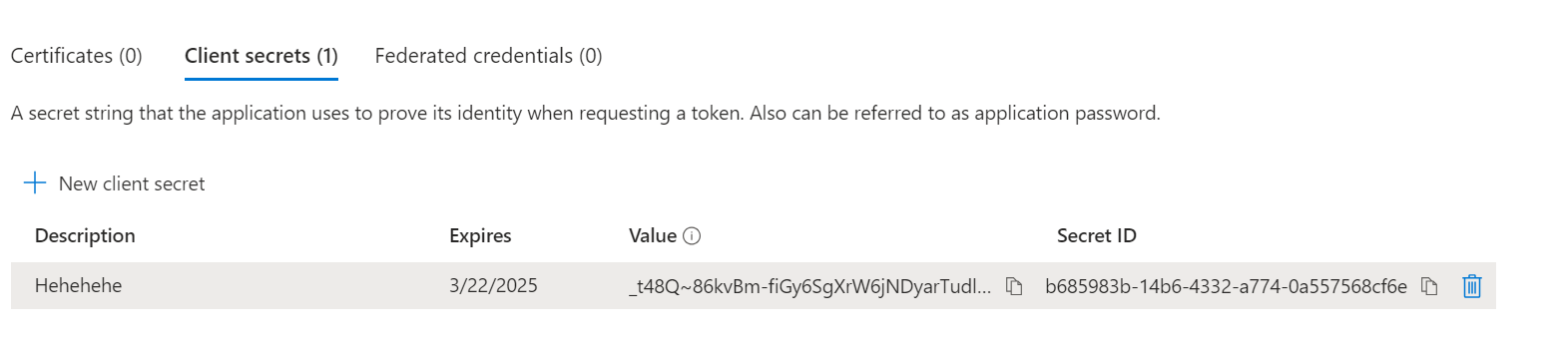
 - In the details of the app you created in the previous step, go to "Certificates & secrets" in the menu on the right, then click "New client secret" under "Client secrets".
 - Enter a short description and select the longest expiration option, then click "Add".
 - Copy your secret "Value" and paste it into the "Client secret" field in the Daktela integration.
 - Go to "API permissions" and add next application permissions
- For incoming: Mail.Read Mail.ReadBasic Mail.ReadBasic.All Mail.ReadWrite
- For outgoing: Mail.Send
- Click "Grant admin consent"
Change settings on your email queues
In Daktela, go to Settings → Queues. Open the email queue where you want the Azure tenant to be applied (one by one). Update the settings related to the Incoming Mail Server.
| Protocol | AzureAD GraphAPI Tenant |
|---|---|
| Use same method for Outgoing | Use same settings (including token) for outgoing emails. One token is used for incoming & outgoing emails. |
| Name | Your login name – usually the same as your email address. |
| Configuration | Select integration configuration. Note: First of all you have to create the configuration in Integrations (step 1) |