Zapier
- Integration Features
- Get Started
- Create a Zap
- Create a Trigger
- Creating a Custom Trigger with Daktela and Zapier
- Create an Action
- Examples
Integration Features
-
Trigger Actions:
-
New Ticket created: Initiate workflows when a new ticket is created in Daktela.
- New Contact added: Trigger actions when a new contact is added to Daktela.
- New CRM record created: Trigger actions when a new CRM record is created in Daktela.
- New Campaign record created: Trigger actions when a new campaign record is created in Daktela.
- New Account created: Trigger actions when a new account is created in Daktela.
- Updated Account: Trigger actions after an account was updated in Daktela.
- Updated Campaign Record: Trigger actions when a campaign record was updated in Daktela.
- Updated Contact: Trigger actions when a contact was updated in Daktela.
- Updated CRM Record: Trigger actions when a CRM record was updated in Daktela.
- Updated Ticket: Trigger actions when a ticket was updated in Daktela.
-
Action Events:
-
Create Ticket: Automatically create a new ticket in Daktela based on specific triggers from Daktela or other apps.
- Update Ticket:Automatically update an existing ticket in Daktela based on specific triggers from Daktela or other apps.
- Create Contact:Automatically create a new contact in Daktela based on specific triggers from Daktela or other apps.
- Update Contact: Automatically update contacnt information in Daktela based on specific triggers from Daktela or other apps.
- Create new CRM record:Automatically create a new CRM record in Daktela based on specific triggers from Daktela or other apps.
- Update CRM record:Automatically update an existing CRM record in Daktela based on specific triggers from Daktela or other apps.
- Create new Campaign record:Automatically create a new campaign record in Daktela based on specific triggers from Daktela or other apps.
- Create new Account:Automatically create a new account in Daktela based on specific triggers from Daktela or other apps.
- Update an Account:Automatically update an existing account in Daktela based on specific triggers from Daktela or other apps.
- Make a Call:Automatically makes a call in Daktela based on specific triggers from Daktela or other apps.
- Send an E-mail:Automatically sends an e-mail in Daktela based on specific triggers from Daktela or other apps.
- Set a Pause:Automatically sets a pause in Daktela based on specific triggers from Daktela or other apps.
- Send an SMS:Automatically sends an SMS in Daktela based on specific triggers from Daktela or other apps.
-
Custom Code Actions:
-
Run JavaScript/Python: Execute custom code snippets to handle complex logic or data manipulation specific to Daktela workflows.
- Call a Custom API request on Daktela: Enables customer to make an API call via custom HTTP request.
Get Started
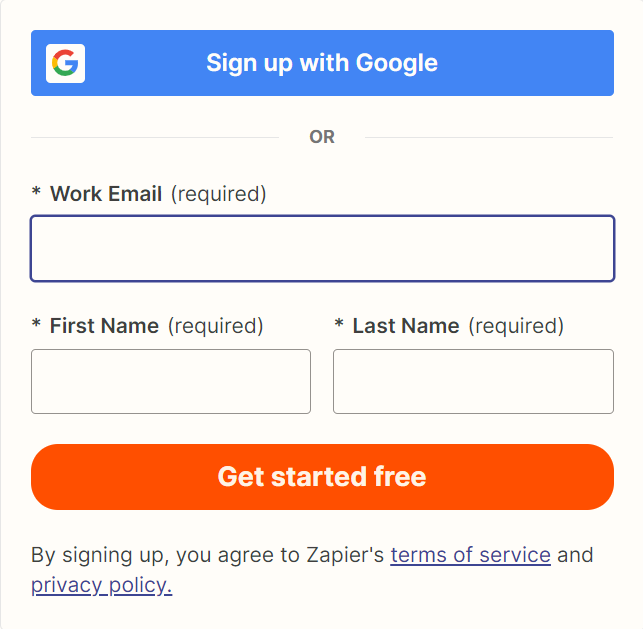
Before you start with the installation you need to create an account on Zapier.
- Sign up.
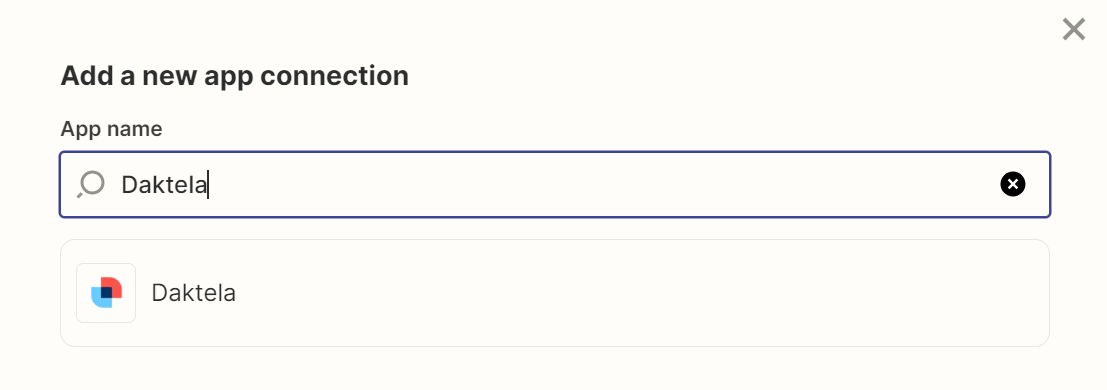
 - Go to Apps, Add Connection and search for Daktela
 - Fill out the API URL field.
- In Daktela get your access token, go to Manage→Users→ List of Users →open User’s detail.
- insert your Access Token into the Acces Token field.
- Fill out the API URL field.
- In Daktela get your access token, go to Manage→Users→ List of Users →open User’s detail.
- insert your Access Token into the Acces Token field.
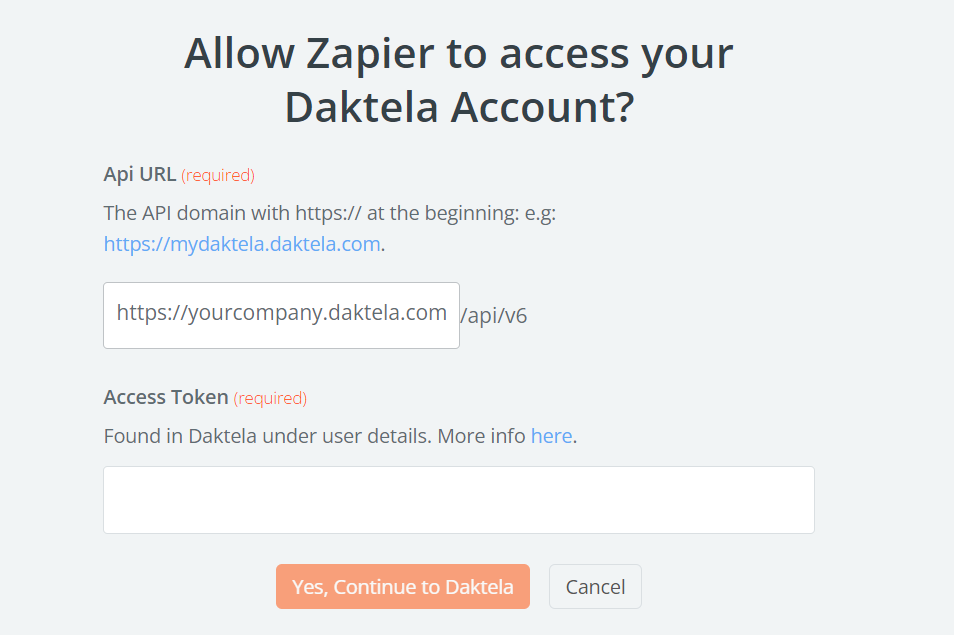
Your Daktela instance is now connected to Zapier.
Create a Zap
Info
A "Zap" in Zapier is an automated workflow that connects your apps and services. Each Zap consists of a Trigger (an event that starts the workflow) and Actions (tasks that the workflow performs). For example, a Zap might trigger when a new email arrives (Trigger) and then create a ticket in Daktela (Action). Zaps help automate repetitive tasks without coding.
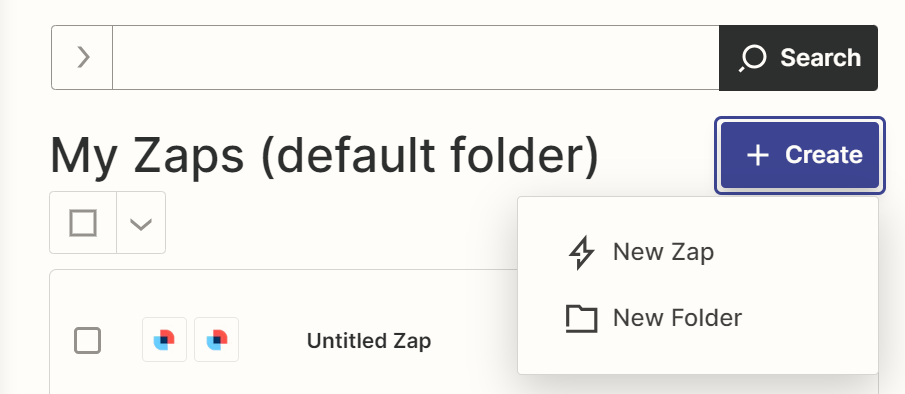
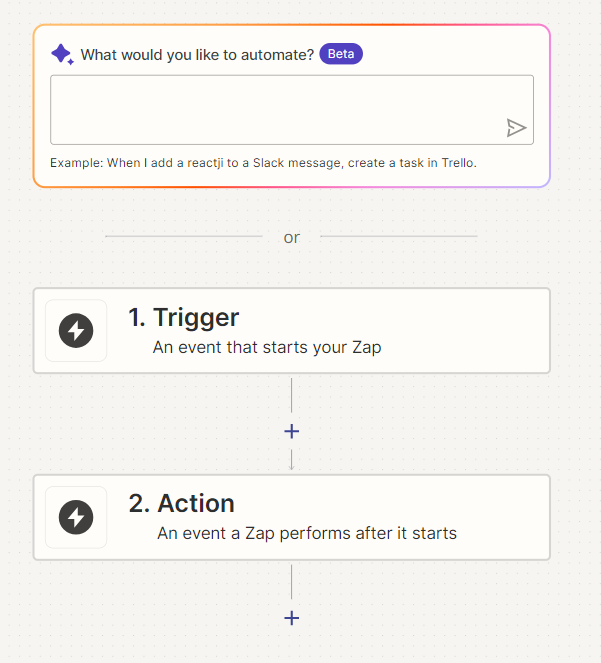
- Go to Zapier, Click Zaps and Create a new Zap.
Create a Trigger
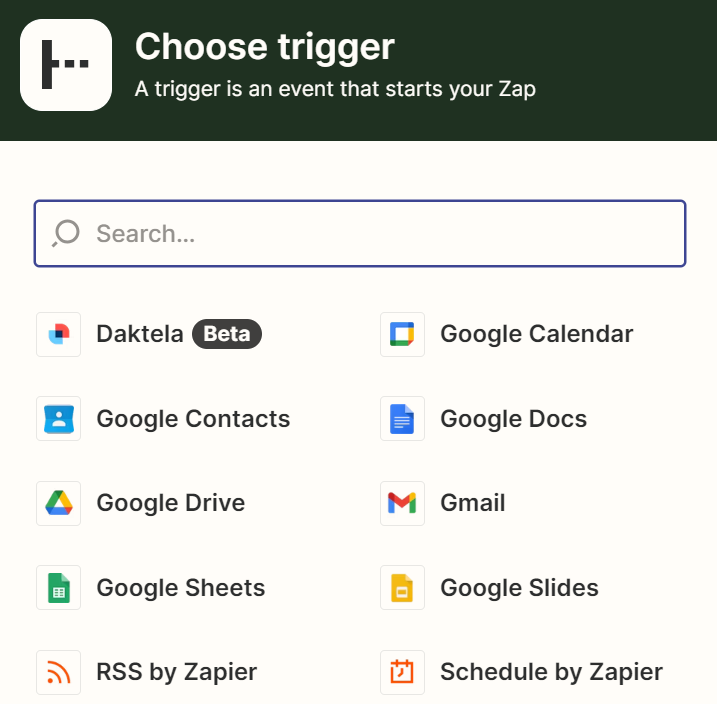
- Select the application where you expect an event to happen, which will then start an action.
Info
When a Trigger is selected in Daktela, Zapier will begin polling. This means it could take from 1 to 15 minutes for Zapier to recognize a Trigger from Daktela and then transmit it to Zapier's system. The duration depends on the version you are using.
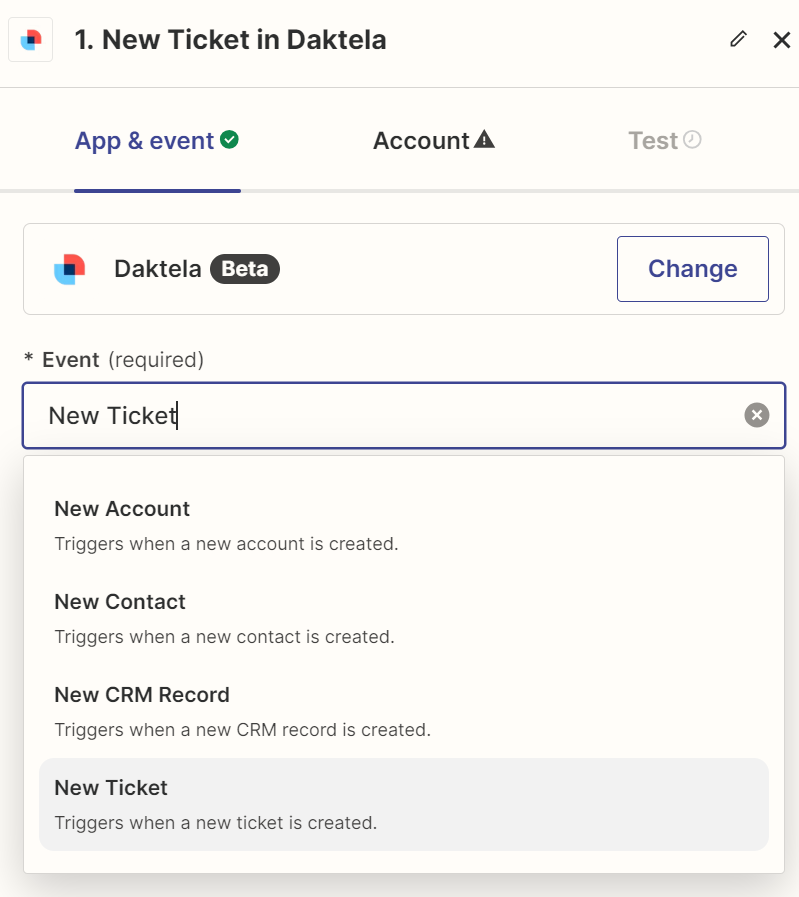
- In the application, specify anEvent that will evokeTrigger.
- Click Continueand Choose an Account.
Info
The selected account corresponds with the user’s account that you connected to Zapier in the initial step, when you entered the access token for a specific user whose instance you linked to Zapier.
Creating a Custom Trigger with Daktela and Zapier
Do you need a trigger that isn't implemented yet? You can map a Daktela event to a Zapier trigger by following these steps:
- Create a trigger using the Webhooks by Zapier app on the Zapier platform (this feature is available only for paying users).
- On the Test tab, you will see the webhook URL in a format similar to this: https://hooks.zapier.com/hooks/catch/18928315/2b37a7u/
- Copy that link.
- Create an event in Daktela and add the action "Open URL address" using the link from the previous step.
- If you need to pass data from Daktela to Zapier, you can include it within the webhook URL as query parameters.
Create an Action
- Select the application where you expect an Action to be triggered.
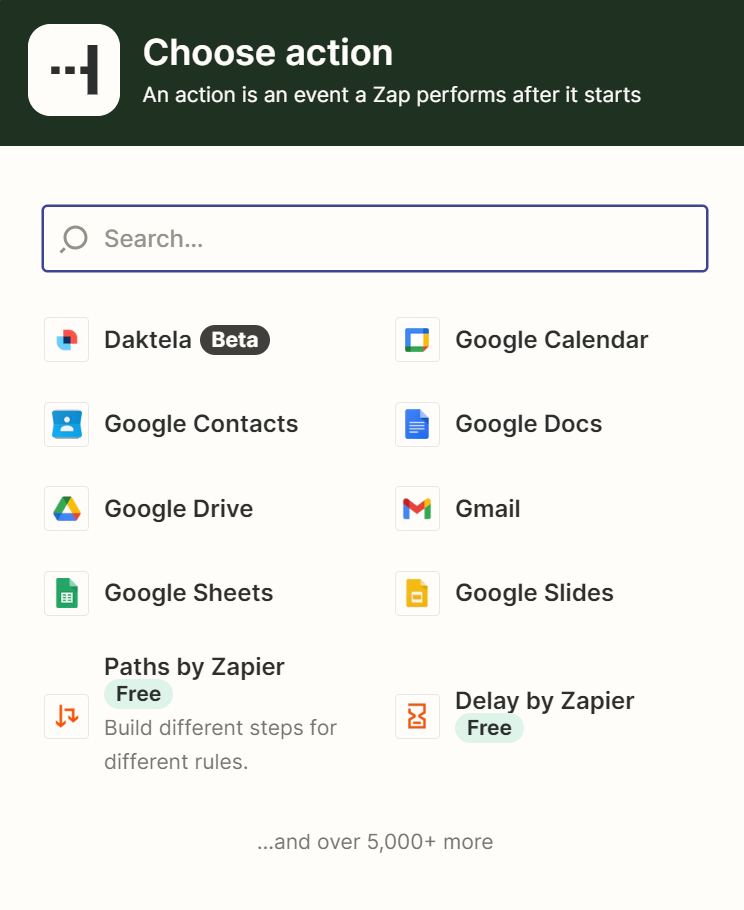
- Choose a specific type of Event.
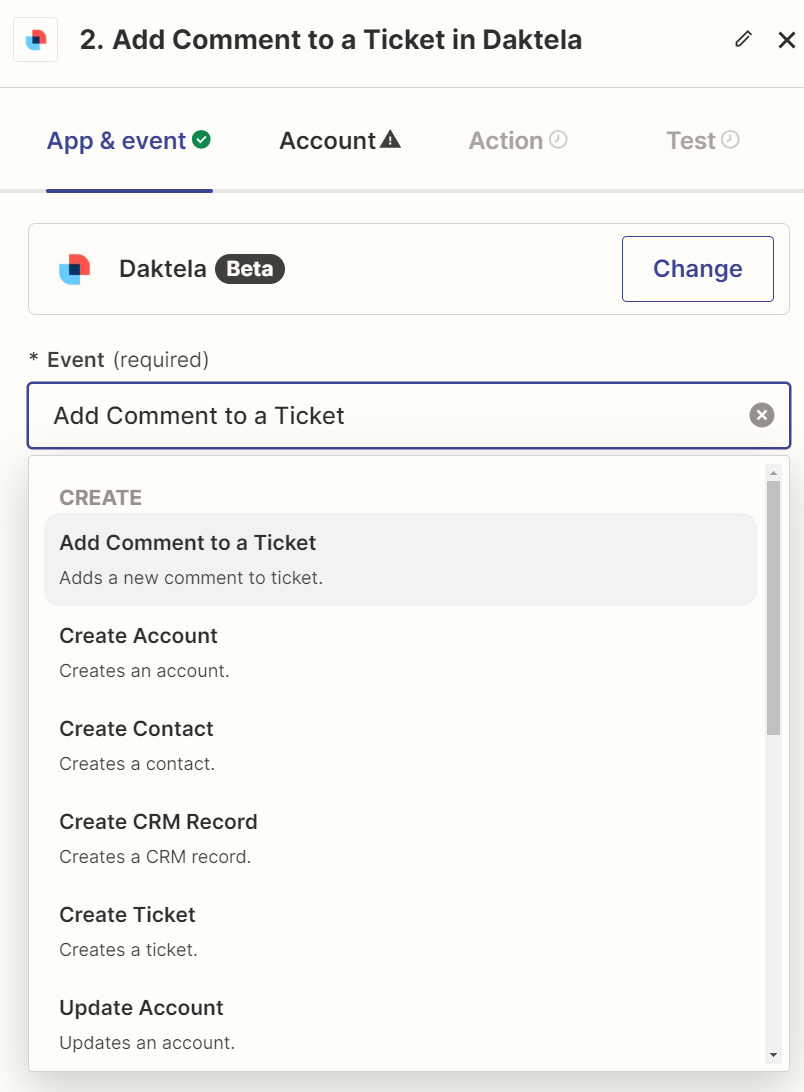
- Choose an Account.
Info
The selected account corresponds with the user’s account that you connected to Zapier in the initial step, when you entered the access token for a specific user whose instance you linked to Zapier.
- Choose Action.
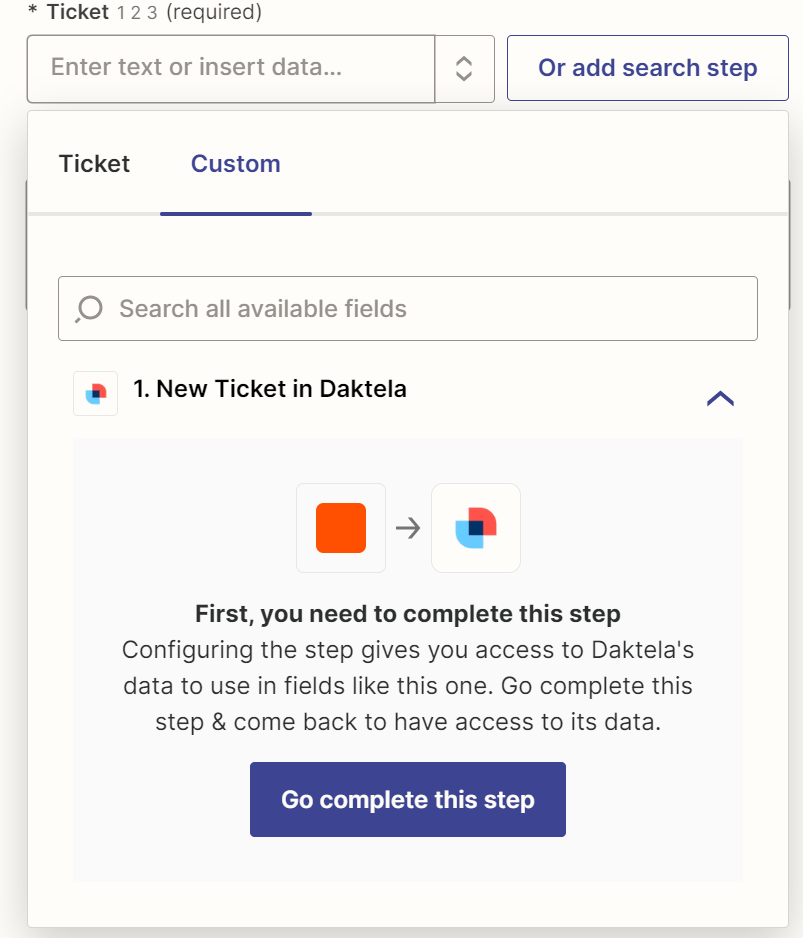
Warning
After creating the Trigger and Action, don't forget to click Publish; otherwise, your new Zap won't be activated.
Examples
Info
When a Trigger is selected in Daktela, Zapier will begin polling. This means it could take from 1 to 15 minutes for Zapier to recognize a Trigger from Daktela and then transmit it to Zapier's system. The duration depends on the version you are using.
Applications: Daktela - Daktela
- Trigger: A new ticket is created in Daktela.
- Action: Add a comment to the new ticket in Daktela. You can predefine the exact content of the comment, and it will be automatically appended to each new ticket you create in Daktela.
-
What will happen:As soon as you create a new ticket in Daktela, the additional comment you’ve made in Zapier will be linked to it. Applications: Gmail - Daktela
-
Trigger: New Email in Gmail.
- Action: Create a Ticket in Daktela.
-
What will happen:As soon as you receive a new email in your Gmail, a new ticket will be created automatically. Applications: Daktela - Slack
-
Trigger: New Contact in Daktela.
- Action: Add a reminder in Slack. You can predefine the content of the reminder, specify the time it will appear, and select the user who will receive it.
- What will happen: As soon as you create a new contacnt in Daktela, you’ll receive an automatic reminder in Slack.