Azure AD (Entra ID)
Let your agents log in to Daktela with their Microsoft work account — the same sign-in they use for Outlook and Teams — so your IT team controls access from Microsoft Entra ID.
What it does and when to use it
The Azure AD (Entra ID) integration adds a Microsoft account button to the Daktela login page:
- The user clicks the button and signs in on Microsoft's sign-in page, including any multi-factor authentication your organisation requires there.
- Microsoft sends the user back to Daktela, which logs in the Daktela user whose Authentication email matches the Microsoft account.
- Users are not created automatically — each user must already exist in Daktela and be assigned this sign-in method.
Typical use cases
- Single sign-on with Microsoft 365. Agents who are already signed in to Microsoft get into Daktela with a click, without a separate Daktela password.
- Central security policy. Multi-factor authentication, conditional access and password rules are enforced by Entra ID, in one place for all company apps.
- Quick offboarding. When IT disables an employee's Microsoft account, that person can no longer sign in to Daktela through it.
- Several Microsoft tenants. Companies with more than one tenant can add a configuration for each; users choose the right one on the login page.
Warning
If you also use the Dynamics 365 CRM synchronisation integration, we recommend registering a separate application for each of the two integrations. To send and receive e-mail through Microsoft 365, see Azure Email Tenant Application.
Prerequisites and setup
Prerequisites
- In Microsoft Entra ID: an account that can create app registrations, and a Microsoft work account for every person who will log in to Daktela.
- In Daktela: an administrator account with access to Settings → Integrations and Settings → Users.
Step 1: Register an application
-
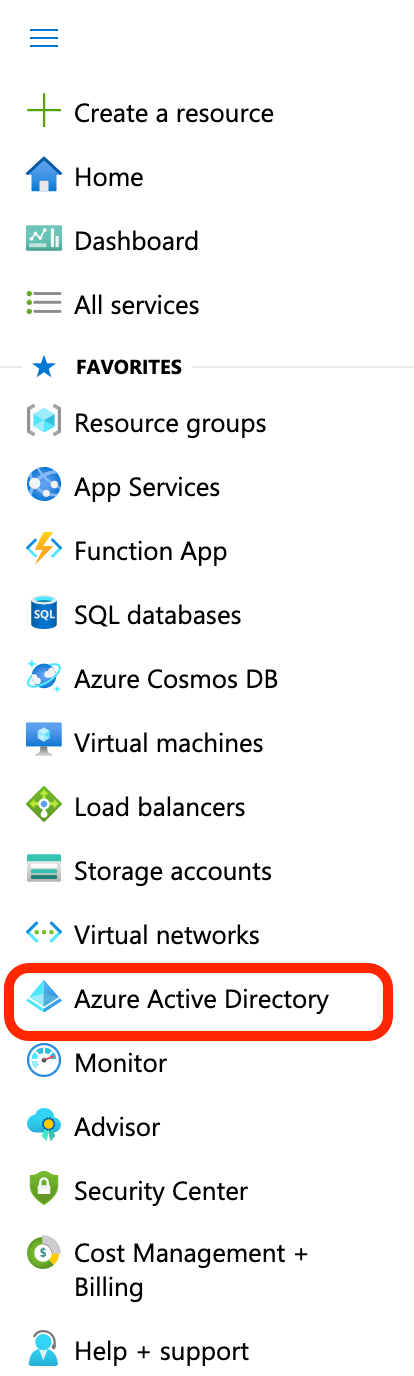
Log in at https://portal.azure.com/ as an admin user and open Microsoft Entra ID (formerly Azure Active Directory):
-
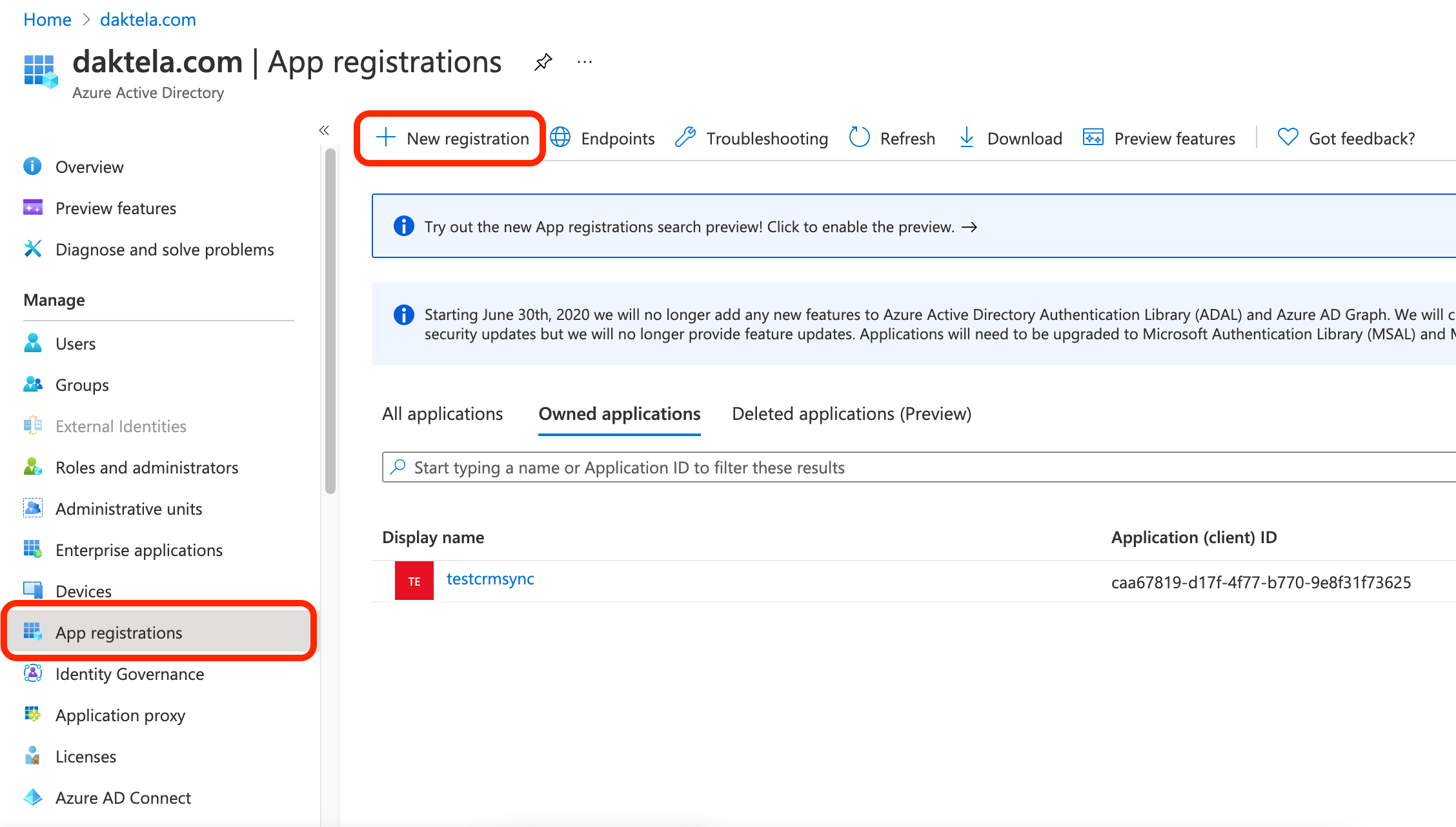
Open App registrations and click New registration:
-
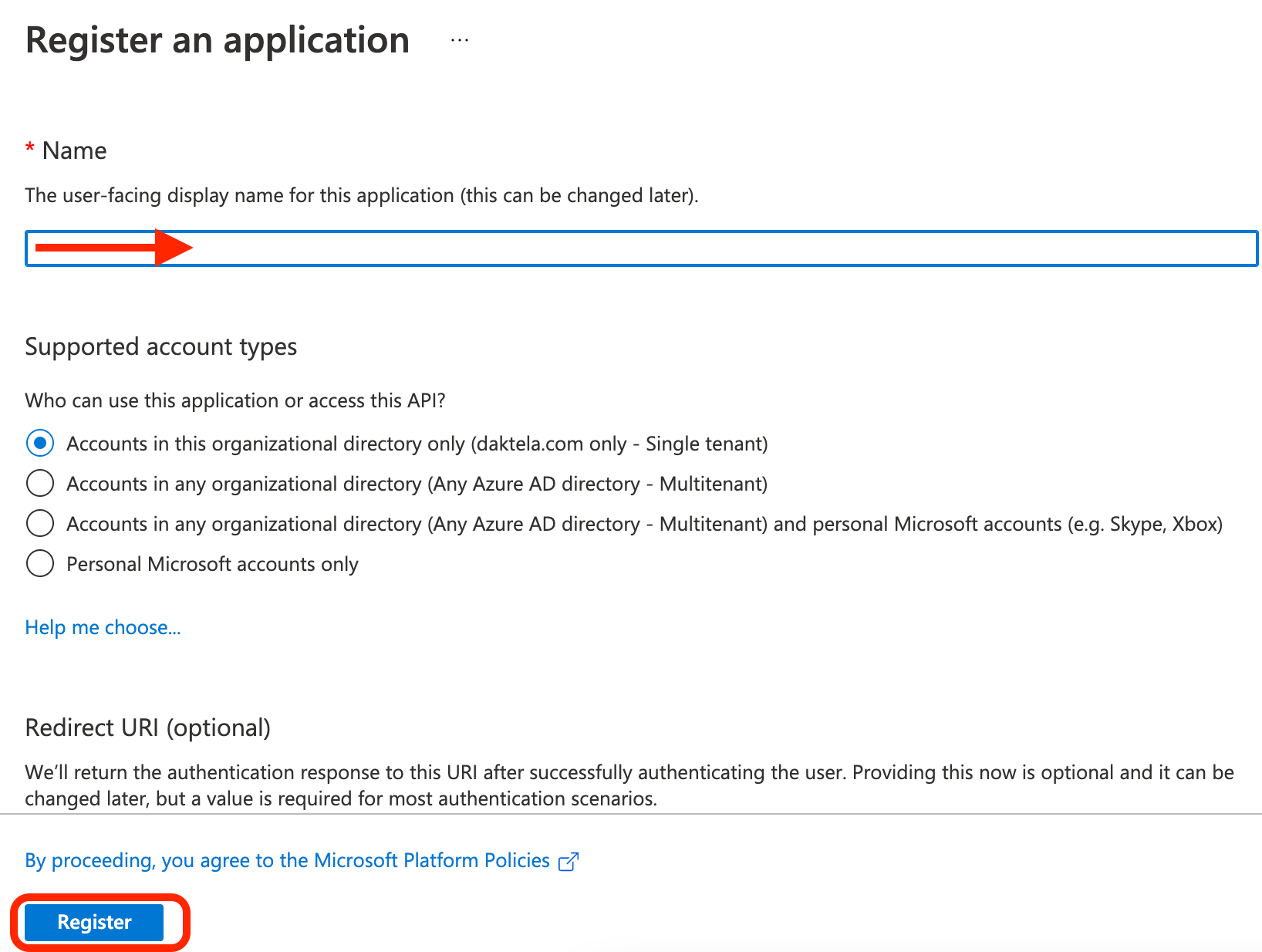
Enter a name for your application, for example Daktela login, and click Register:
-
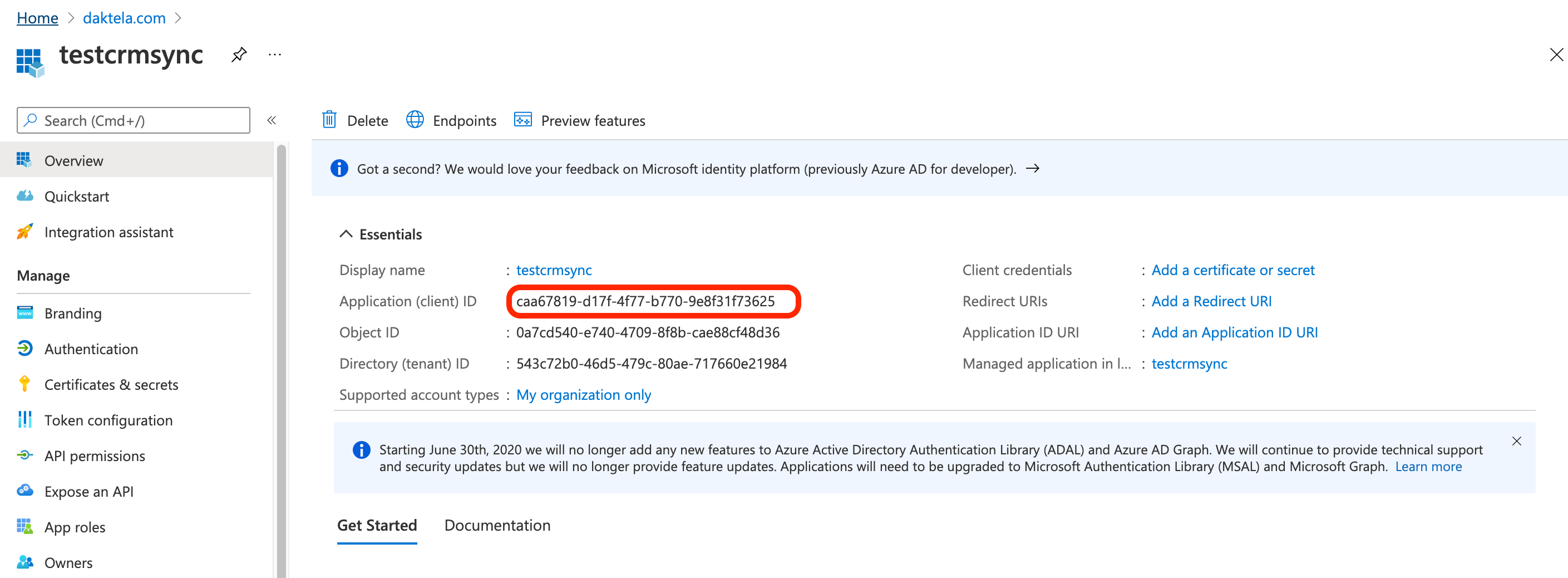
Copy the Application (client) ID — you'll enter it in Daktela in Step 4. On the same page you also find the Directory (tenant) ID, which you'll need if you want expiry reminders for the client secret.
Step 2: Add a redirect URI
-
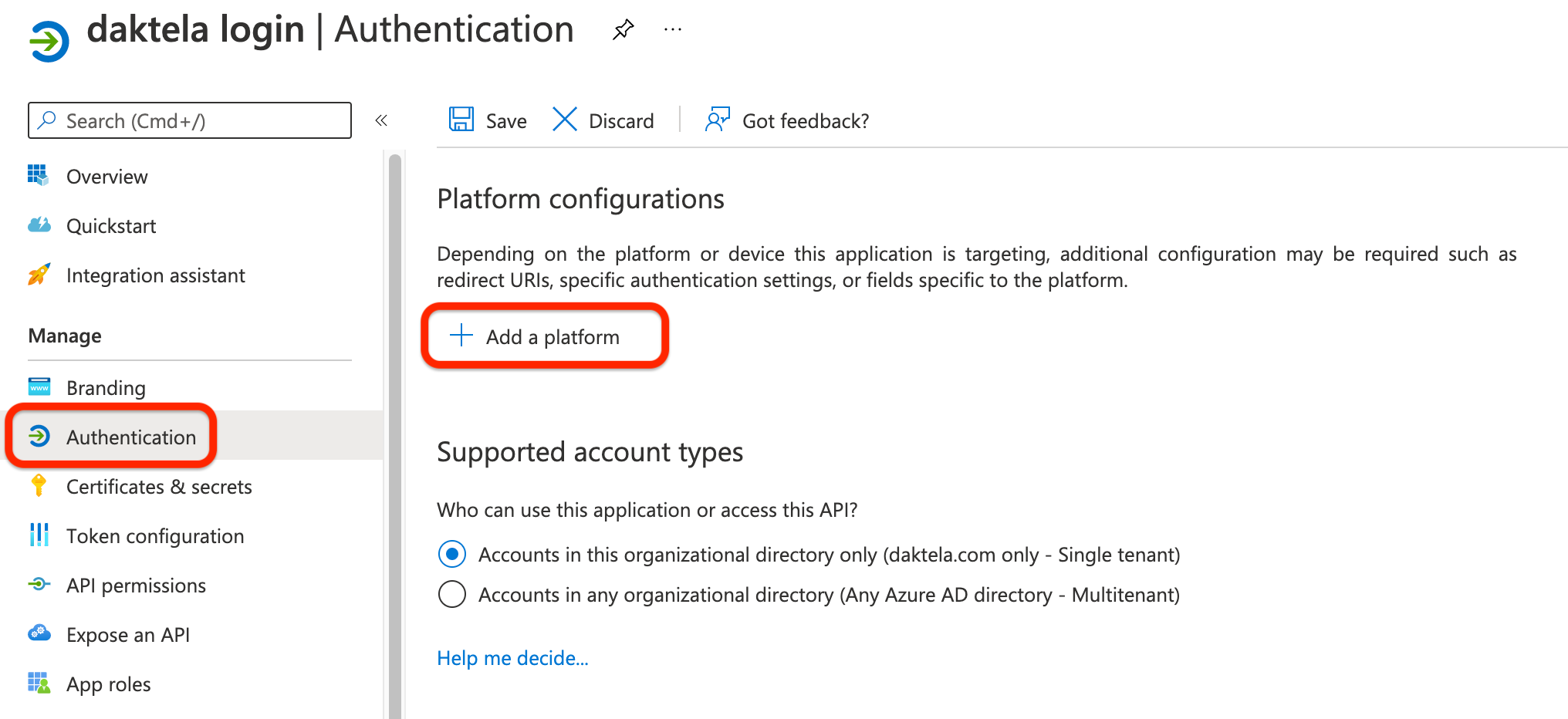
In your app, go to Authentication and click Add a platform under Platform configurations:
-
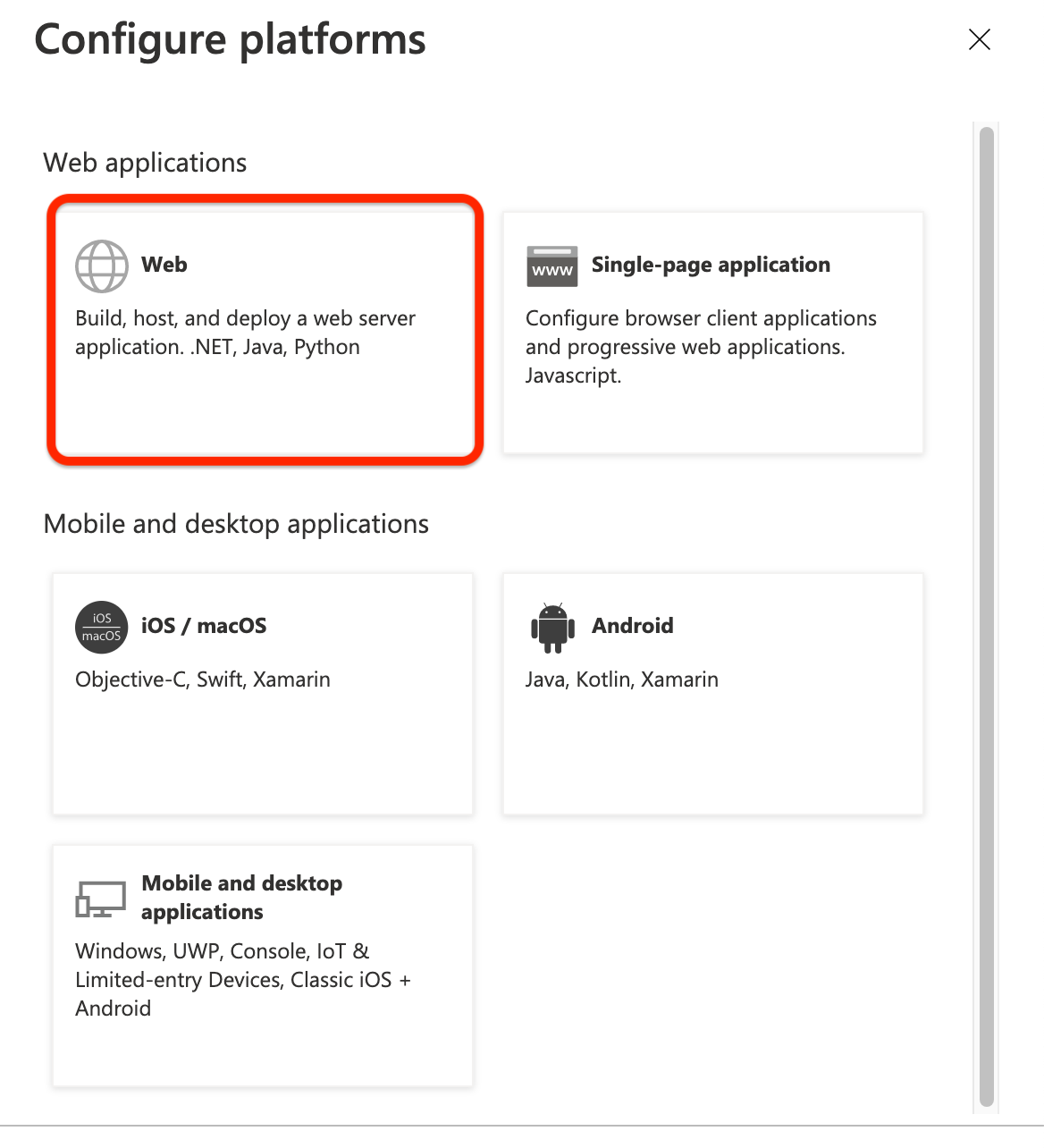
In the Configure platforms dialog, click Web:
-
In Redirect URIs, enter the address of your Daktela instance, for example
https://mycompany.daktela.com— exactly as Daktela sends it, without a trailing slash, and click Configure: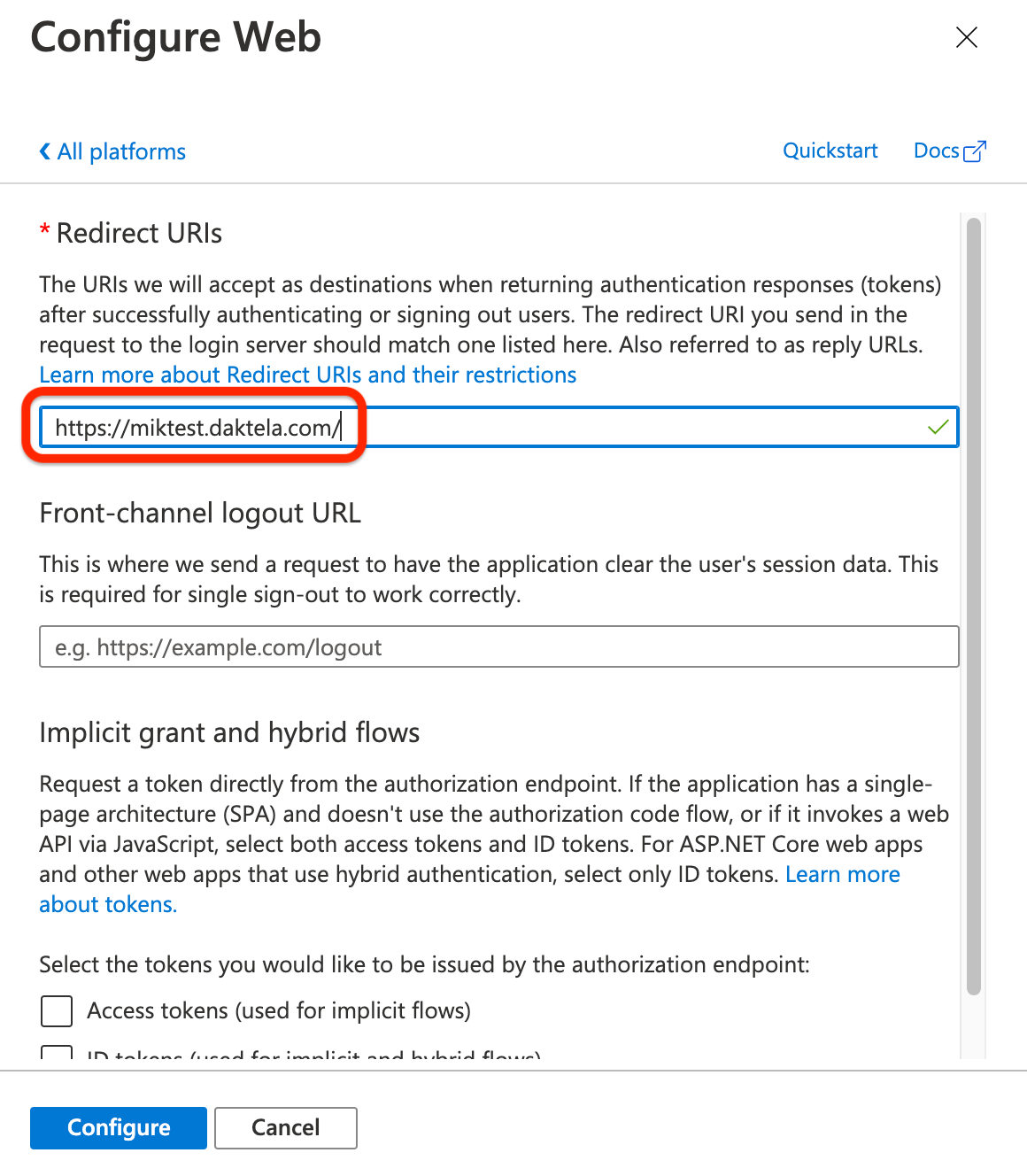
Step 3: Add a client secret
-
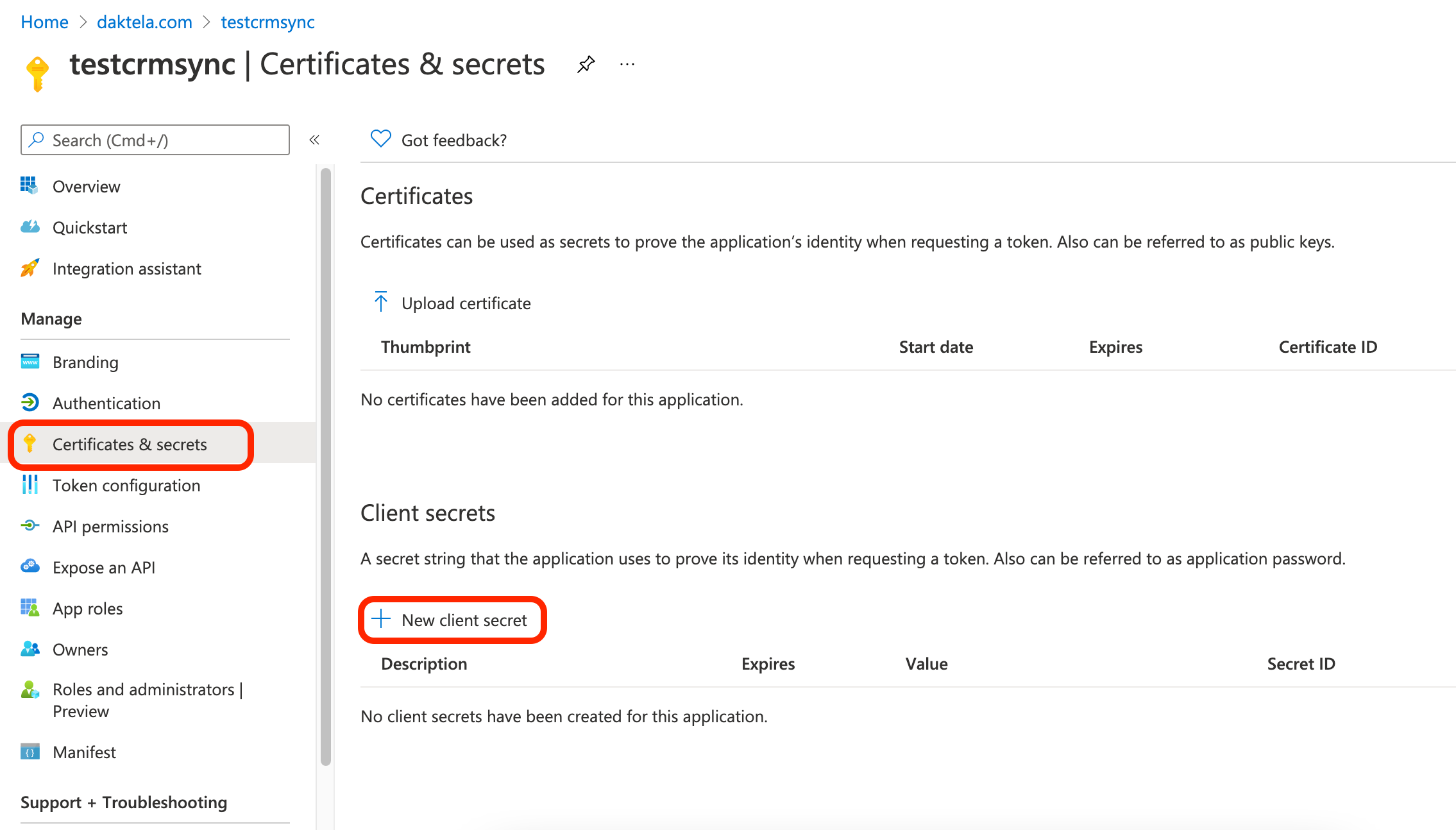
In your app, go to Certificates & secrets and click New client secret under Client secrets:
-
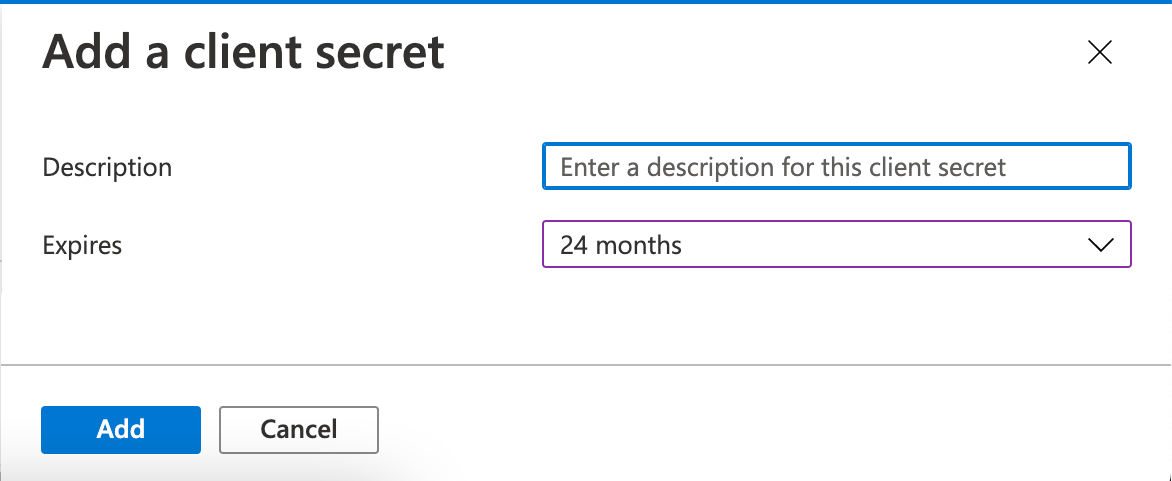
Enter a short description, choose an expiration and click Add:
-
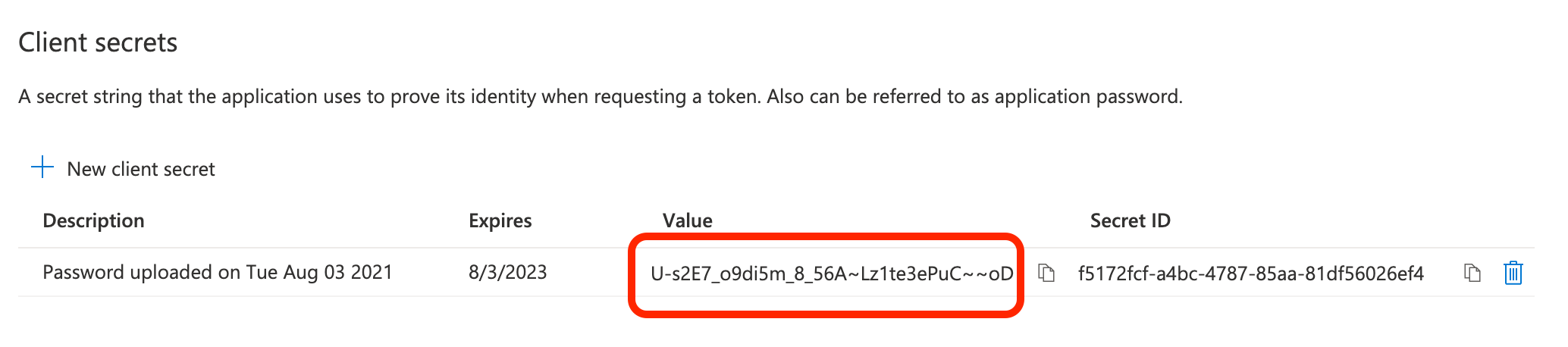
Copy the secret Value (not the Secret ID) — Microsoft shows it only once.
Step 4: Connect Entra ID in Daktela
- In Daktela, go to Settings → Integrations and click Configure under Azure AD (Entra ID).
-
Fill in the form:
Field What to enter Title A name for this configuration. Users see it on the login page when there is more than one configuration, and you pick it in the user's details in Step 5. Tenant ID Optional. The Directory (tenant) ID from Step 1. Fill it in to get an e-mail reminder before the client secret expires (see Technical details). Application ID The Application (client) ID from Step 1. Client secret The secret Value from Step 3. User mobile redirect URI Turn on if your users sign in through the Daktela mobile app and the app should use its mobile-specific callback. -
Click Activate.
Step 5: Assign the sign-in method to your users
- Go to Settings → Users and open the user's details.
- In Verify type, select the configuration you created in Step 4 (shown by its Title).
- In Authentication email, enter the user's Microsoft sign-in name (user principal name), for example
jane.doe@company.com. - Save the user.
The login page now shows the Microsoft account button. If you want users to be able to log in with a Daktela user name and password as well, enable Allow OAuth passwords in Settings → Global settings and give the user a password in their details.
Technical details
| Topic | Behaviour |
|---|---|
| Protocol | OAuth 2.0 authorization code flow with OpenID Connect (scope openid) against Microsoft's multi-tenant endpoint login.microsoftonline.com/common. |
| Redirect URI | https://<your instance> — the browser returns to the Daktela login page, which completes the login. |
| Identity used | The upn claim of the ID token Microsoft returns (from version 32.35.0 in the 32 line, 33.13.0 in the 33 line). Sign-in from the web therefore needs no Microsoft Graph permission on the app. |
| User provisioning | None. Daktela does not create, update or delete users from Entra ID; it only verifies who is signing in. |
| Password login | Users with this Verify type can log in with a user name and password only if Allow OAuth passwords is on in Global settings. |
| Two-factor authentication | Daktela's own two-factor authentication is not applied to Microsoft sign-ins — use multi-factor authentication in Entra ID instead. |
| Mobile app | The Daktela mobile app can sign in with a Microsoft access token; Daktela then reads the user's userPrincipalName from Microsoft Graph (/v1.0/me), so the app needs the delegated User.Read permission. Token sign-in is available from version 32.14.0 (31.25.0 in the 31 line); the User mobile redirect URI option from version 32.16.0 (31.26.0). |
| Multiple configurations | Supported (Add new in the configuration dialog). With more than one active configuration, the Microsoft account button opens a list of their titles. |
| Deactivation | A configuration can't be deactivated while active users still have it as their Verify type — Daktela reports Some users using this authorization. |
| Customer portal | The button is shown only to Daktela users, not on the customer portal login. |
How users are matched
- Daktela looks for an active user whose Verify type is the configuration the user chose on the login page and whose Authentication email equals the
upnvalue from Microsoft. - The
upnis the user principal name, which is usually — but not always — the same as the user's e-mail address. If they differ, enter the user principal name. - Authentication email is required for users with this Verify type, and two active users with the same configuration can't share one.
- If no user matches, the login page shows Unsuccessful authorization. If Microsoft returns no
upn(for example for a personal or guest account), the login page shows There was some error in authorization.
Client secret expiry reminder
Client secrets in Entra ID expire, and when the secret expires users can no longer sign in until you create a new secret and enter it in Client secret. From version 32.10.0 Daktela can remind you in advance:
- Once a day, for every active configuration with a Tenant ID, Daktela asks Microsoft Graph for the app's client secret expiry date.
- If the secret expires in less than 14 days, an e-mail goes to the addresses in System notification email address in Settings → Global settings, provided integration notifications are enabled under Customize notifications (Issue with one of your integrations).
- The check signs in with the application's own credentials, so the app needs permission to read its application object in Microsoft Graph. Configurations without Tenant ID are skipped.