Zoiper 5
Download the Softphone from www.zoiper.com and install it to your device then follow the guide below to set it up.
Tip
Try theDaktela Software Phone– designed to work specifically with Daktela, it is much easier to set up.
Warning
Please note that Daktela does not provide technical support for software phones other than the Daktela Software Phone.
Zoiper Setup
Launch Zoiper on your device and follow the instructions:
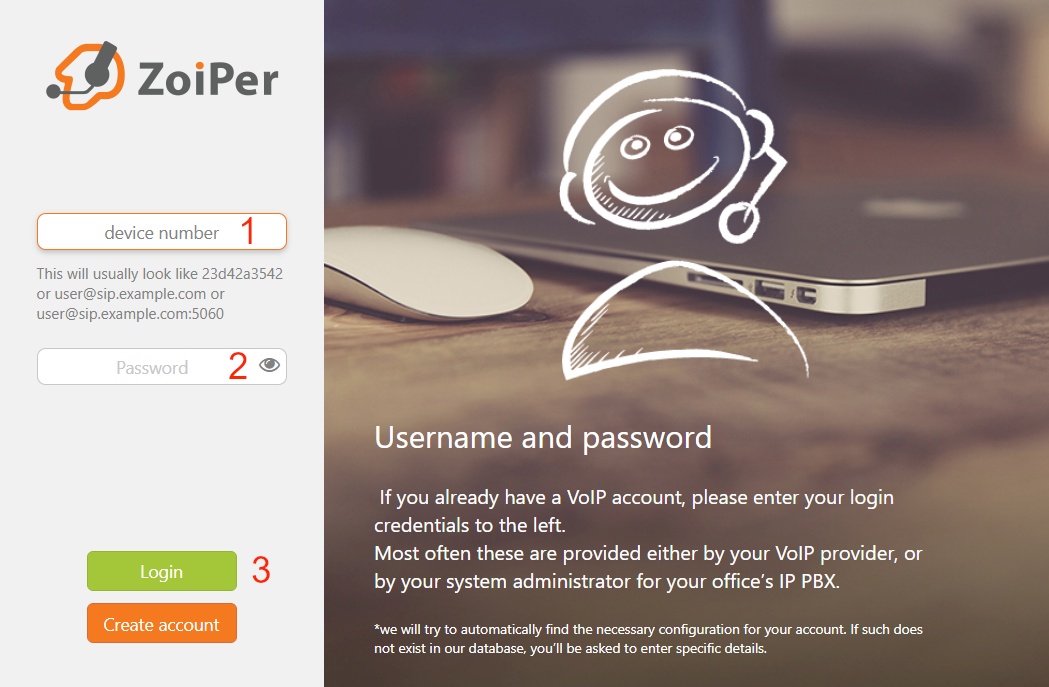
- Enter the device number(seeSIP devices to find your number).
- Enter the password of your SIP device (seeSIP devices to find your password).
-
Click Login.
-
Enter your SIP Domain – usually is the same as the address you use to log in to Daktela, e.g “yourcompany.daktela.com”.
-
Click Next.
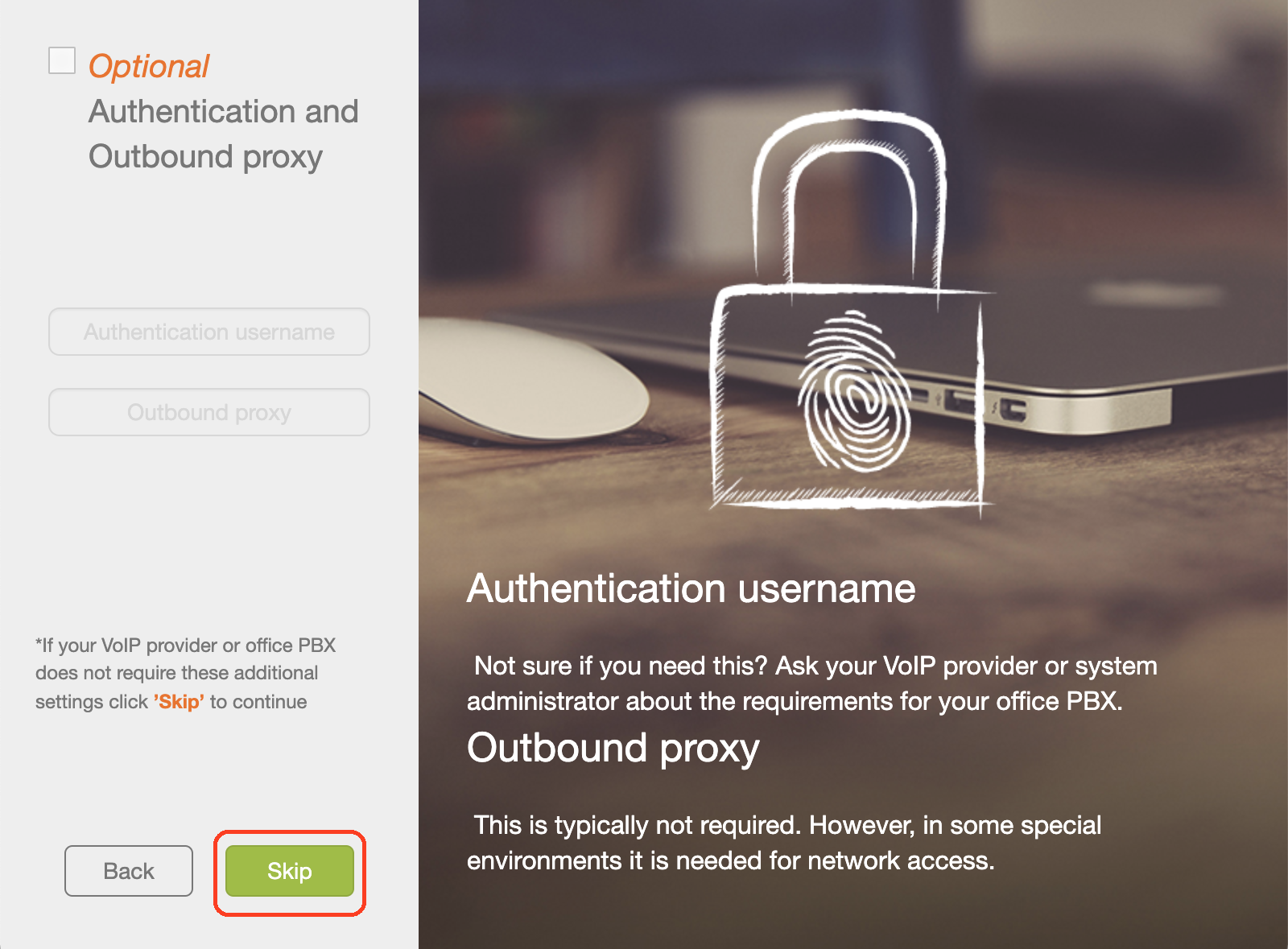
 Now click Skip:
-
Wait until Zoiper 5 finishes the configuration test. You need to choose the same transport as you have set up in Daktela domain, otherwise the Softphone will not work (see more information in SIP Devices). For TLS you need the premium version.
- Click Next. Now you can start using Zoiper 5.

How to Answer a Call
Incoming Call:
- Client starts calling you.
- You will receive a notification in Daktela.
- Answer the Call in Zoiper.
- Your Activity in Daktela will open.
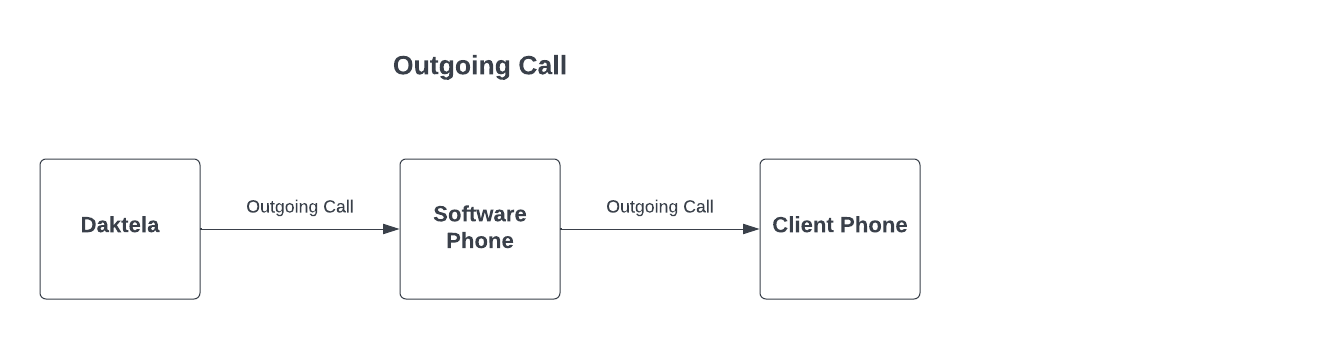
 Outgoing Call:
- Start a call in Daktela.
- You will receive a call in Zoiper. Accept it.
- Daktela will now call the number you have dialled from Daktela.
 Premium Version:
You need the premium versionof Zoiper 5 to use auto answer.
To set up auto answer:
Premium Version:
You need the premium versionof Zoiper 5 to use auto answer.
To set up auto answer:
- Go to Settings → Features → Calls:
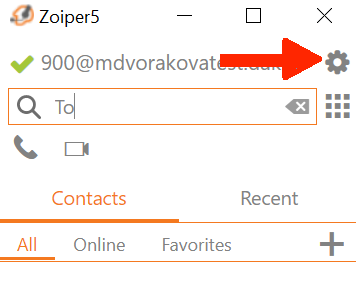 2. Check instant or delayed auto answer.
.