Get Started
To open your Daktela Cloud Phone, you need to sign into your Daktela domain (yourcomapany.daktela.com).
 For your initial login, you'll need to enable your microphone in your web browser. Click the ENABLE MICROPHONE IN BROWSER button to grant permission for Cloud Phone to use your microphone.
 Set up your audio and microphone, then click the Save button.
Your Cloud Phone will open.
Set up your audio and microphone, then click the Save button.
Your Cloud Phone will open.
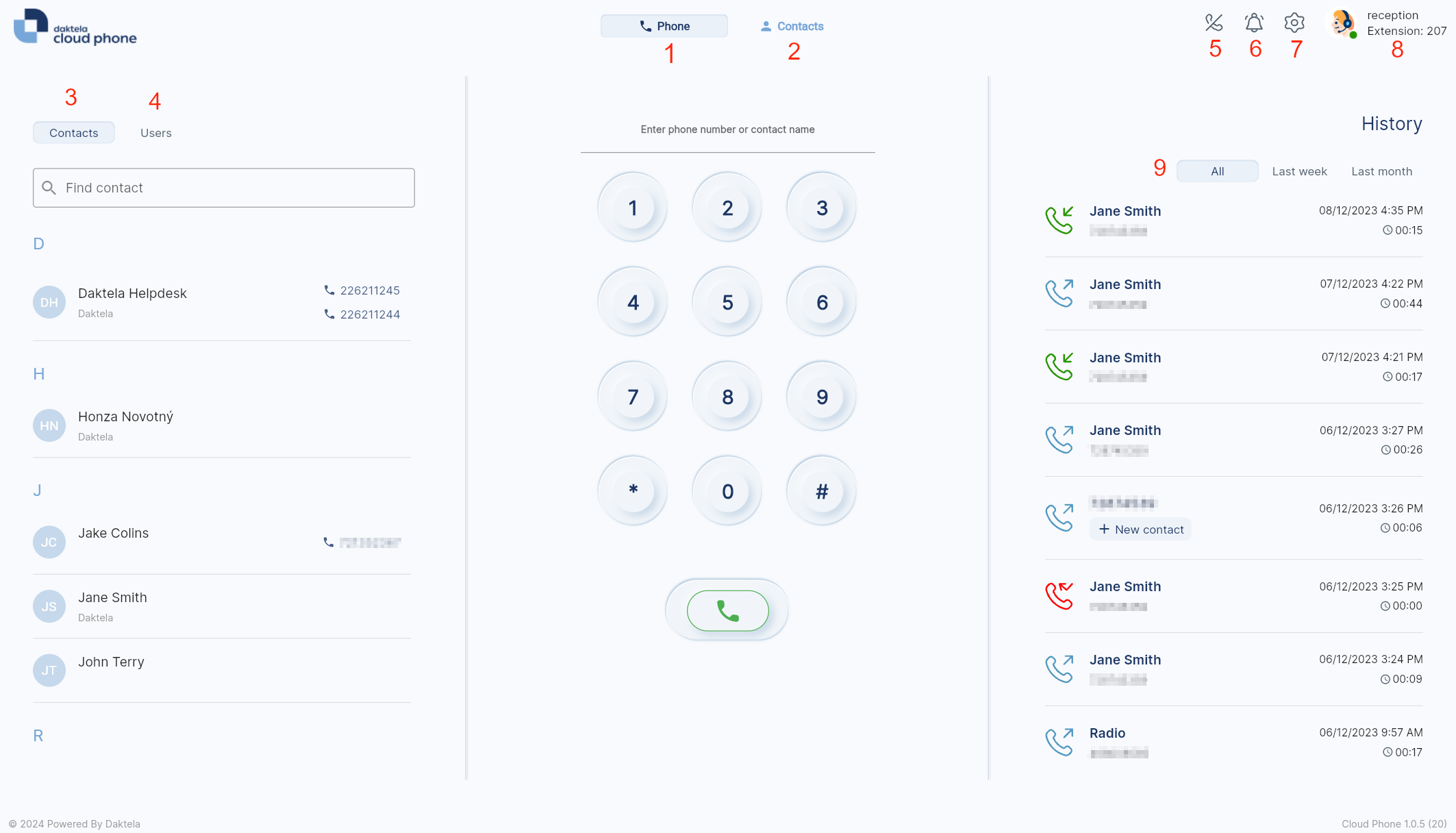
- Start typing the phone number to initiate a call.
- Open your contact tab. You can manage your contacts from this section.
- List of your Cloud Phone contacts.
-
List of Daktela users. Click the user and then click the green phone button to initiate a call. Cloude phone users state
-
Green dot – the user has an available device and is not on pause.
- Grey dot – the user is online but does not have an available device ( Only for CC users)
- User without dot – the user is unready or offline or is a Cloud Phone user without an active device.
- Phone Icon - the user is currently on a call.
- Badge with pause name - the user is currently on a pause.
- Click the button to activate Do Not Disturb mode (It will turn on the Do Not Disturb mode, and you will not be receiving calls):
 6. Click the button to activate Ringtone offmode (it will turn off your ringtone):
 7. Open the audio settings for your Cloud Phone.
8. Open your profile.
9. Call history for your Cloud Phone. If you have selected a contact, it will show contact history instead.
7. Open the audio settings for your Cloud Phone.
8. Open your profile.
9. Call history for your Cloud Phone. If you have selected a contact, it will show contact history instead.